
01Steps
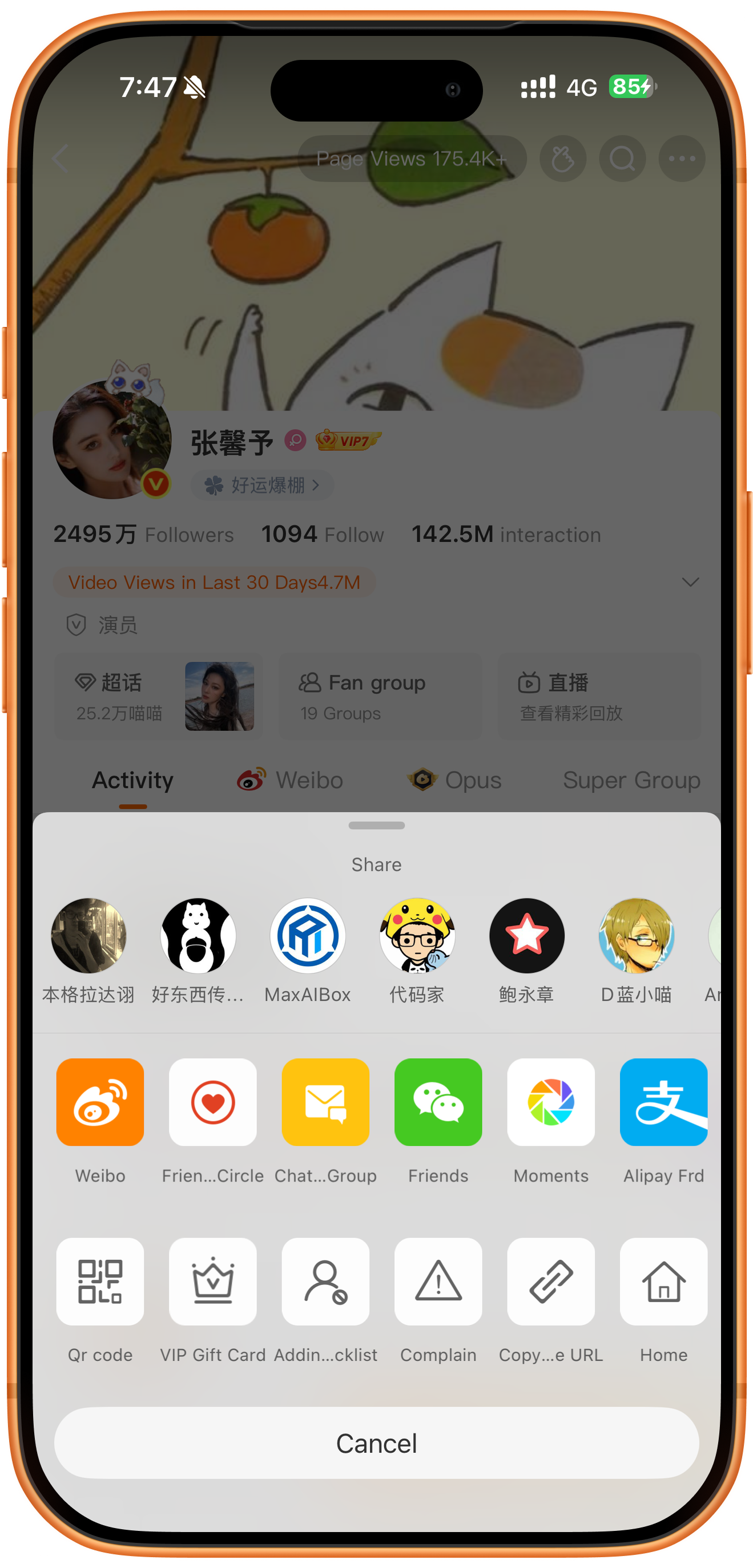
Copy the Weibo profile URL
Open the creator’s profile in Weibo and tap the three-dot menu at the upper right to open Share. Find the chain-link copy action in the bottom area, left of Home. Its English label is truncated to Copy…e URL in the screenshot. Copy the current profile link.
02Steps
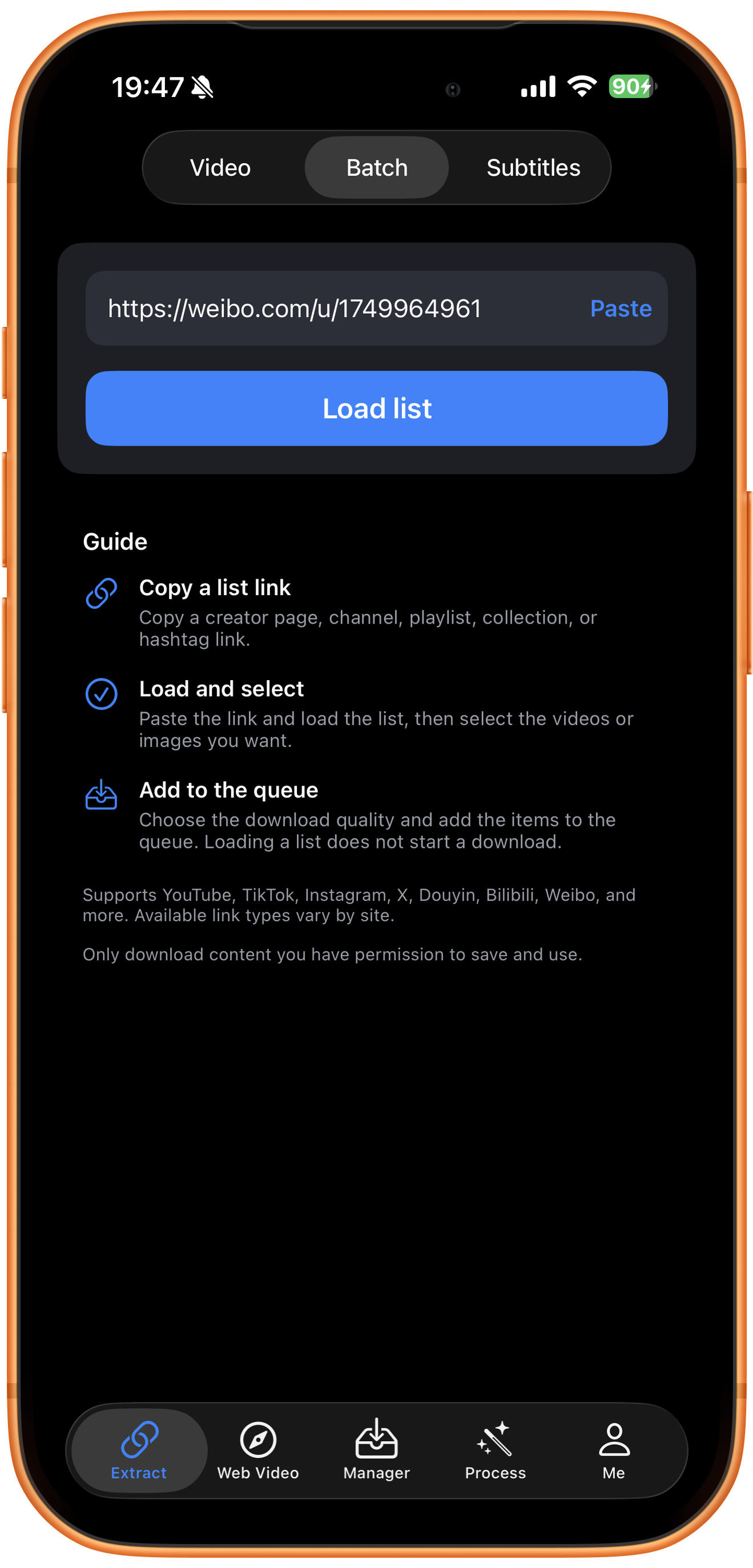
Paste the profile URL in Batch
Open Extract in ClipDock, switch to Batch, and tap Paste. Check the address. The example uses weibo.com/u/1749964961; use your intended creator’s profile.
03Steps
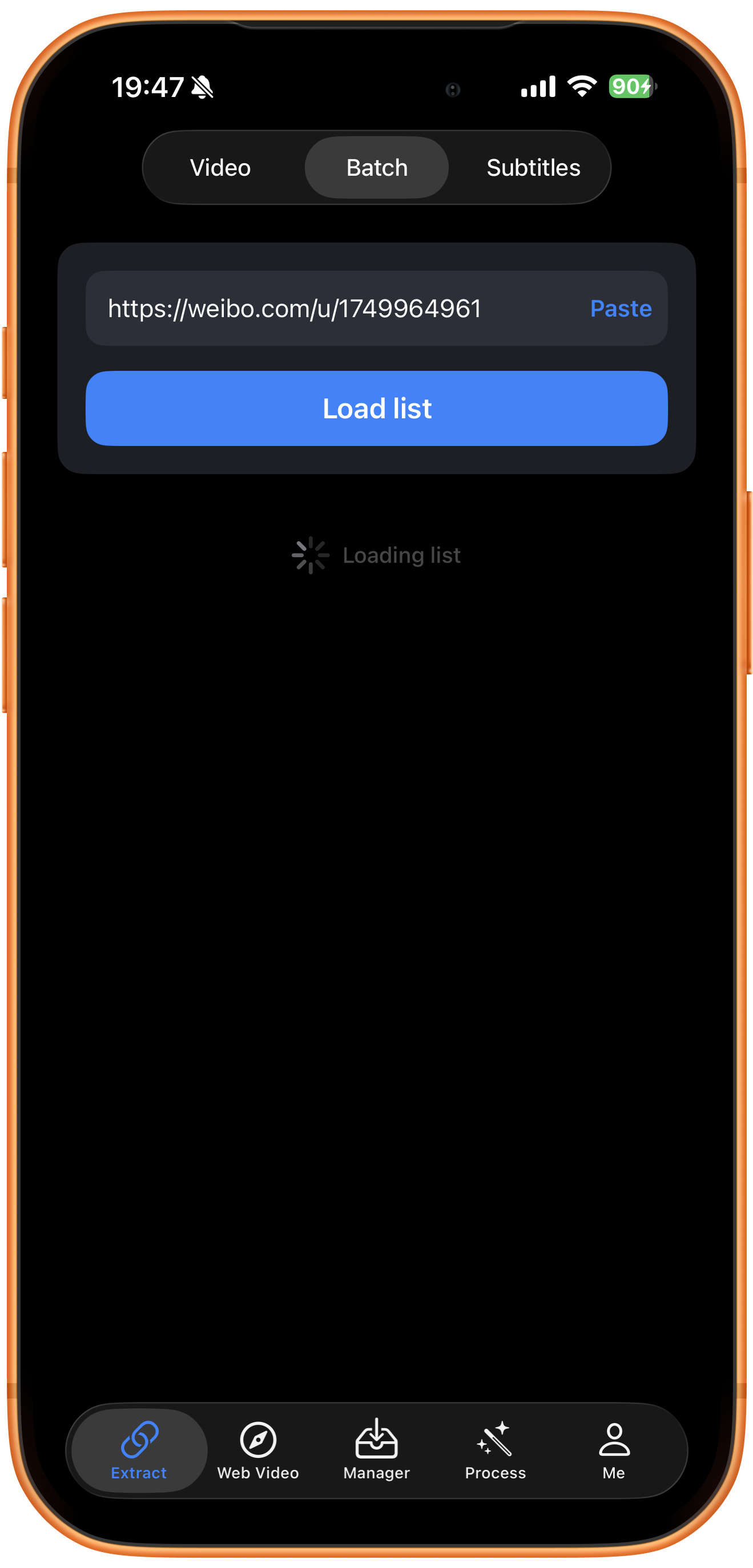
Load the list and wait for results
Tap Load list and wait for Loading list to finish. This only retrieves selectable resources; it does not start downloading. You still need to select items and tap Add to queue.
04Steps
Choose videos and load another page if needed
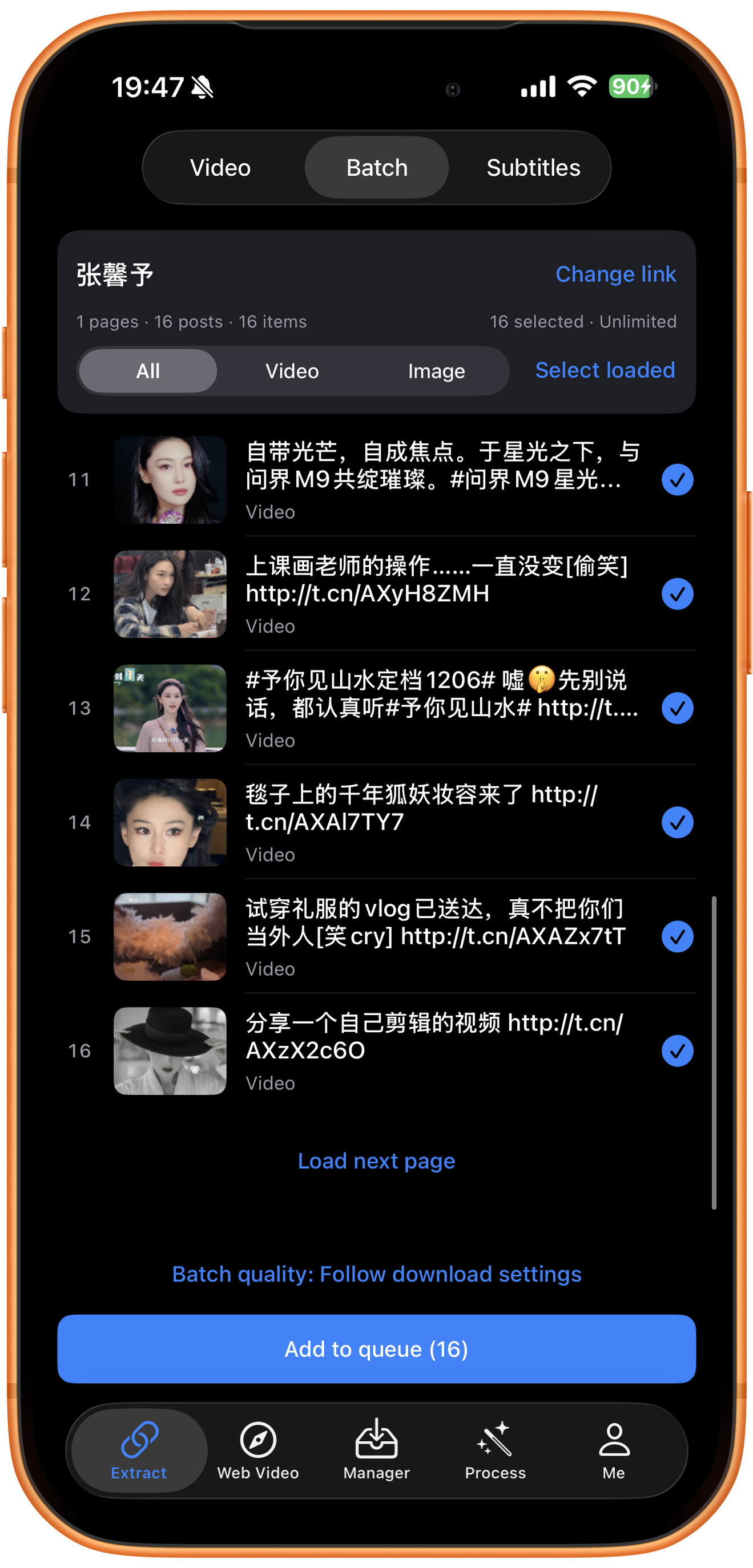
Confirm the creator’s name. The example shows 1 page, 16 posts, 16 items, and 16 selected. The screenshot is scrolled to items 11–16, with Load next page at the end.
Load next page
If the desired videos are not in the loaded list, tap Load next page and wait for additional items, then recheck the selection count. The screenshot shows only the first page and the next-page control, rather than the whole history.
Filter and select media
All shows every media type, Video filters videos, and Image filters images. Blue checkmarks show selected items. Adjust them as needed and check the total selection and Add to queue count before submitting, even when using the Video filter.
Set quality and add to queue
Batch quality is set to Follow download settings. Inspect the available options if you want to change it, then check the scope and tap Add to queue (16). The number is the current selection count; yours may differ.
Posts, items, and account limits
Posts counts posts and items counts media; both happen to be 16 here. Other profiles may differ. Unlimited is the illustrated account’s status, not a universal limit. Change link lets you switch creator.
05Steps
Inspect the download queue in Manager
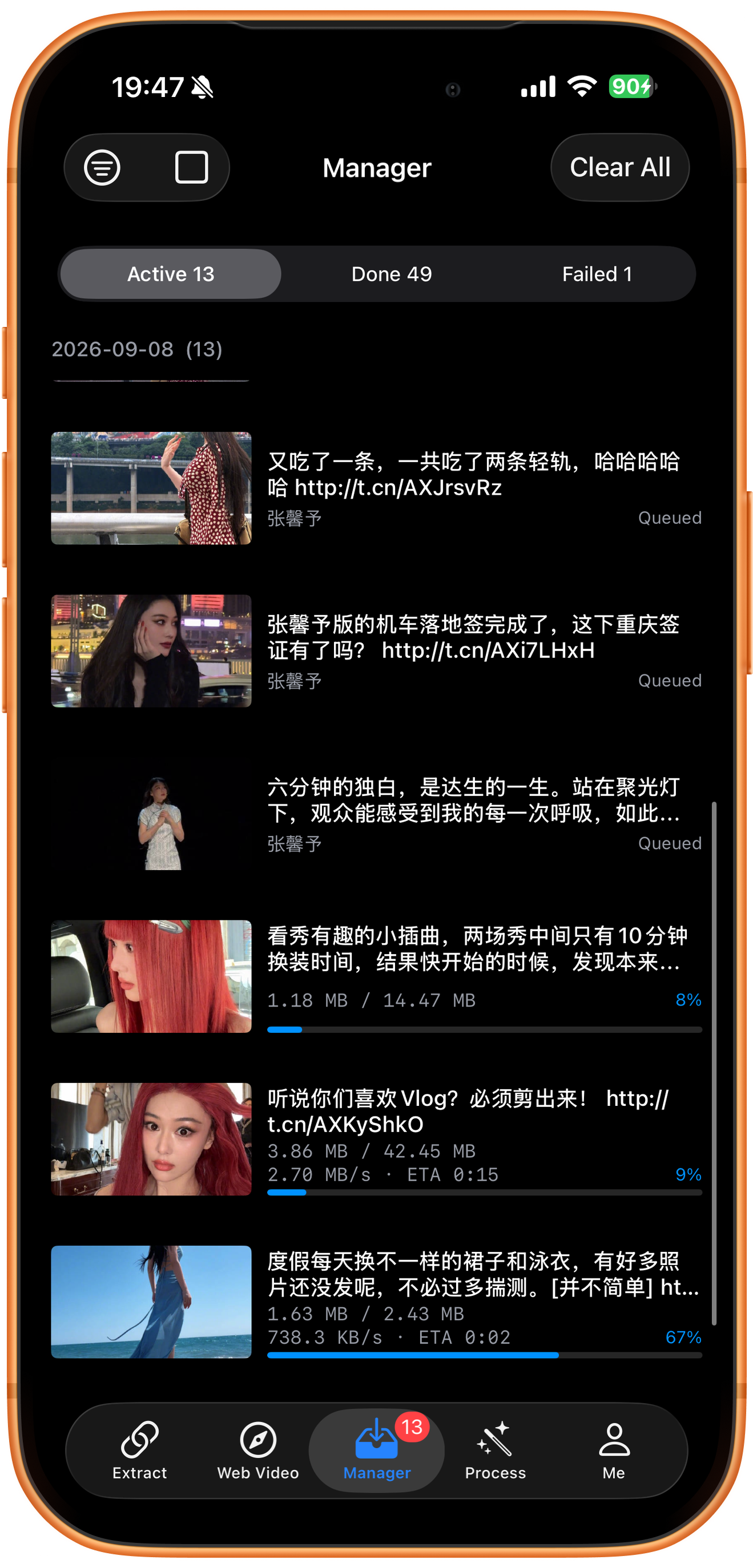
The screenshot shows Active 13, Done 49, and Failed 1. Some items are Queued, while others show progress, speed, and time remaining. These current manager totals do not establish the outcome of this 16-item batch.
Queued, downloading, and completed
Queued means a task is waiting; a progress bar means it is downloading. Open completed files in Done and check the picture and sound. Use Save to Photos for a system-library copy. These screenshots do not show every task completing or a successful Photos save.
Check failed tasks individually
Open Failed and read the specific task and error, then check its link and your connection. The screenshot does not expand the failure details, so Failed 1 alone does not establish a cause or whether it belongs to this batch.
Troubleshooting
Check each loaded batch
Select what you need and load another page only as needed. Check existing downloads before resubmitting. A returned list is not a complete historical backup.
Frequently asked questions
Why does the list contain only 16 items?
This example has loaded one page of 16 items, with Load next page available below. Load more if needed and inspect the results; availability depends on the source.
Does loading another page download it?
Loading and downloading are separate. Check the selected items and tap Add to queue to create tasks.
Can I download just some videos?
Adjust the checkmarks. Even after filtering to Video, confirm the total selected count and the queue button before submitting.
Supported platforms
Batch sources include supported YouTube channels, Shorts, hashtags, and playlists; Instagram profiles and hashtags; X and TikTok profiles; and supported profiles or collections on Douyin, Bilibili, Weibo, and other platforms. Check the resources actually returned for your link.
Try it on your device
ClipDock is free to download, with in-app purchases. Features and available options depend on the current app version.
Download on the App Store