









Choose the Douyin source you intend to save
One work or a creator’s profile?
If you only need one work, copy that work’s share link and use Extract → Video. Use Extract → Batch for a creator’s profile. Do not assume that a link copied while watching a video points to its author’s full profile.
Douyin and TikTok links are not interchangeable
Copy the original address from Douyin’s own share menu. Changing the hostname of a TikTok link does not identify the corresponding Douyin creator. After loading, check the source name and the actual returned list; the TikTok account and counts in the control illustrations are not Douyin results.
The returned list defines this batch
The free version can load the first two pages; additional pages require VIP. Even with more pages available, a loaded list is not a guarantee of all historical works. Start with a small selection you can recognize and check the result before submitting a larger set.
Keep the source file when further editing is needed
After downloading and checking a file, you can convert its format or resolution for the next app. A successful download and a successful save to Photos are separate checks.
01
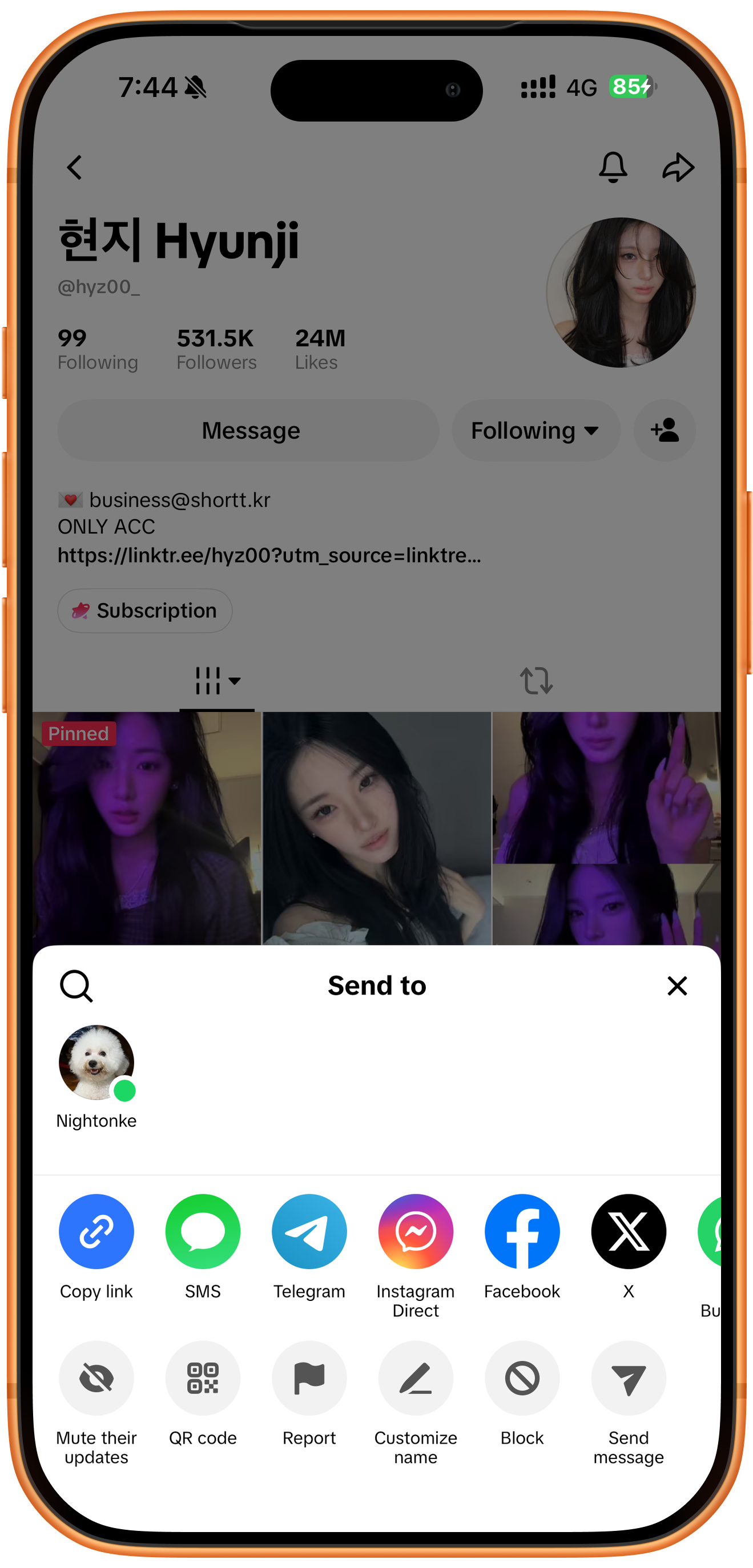
Copy a link from the Douyin creator’s profile
Open the intended creator’s profile in Douyin and use its sharing menu to copy the link. If you arrived from a video, open the author’s profile before sharing. Keep the original copied address instead of constructing a URL from a display name.
02
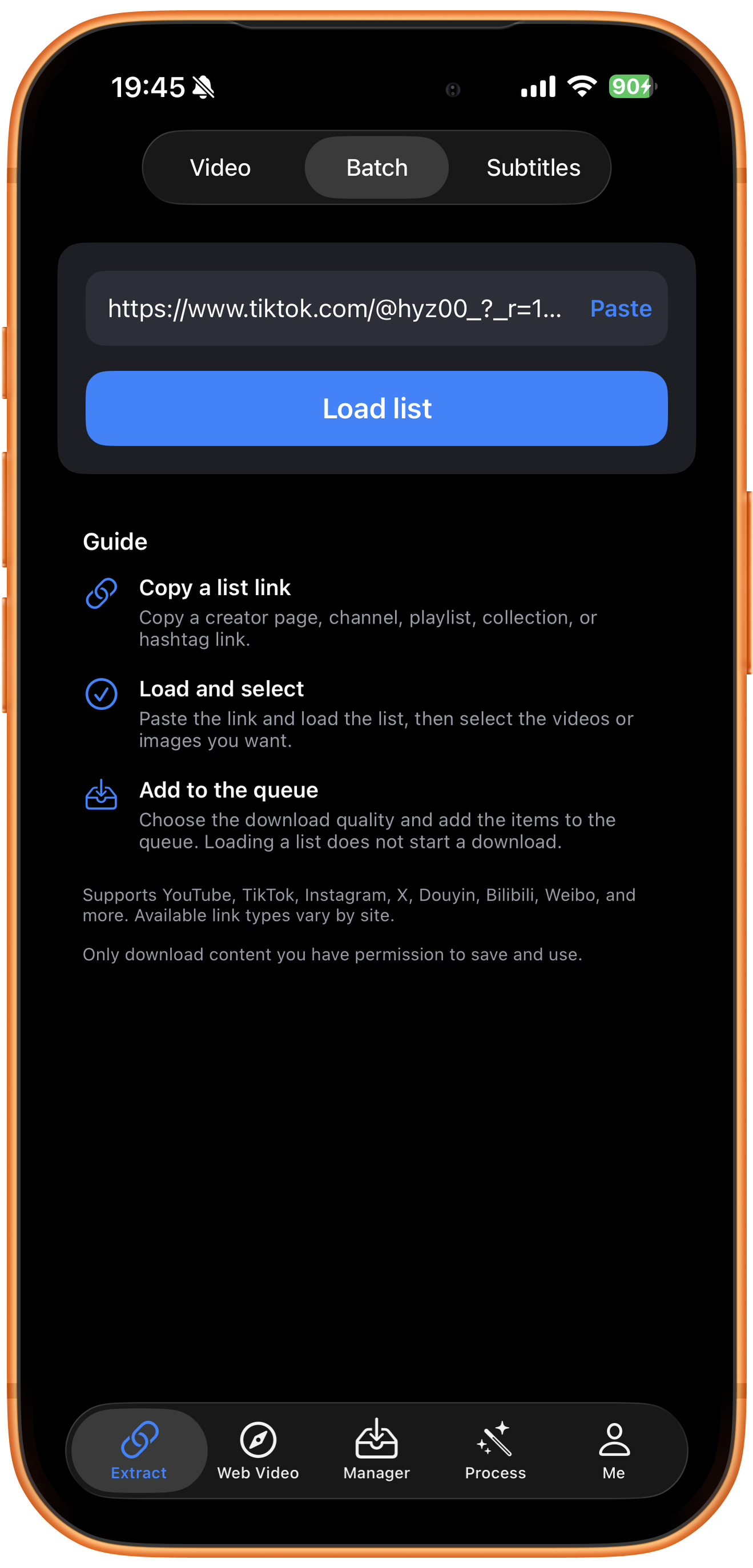
Use the profile as the Batch input
In ClipDock, open Extract → Batch, tap Paste, and inspect the pasted address. If the source is an individual work, return to Douyin and copy from the profile, or use the single-video guide for that work.
03
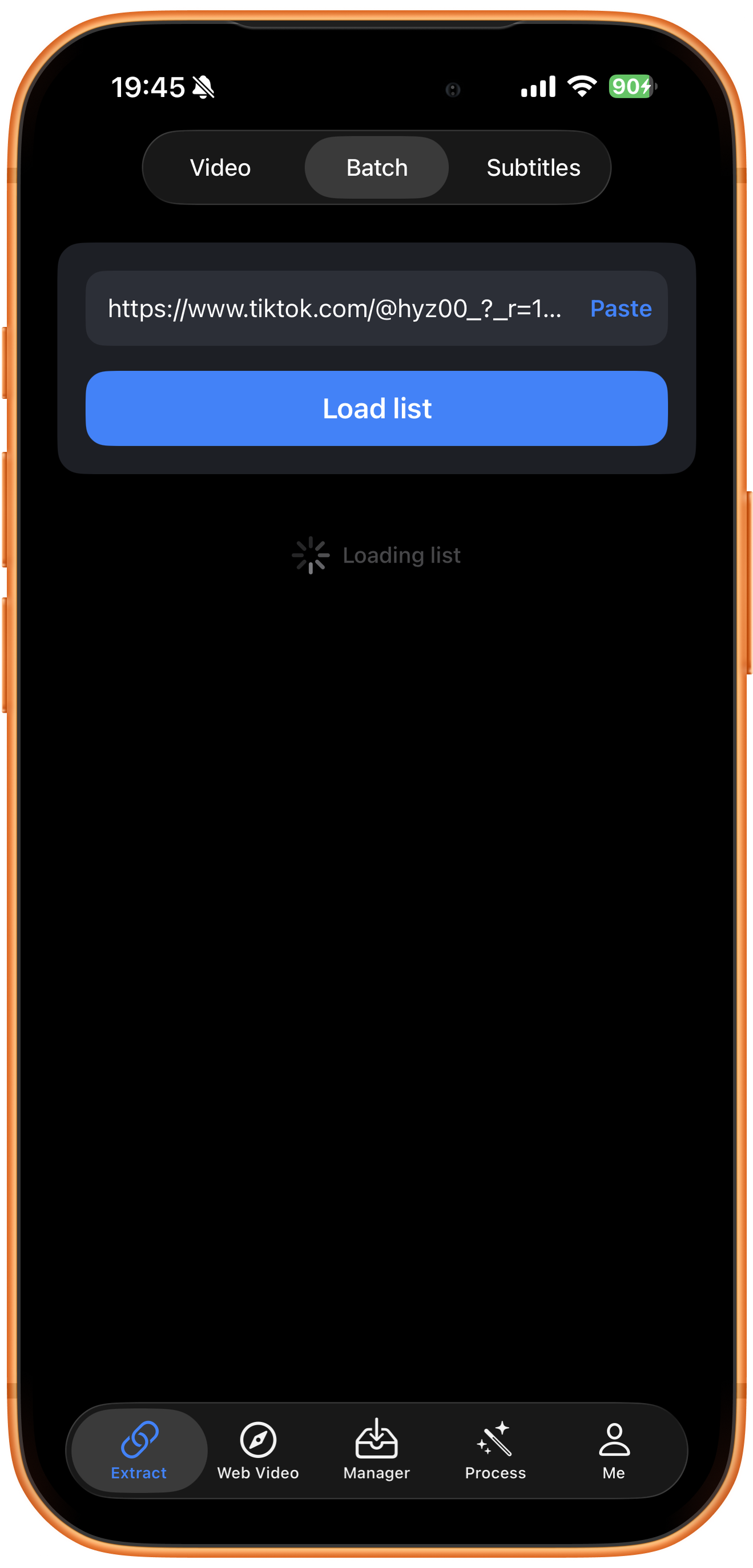
Load and confirm the source
Tap Load list. When loading finishes, read the source name and inspect the returned thumbnails. If they do not match the intended creator, use Change link before selecting anything. Loading alone does not submit a download.
04
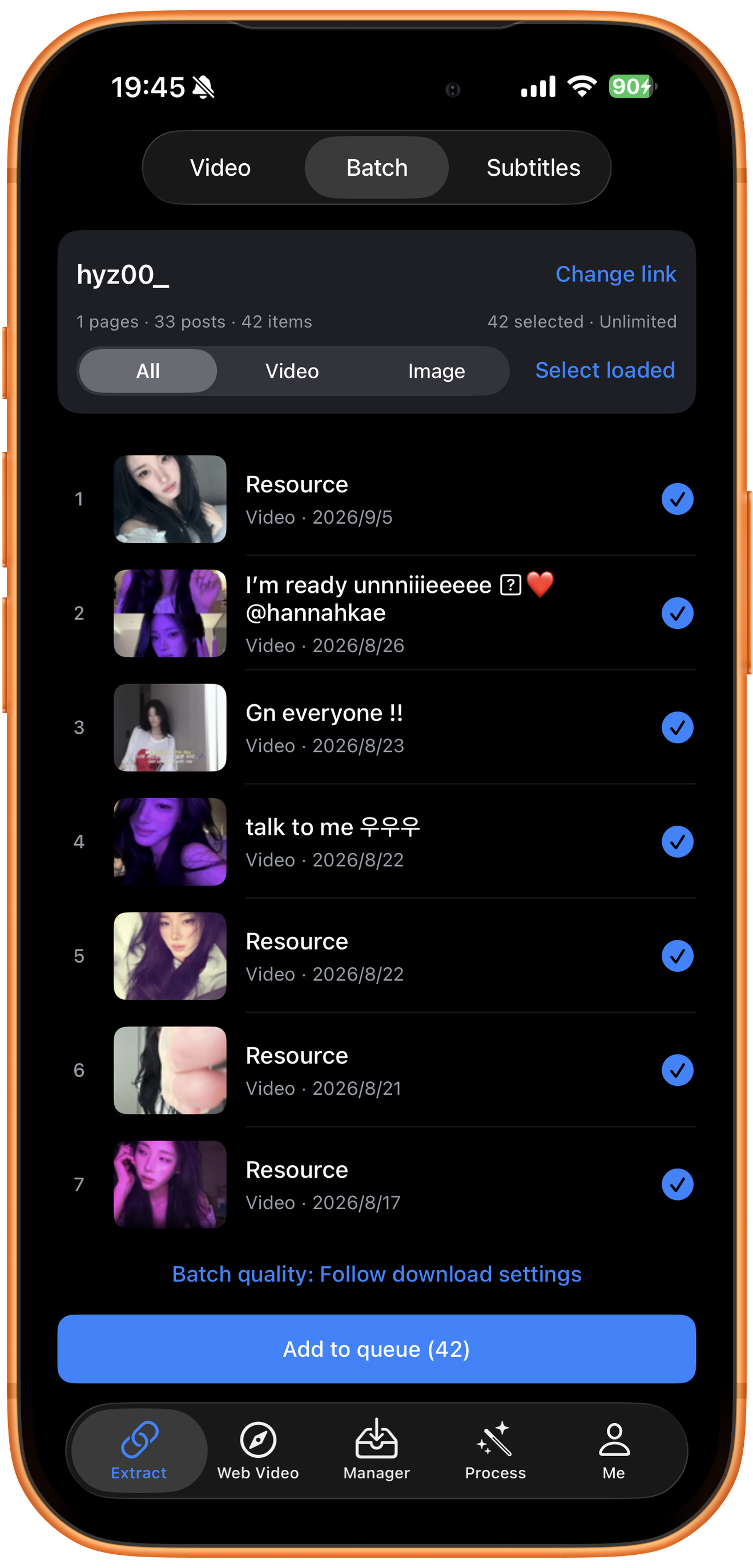
Select the Douyin media you can identify
Start with a few recognizable works from the returned list. Choose the required media type and inspect the selected total before using Add to queue. Use the numbers in your own result, not the TikTok example shown beside these shared controls.
A work may contain more than one file
Posts counts works, while items counts media files. A photo-based work can contribute multiple items. Check whether you want its images, a video, or both rather than treating every selected item as one video.
Select loaded has a limited scope
The command selects resources already returned in this session. It does not promise to select every work on the Douyin profile. Compare loaded pages with the account limit before deciding whether to continue.
Quality comes from the returned resource
Check Batch quality and your download settings before submission. Choose from the options actually offered for your links; the settings shown in another platform’s screenshot do not guarantee a Douyin resolution or format.
Confirm this selection before adding it
Read the count on Add to queue and check your available downloads. A smaller first batch makes it easier to identify incorrect sources or unsupported files before adding more works.
05
Verify files before submitting the profile again
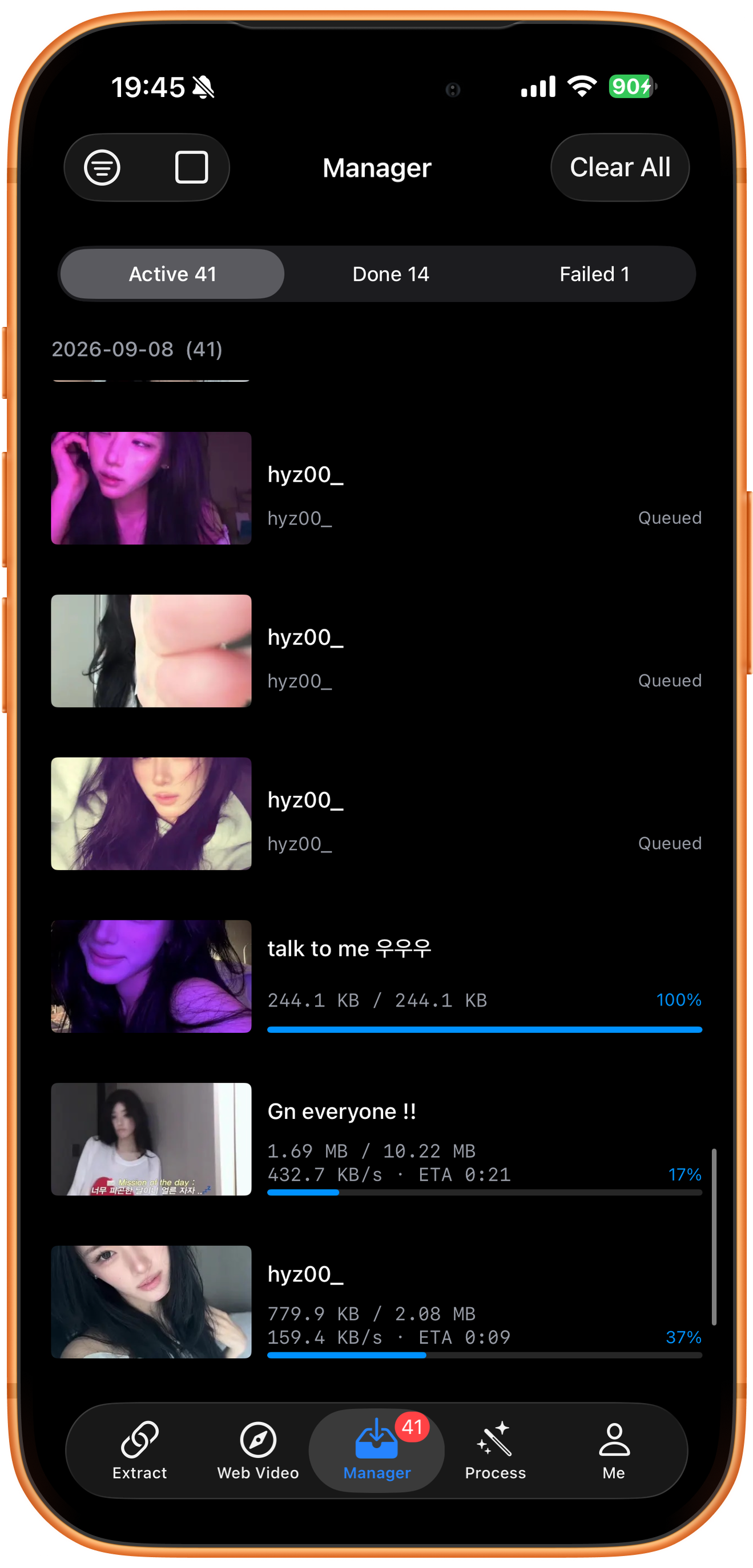
In Manager, locate the tasks from this selection. Waiting or active tasks are still in progress. Open completed files to check that they belong to the intended Douyin creator.
Download completion is not Photos confirmation
Preview a completed file’s picture and sound. If it was not automatically saved, use Save to Photos and check the copy there. A queue count or thumbnail alone does not confirm a usable saved file.
Investigate a failed work on its own
Read that task’s error and check whether the source work still opens in Douyin. Review the link and connection before retrying. Avoid re-adding the whole creator profile just to retry one failed work.
Troubleshooting
The source name or returned works look wrong
Stop before adding the queue. Reopen the intended creator in Douyin, copy the profile’s share link, and use Change link. If the expected work still does not appear, try its individual video link when available instead of assuming the profile list is a complete archive.
Frequently asked questions
Can I use a TikTok profile link for the same creator?
Use the link copied from Douyin. The two platforms have separate addresses and returned resources; a similar creator name does not make a TikTok link a Douyin input.
Why did the loaded list omit a work?
Check the source, loaded page count, account limit and whether the work is accessible. The returned list can be incomplete. A missing item does not establish that the download queue failed, because the item may never have been added.
Do the illustrations show a completed Douyin batch?
No. They show the shared controls using a TikTok example. Check the source name, media list and completed files from your own Douyin link; the pictured account, counts and queue are not Douyin output.
Supported platforms
Batch sources include supported YouTube channels, Shorts, hashtags, and playlists; Instagram profiles and hashtags; X and TikTok profiles; and supported profiles or collections on Douyin, Bilibili, Weibo, and other platforms. Check the resources actually returned for your link.
Try it on your device
ClipDock is free to download, with in-app purchases. Features and available options depend on the current app version.
Download on the App Store