
01Steps
Copy the creator’s profile link
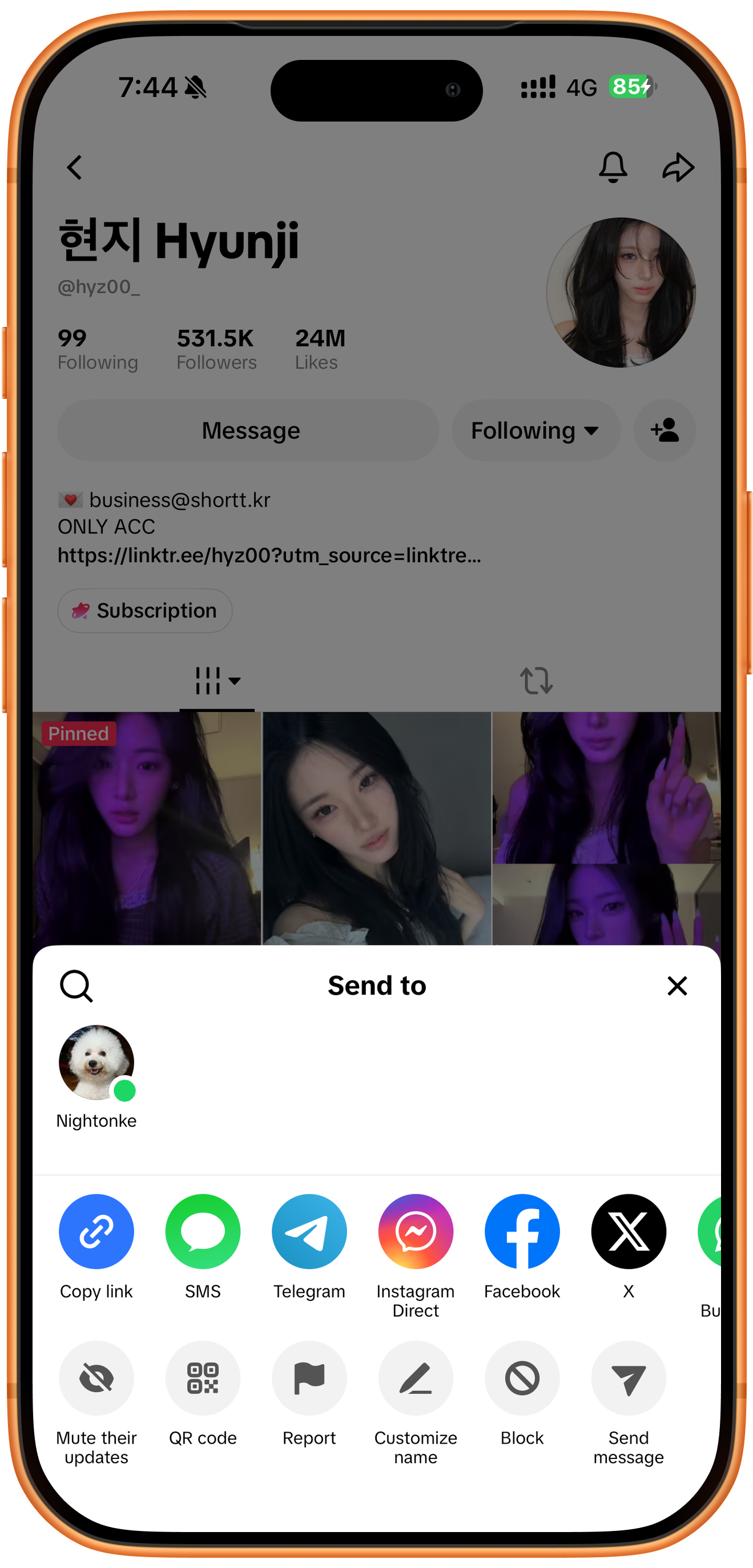
Open the creator’s profile in TikTok, tap the share arrow at the upper right, and choose Copy link in Send to. Copy the profile address, rather than a single-video link.
02Steps
Paste the profile URL in Batch
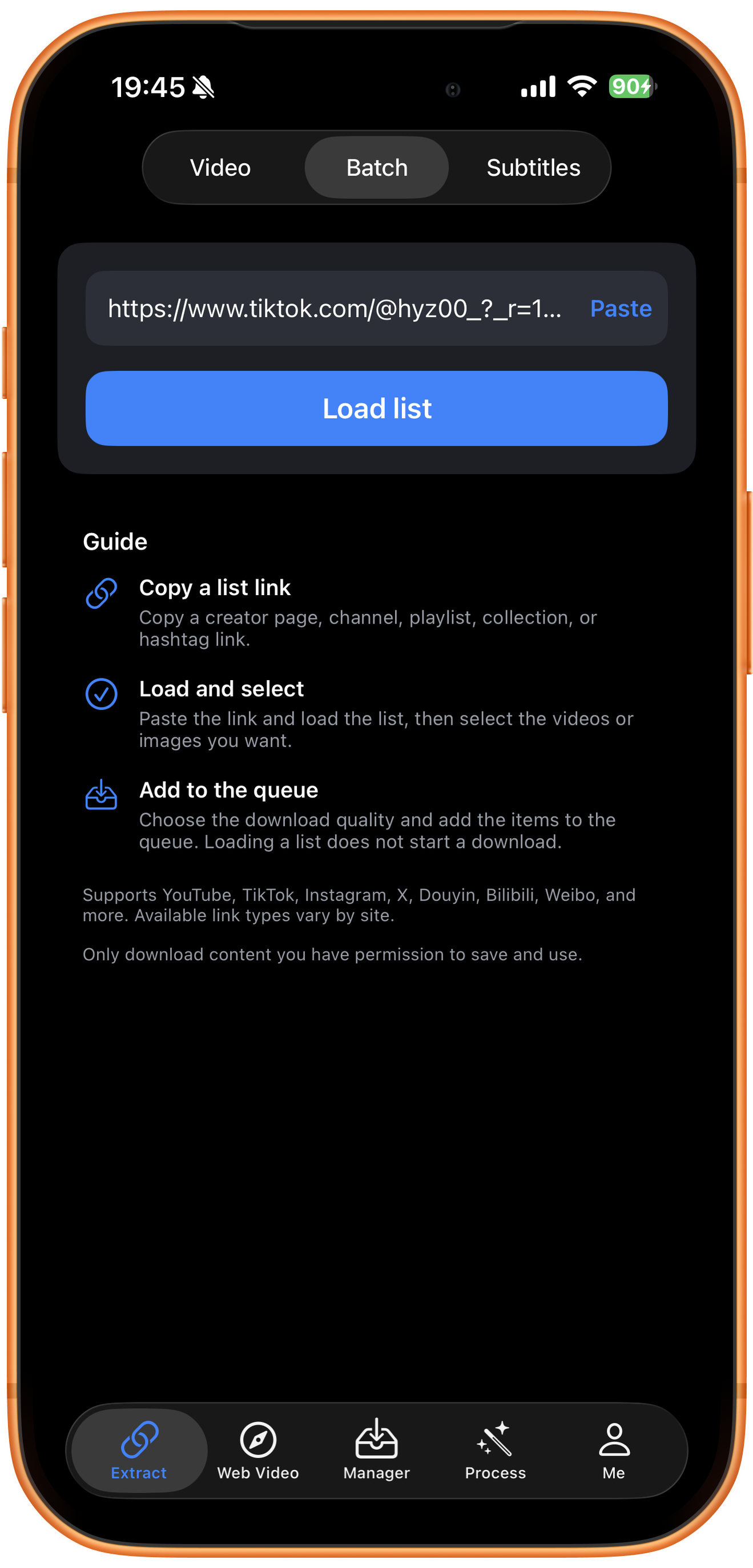
Open Extract in ClipDock, select Batch, and tap Paste. The example shows tiktok.com/@hyz00_. Check the creator before loading.
03Steps
Load the list and wait for results
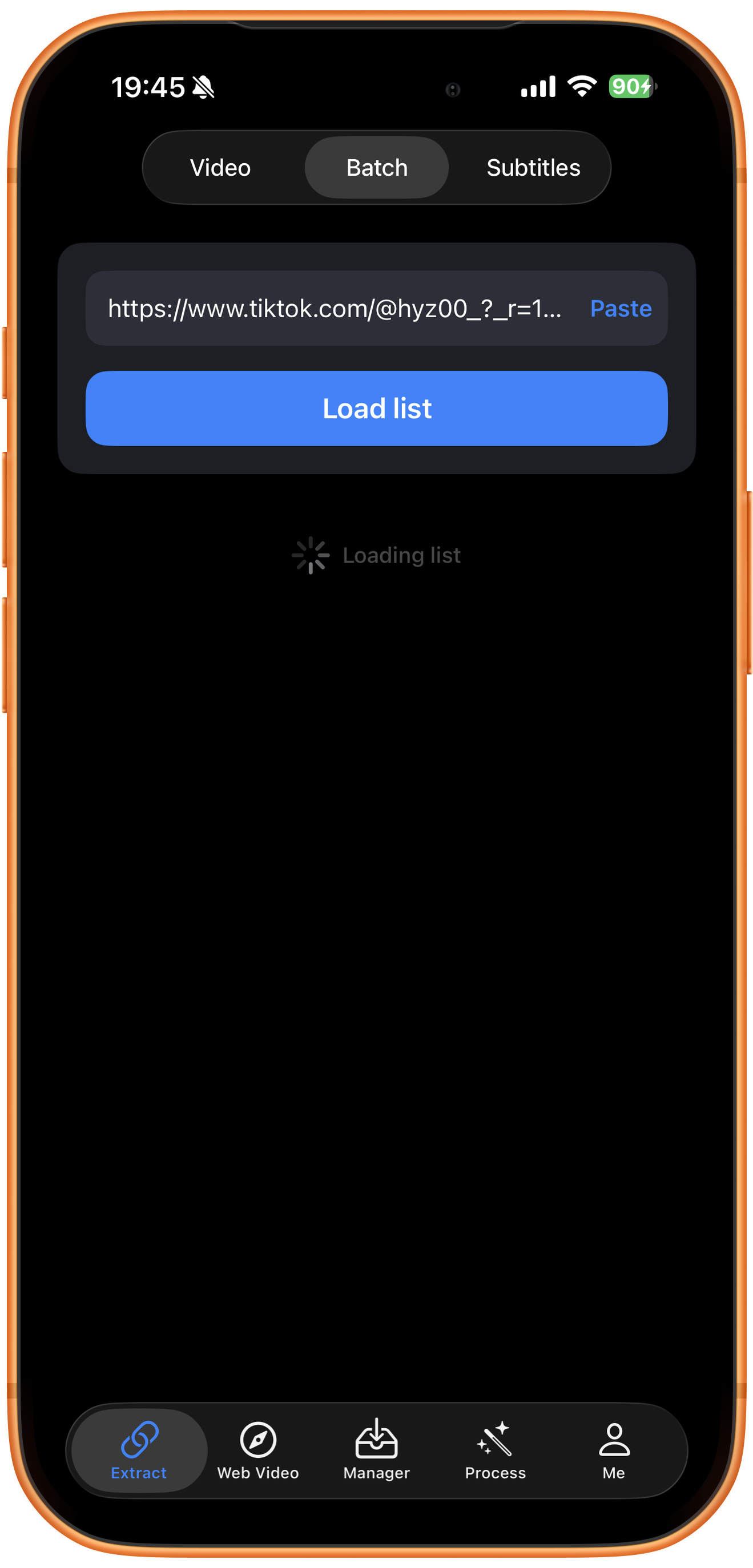
Tap Load list and wait for Loading list to finish. This only retrieves selectable resources; it does not start downloading. You still need to select items and tap Add to queue.
04Steps
Choose resources and quality, then add to queue
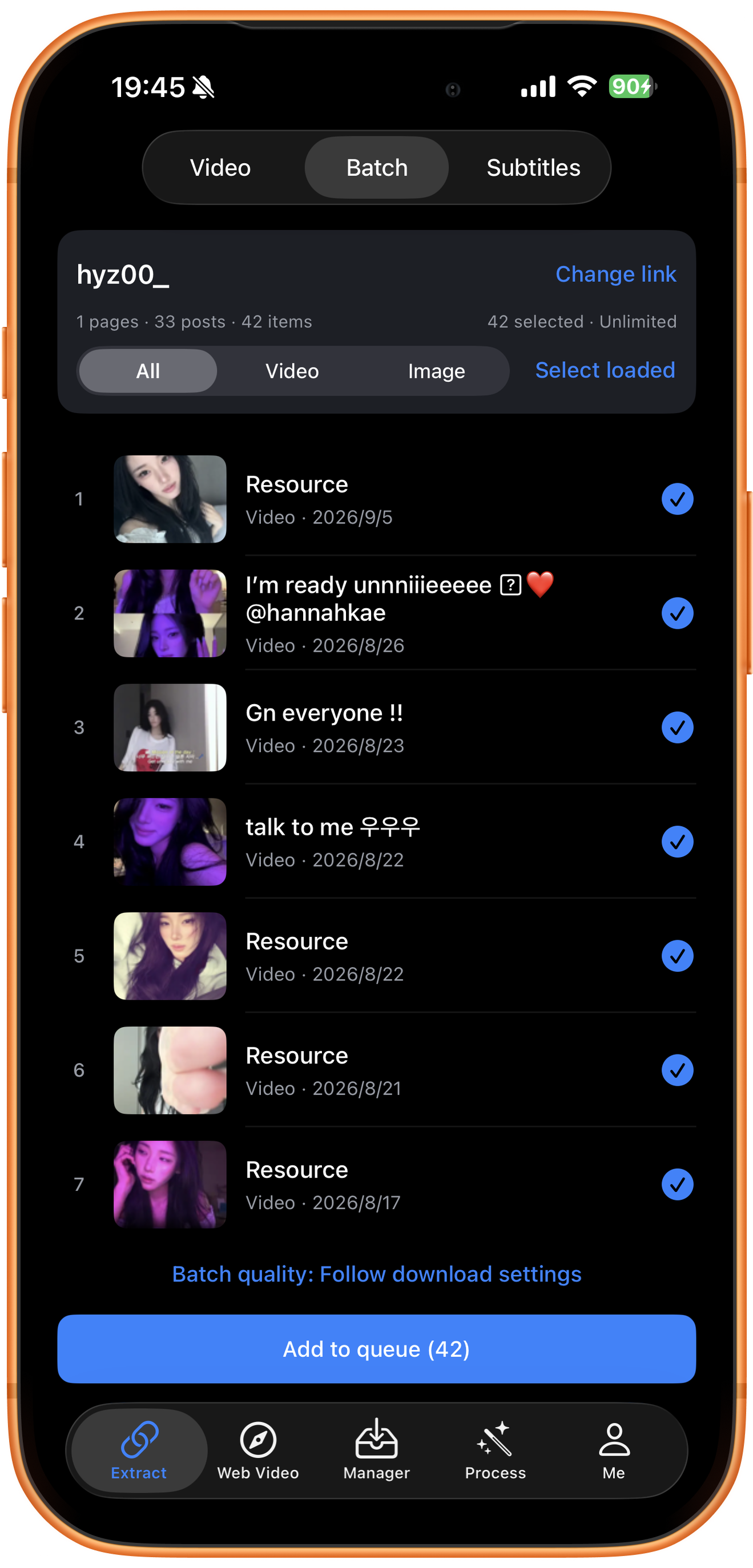
Check the creator’s name. The example shows 1 page, 33 posts, 42 items, and 42 selected. Review the items, then tap Add to queue. Its parentheses show the selected quantity.
Filter and select media
All shows every media type, Video filters videos, and Image filters images. Blue checkmarks show selected items. Adjust them as needed and check the total selection and Add to queue count before submitting, even when using the Video filter.
Select loaded and the loaded range
Select loaded selects items already loaded. Posts and items are different counts because one post can contain several media items. The current list is not necessarily the creator’s entire history. Use Change link to switch to another creator.
Batch quality
Follow download settings uses the quality preference in your download settings. Tap Batch quality to inspect the options available in your current version, then confirm before adding tasks.
Check counts and account limits
The selected count and Unlimited label are the state shown for this example, rather than a promise that every account or profile has the same limits. Check your own screen before submitting.
05Steps
Check download progress and failures
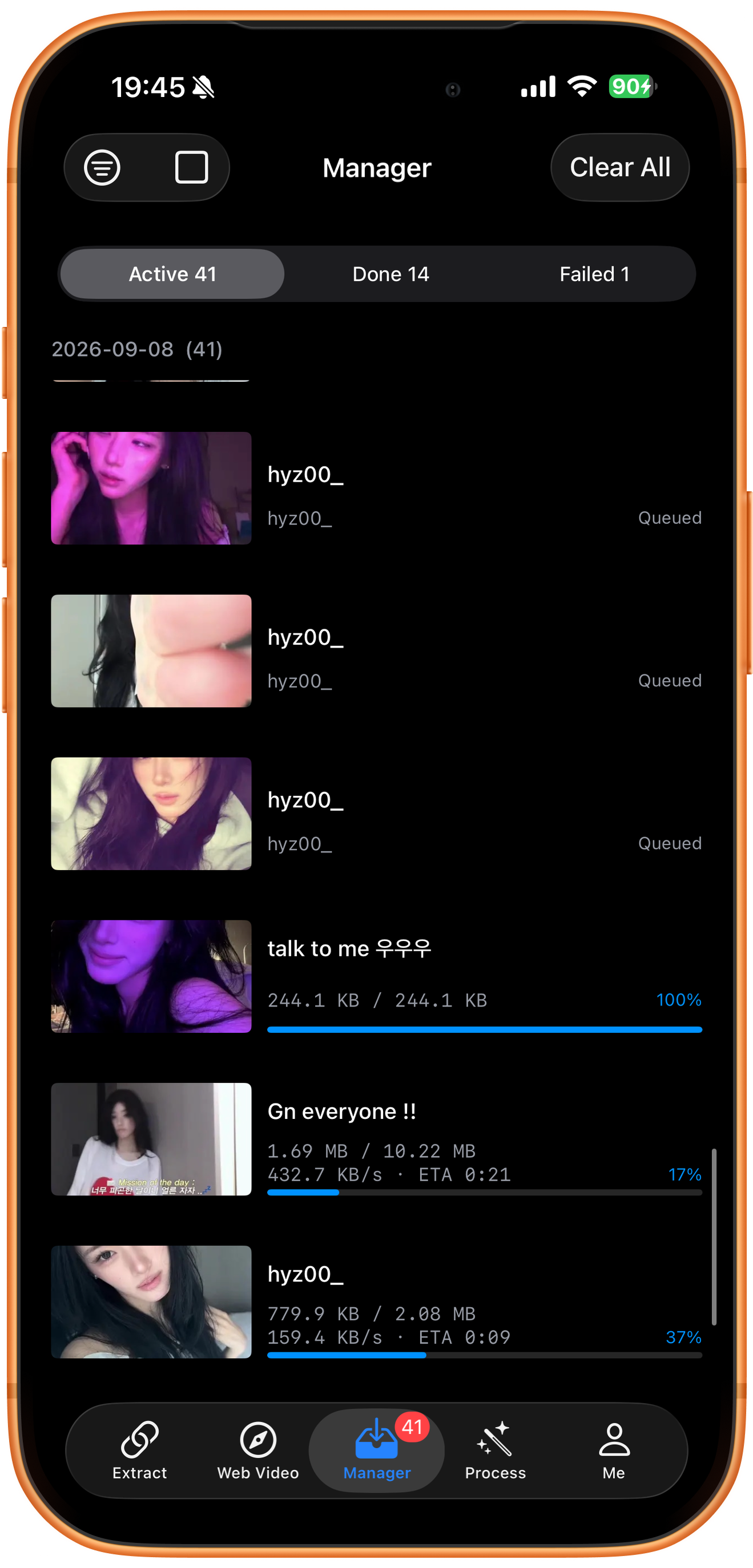
Open Manager. The screenshot shows Active 41, Done 14, and Failed 1, with both queued and downloading items. These are the manager’s current totals and cannot be treated as the completion results of this 42-item batch.
Queued, downloading, and completed
Queued means a task is waiting; a progress bar means it is downloading. Open completed files in Done and check the picture and sound. Use Save to Photos for a system-library copy. These screenshots do not show every task completing or a successful Photos save.
Check failed tasks individually
Open Failed and read the specific task and error, then check its link and your connection. The screenshot does not expand the failure details, so Failed 1 alone does not establish a cause or whether it belongs to this batch.
Troubleshooting
Choose the posts you actually need
A profile batch suits several posts from one creator. A single-video link is easier to verify for one item. Before submitting the profile again, check what has already downloaded to avoid duplicates.
Frequently asked questions
Does loading a profile start downloading?
No. Select resources, check quality and count, then tap Add to queue.
Will every post on the profile appear?
Not necessarily. Use the resources actually returned; do not treat the list as a complete backup of all historical or restricted content.
Why are some items simply called Resource?
That is the name returned in this example. Use the thumbnail, media type, and date to check the item, then preview the download. A generic title alone does not identify its content.
Supported platforms
Batch sources include supported YouTube channels, Shorts, hashtags, and playlists; Instagram profiles and hashtags; X and TikTok profiles; and supported profiles or collections on Douyin, Bilibili, Weibo, and other platforms. Check the resources actually returned for your link.
Try it on your device
ClipDock is free to download, with in-app purchases. Features and available options depend on the current app version.
Download on the App Store