
01
Copy the YouTube channel link
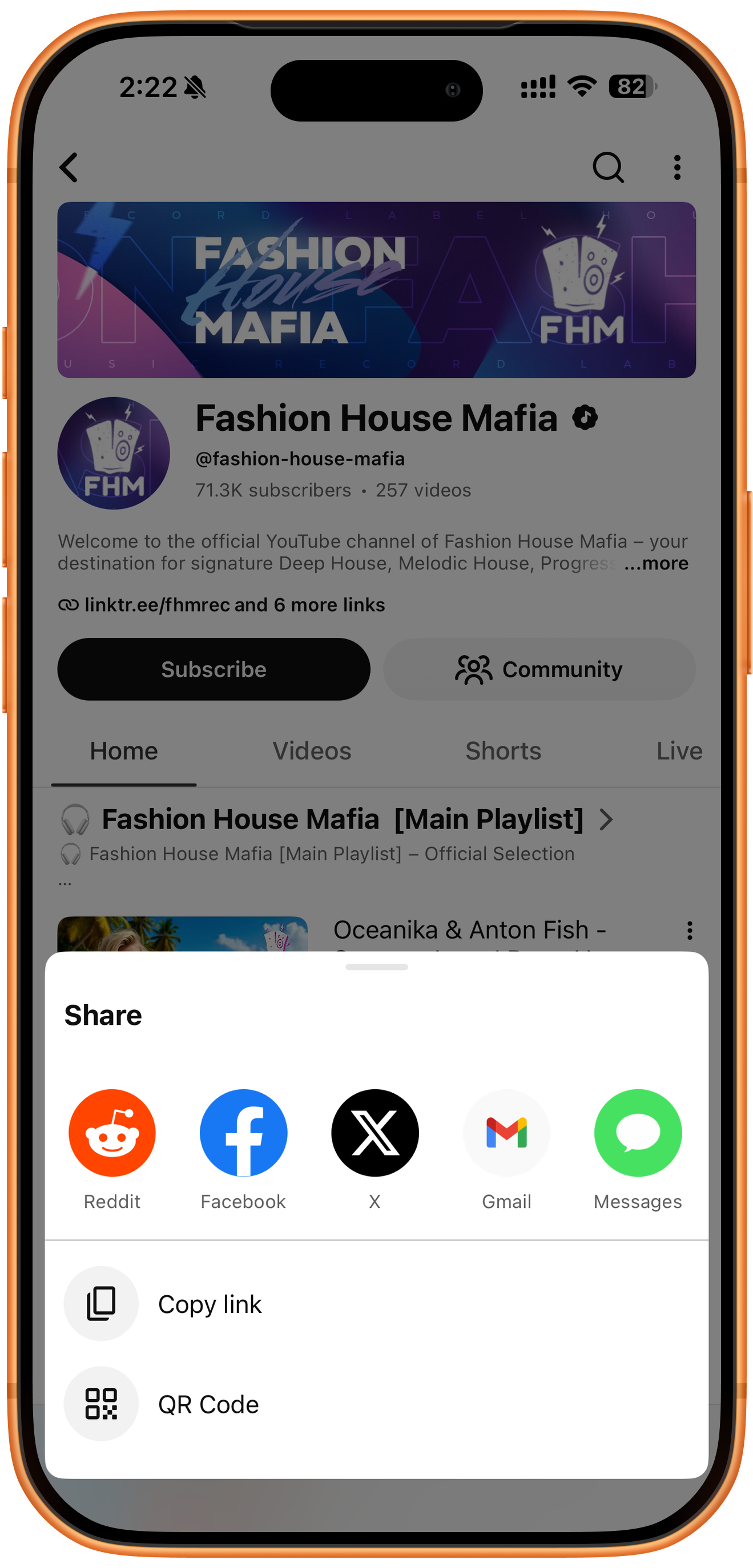
Open the YouTube channel you want to download and use its Share action. In the share sheet, tap Copy link. The example channel is @fashion-house-mafia. Confirm that you copied the channel address, rather than a video or playlist URL.
02
Paste the channel link in Batch
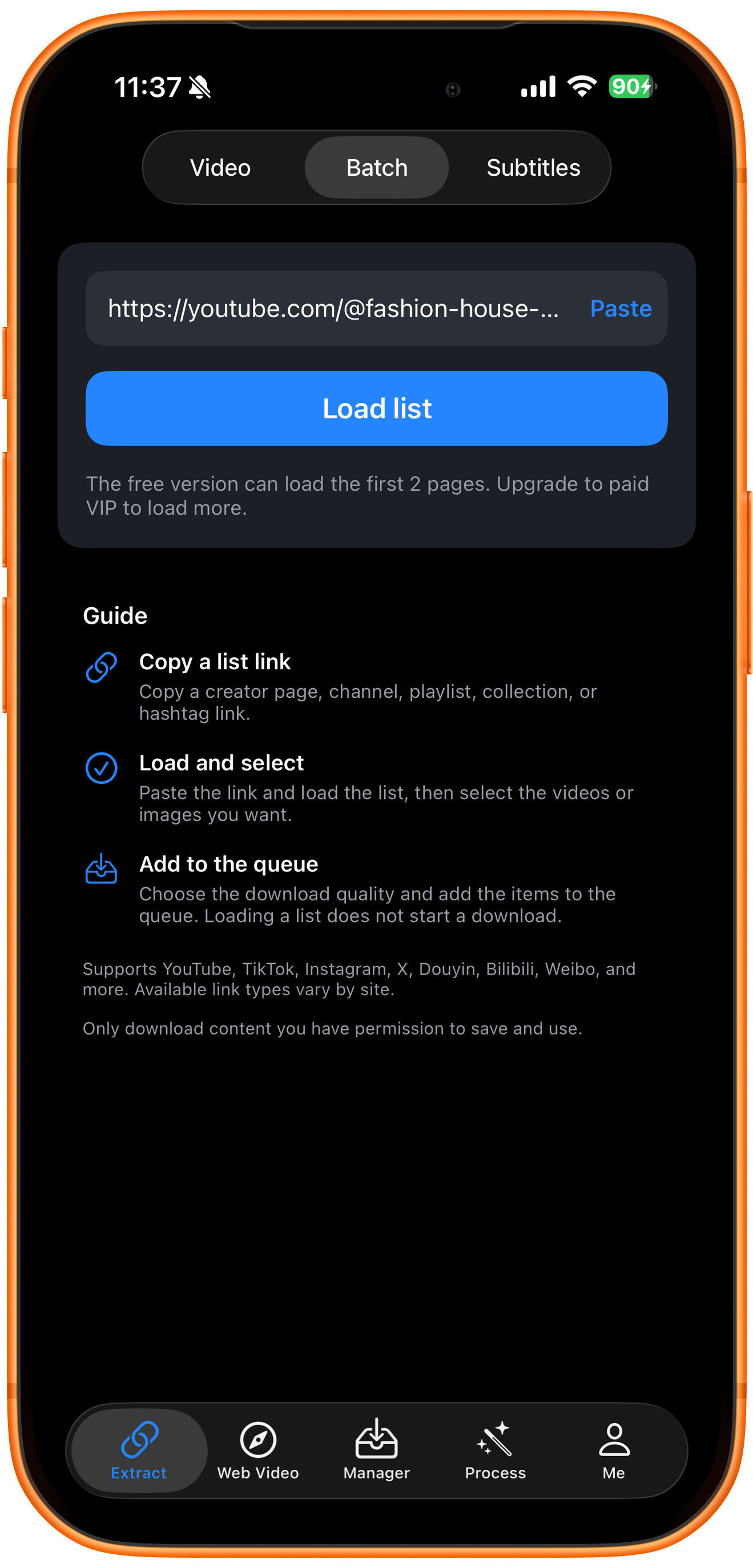
Open Extract in ClipDock, switch to Batch, and tap Paste to enter the channel link. The free version can load the first 2 pages; paid VIP is required to load more. Check the limit shown in your app.
03
Load the channel list and wait for results
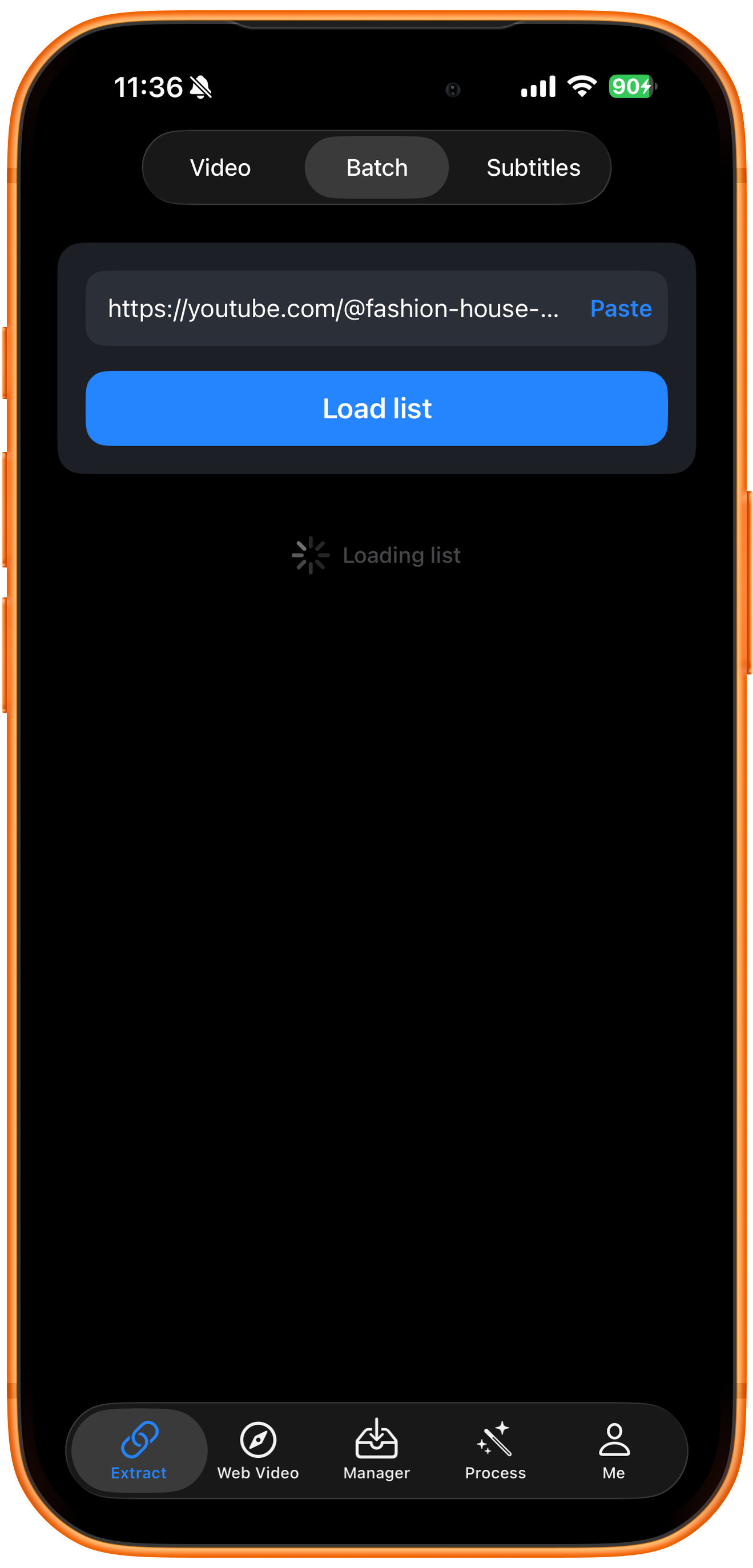
Tap Load list and wait for Loading list to finish. This only retrieves selectable resources; it does not start downloading. You still need to select items and tap Add to queue.
04
Select videos and add them to the queue
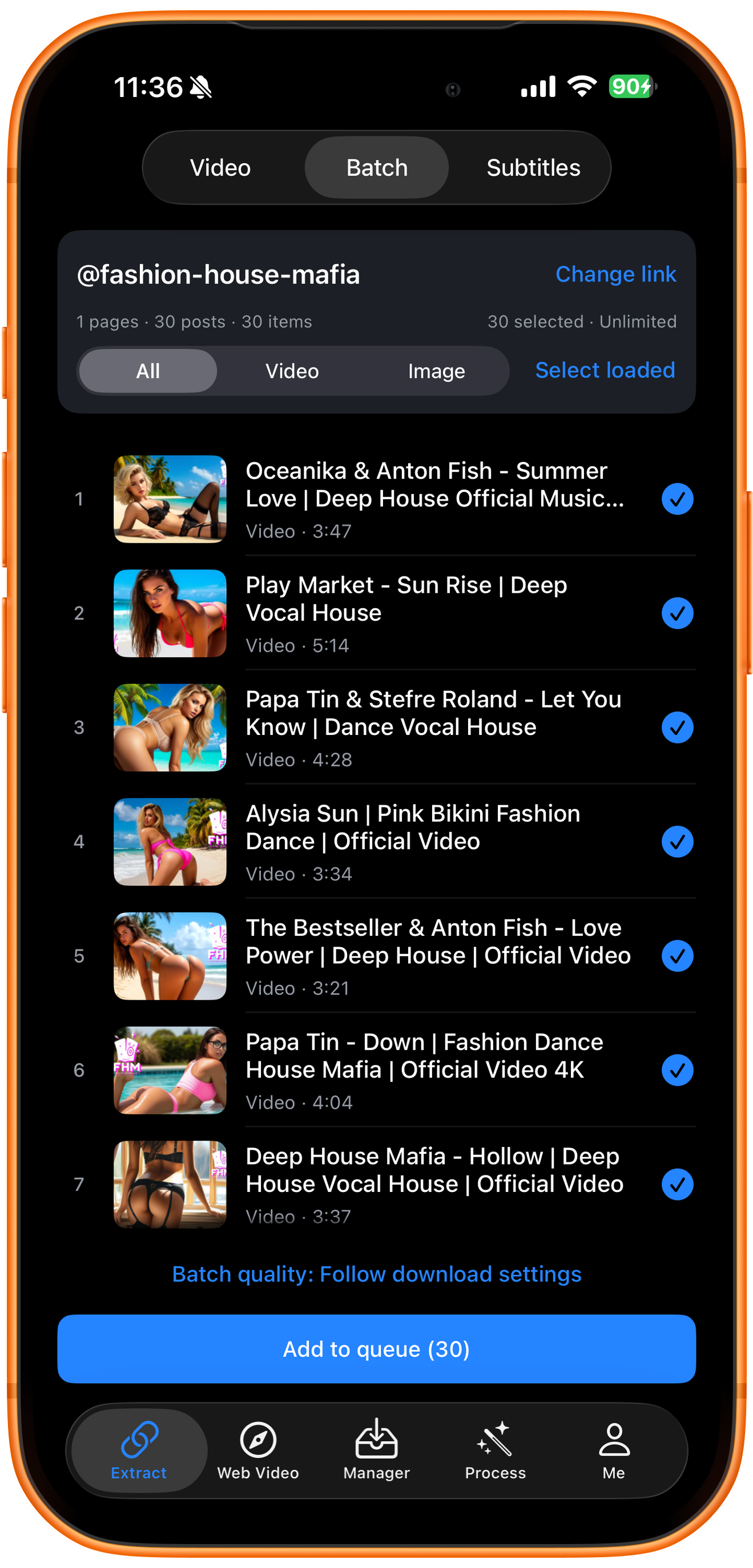
Check the source and select the videos or images you want. Use the type filters and Select loaded as needed. Choose Batch quality, confirm the selected count, then tap Add to queue.
05
Check queue status and download progress
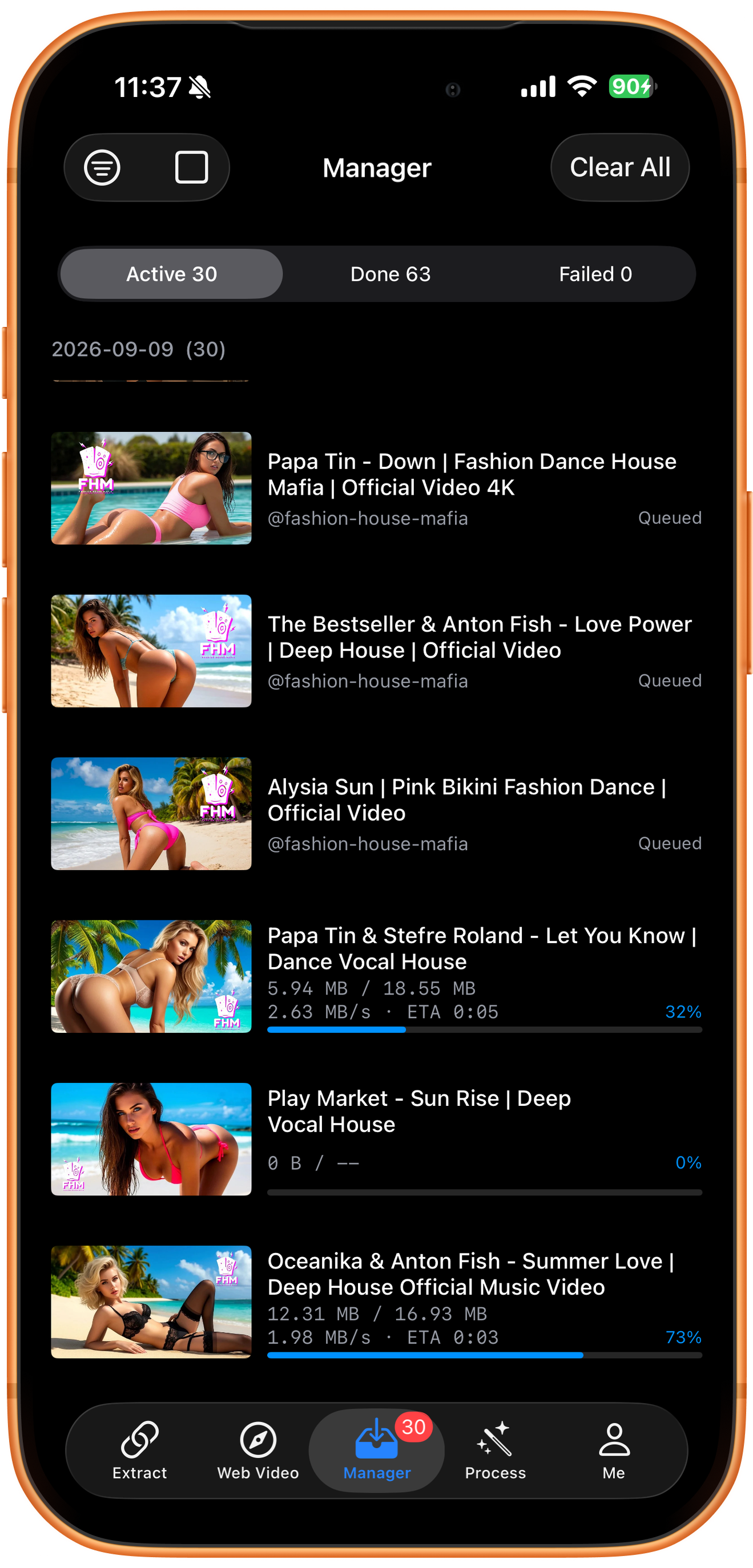
Open Manager to follow your downloads. Active contains queued and running tasks, Done contains completed files, and Failed contains tasks that need attention. Open a task to check its status.
Troubleshooting
The extracted count differs from the channel count
Check loaded pages and account limits, then check for inaccessible videos. A channel’s displayed count is not necessarily the number currently downloadable. Select loaded only selects loaded resources. Avoid repeatedly submitting the whole channel without checking.
Frequently asked questions
How does a channel download differ from a playlist download?
Both are batch workflows, but the source page and range of included posts differ. A channel link identifies a creator page; a playlist link identifies a particular collection. Inspect the actual results for the URL you use.
Will completed batch downloads automatically appear in Photos?
Enable Auto-Save Completed Downloads to Photos in Download Settings to save supported downloads automatically. Otherwise, use Save to Photos after downloading. Saving requires photo access and a supported format.
Supported platforms
Batch sources include supported YouTube channels, Shorts, hashtags, and playlists; Instagram profiles and hashtags; X and TikTok profiles; and supported profiles or collections on Douyin, Bilibili, Weibo, and other platforms. Check the resources actually returned for your link.
Try it on your device
ClipDock is free to download, with in-app purchases. Features and available options depend on the current app version.
Download on the App Store