
01Steps
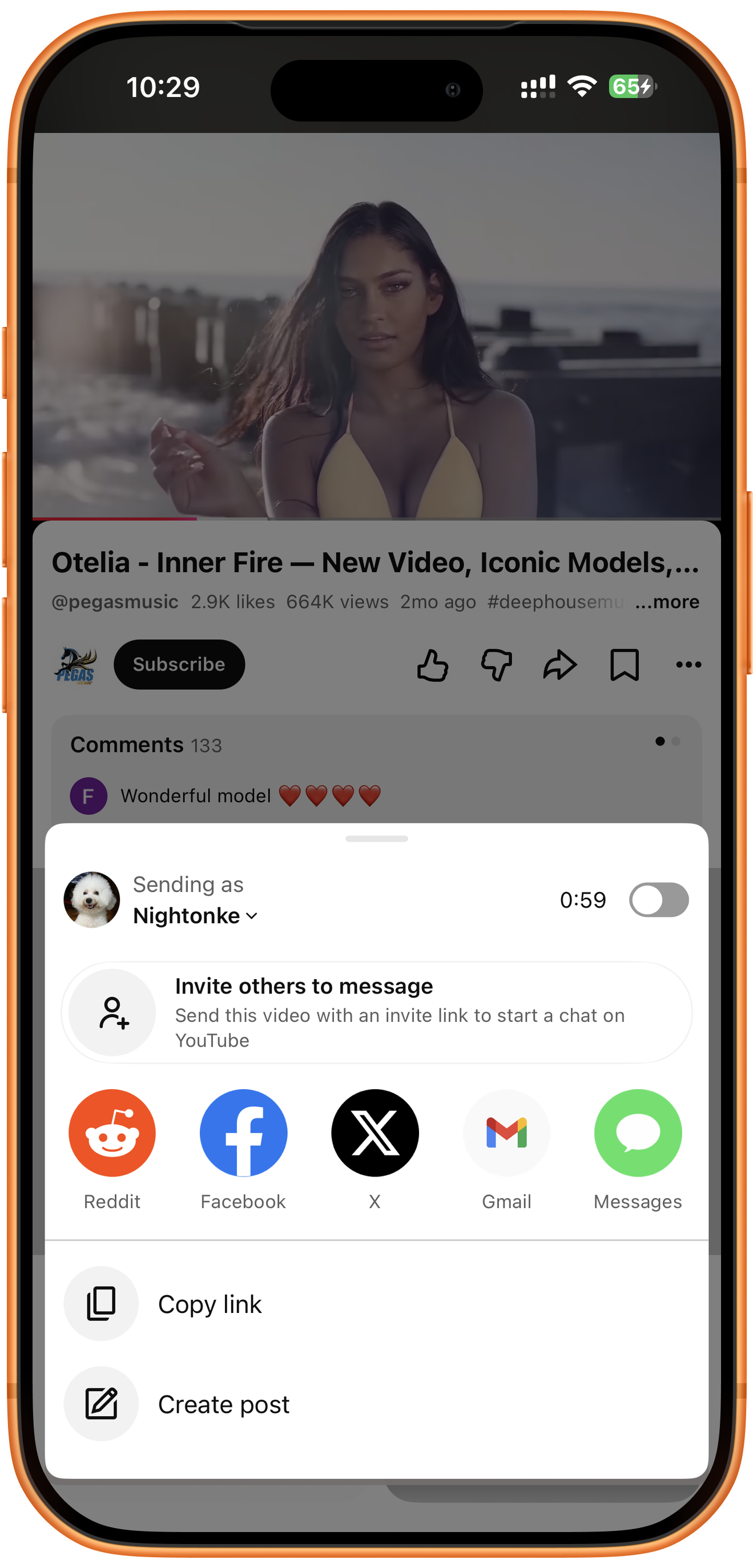
Copy the YouTube video link
Open the video in YouTube, tap Share, and choose Copy link. Use the specific video’s link, rather than a search result or channel page. The screenshots show the English interface.
02Steps
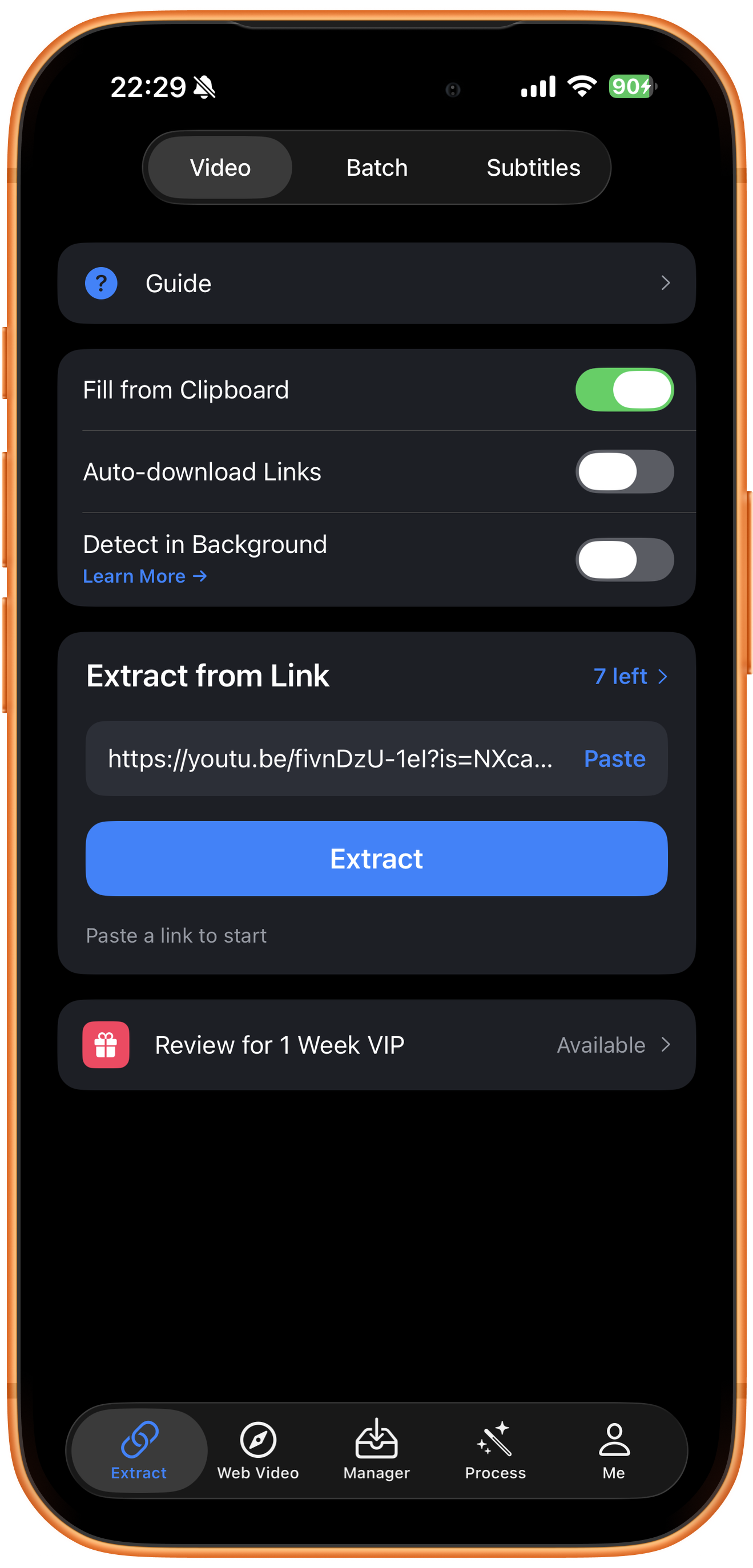
Paste the link into ClipDock
Open Extract, choose Video, and find Extract from Link. Paste the copied link, or confirm it if already filled in, then tap Extract.
03Steps
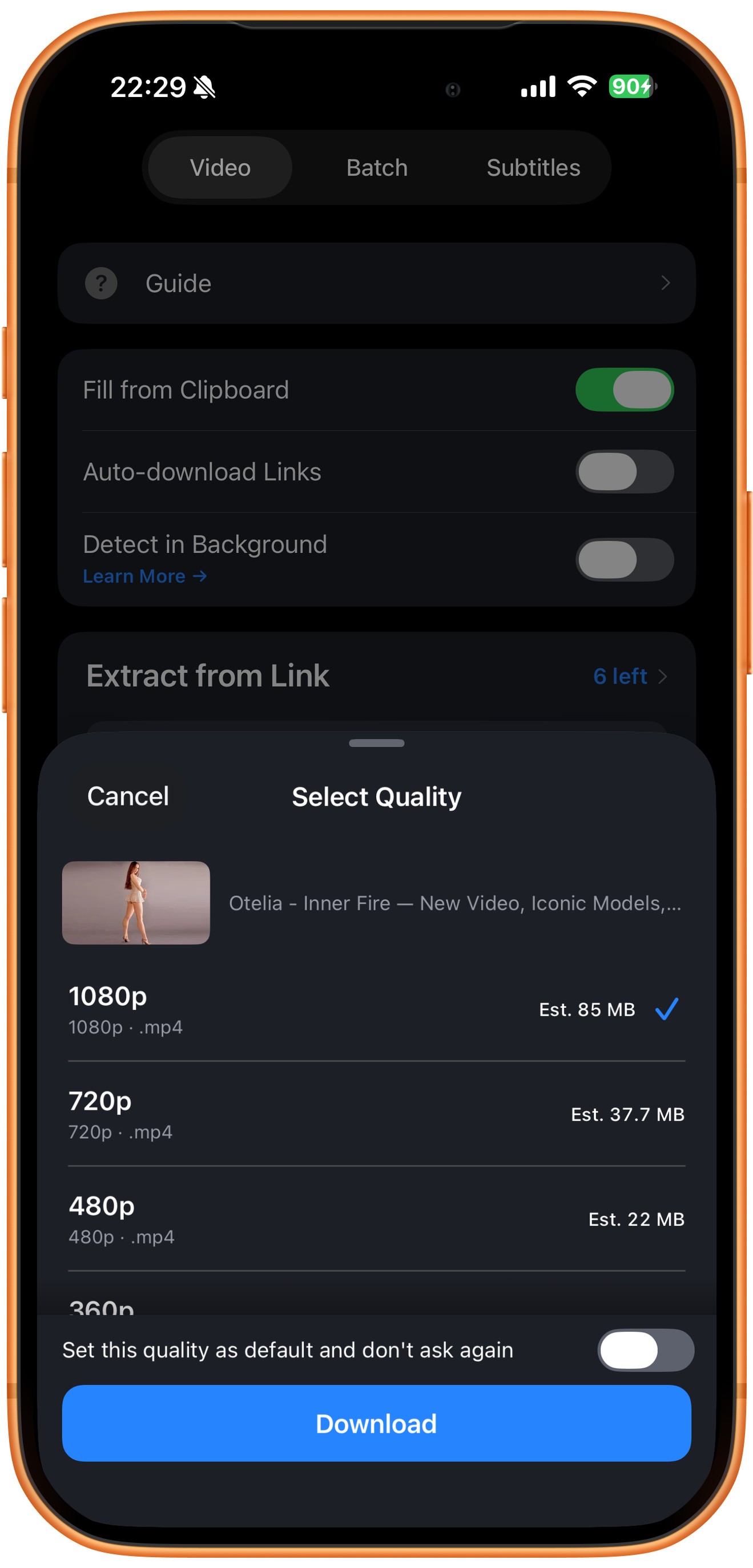
Choose a quality and download
Check the thumbnail and available options in Select Quality. The screenshot offers 1080p, 720p, and 480p among its options, with MP4 format and estimated sizes. Compare them, choose the resource you want, and tap Download. Available options depend on the video. The switch at the bottom can save a default quality.
04Steps
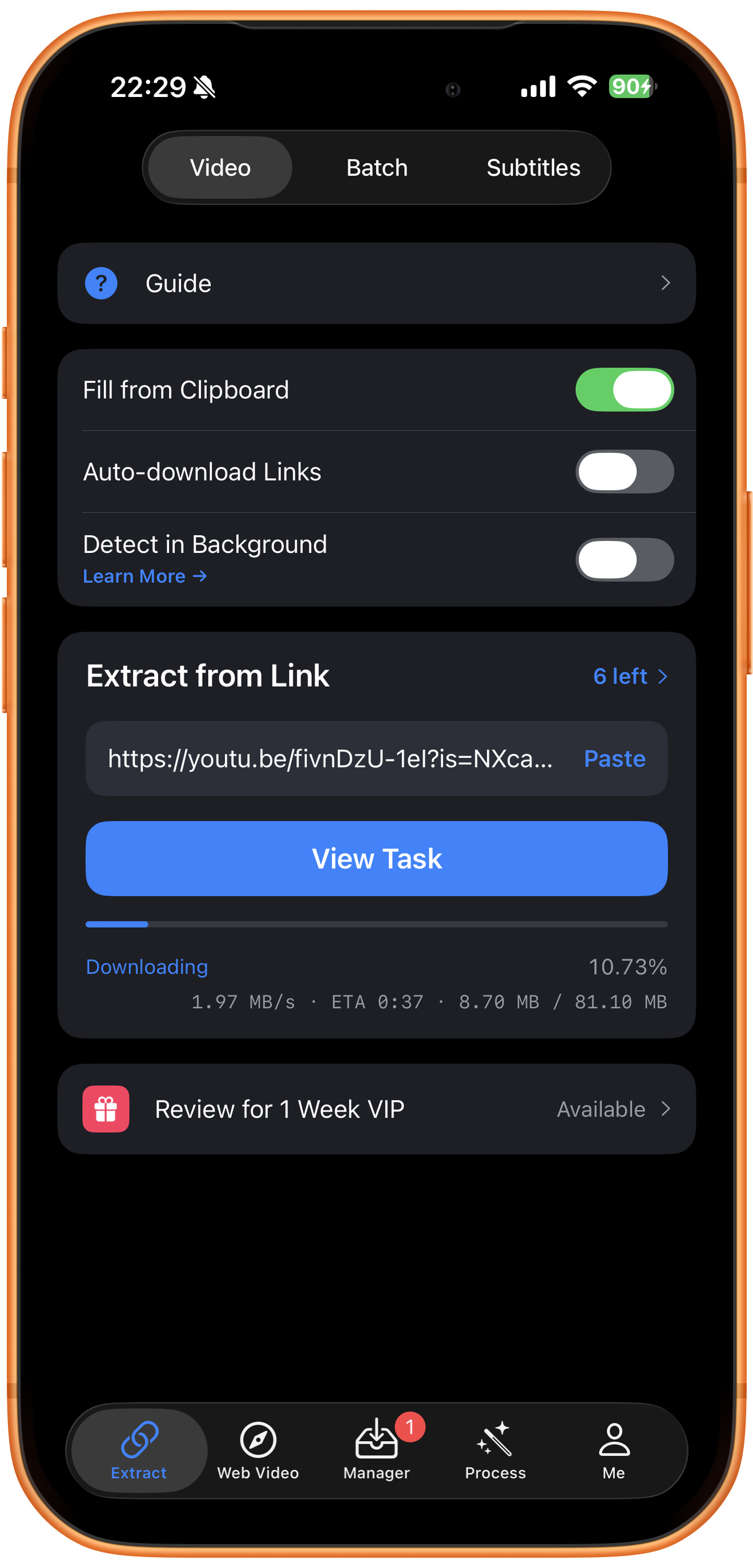
Check download progress
Downloading shows percentage, speed, estimated time remaining, and downloaded size. Tap View Task or open Manager and wait for completion.
05Steps
Preview and save to Photos
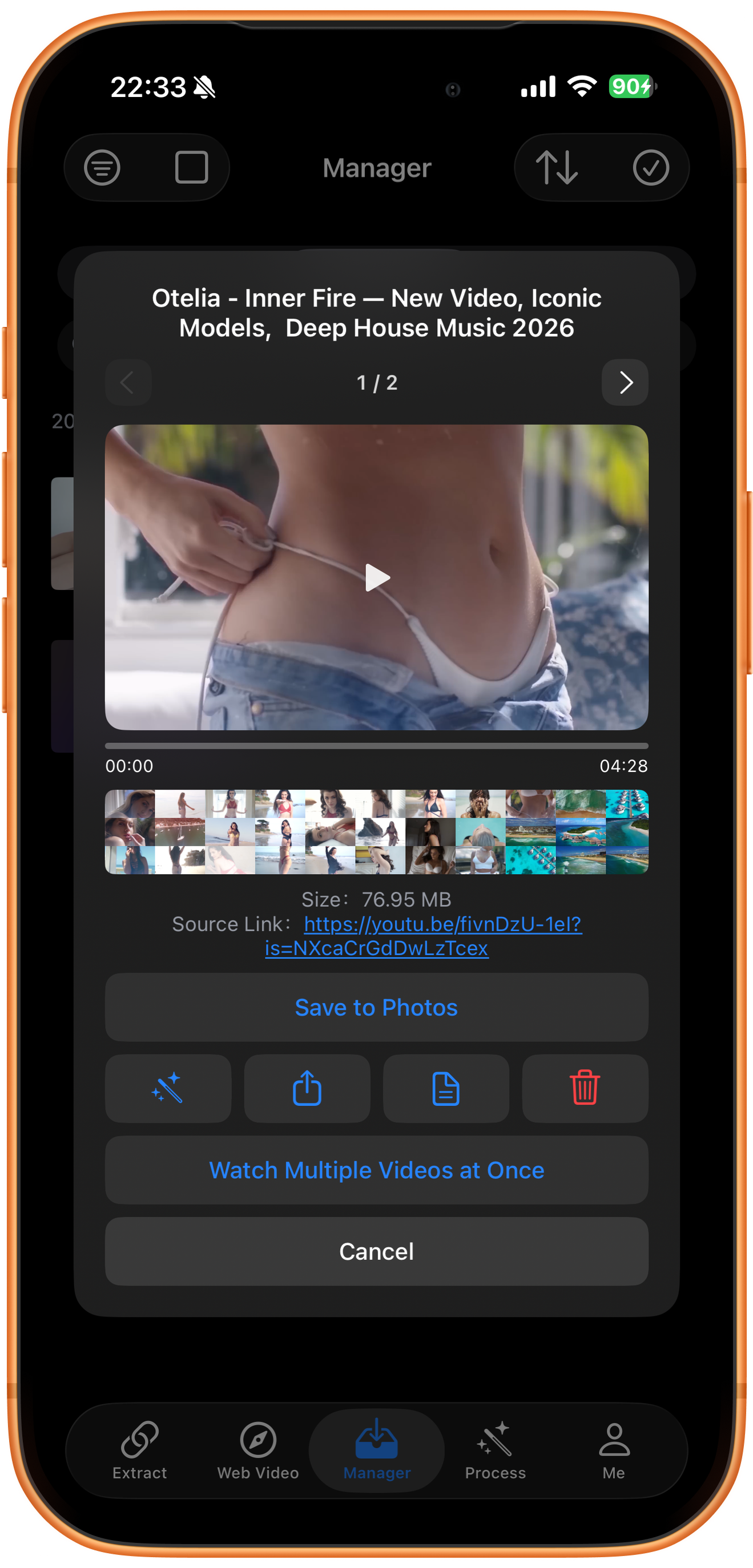
Open the completed video in Manager and play it to check the picture and sound. If the preview contains several items, use the left and right arrows to select the right one. Tap Save to Photos, allow photo access if prompted, and check the result in Photos.
Troubleshooting
The downloaded file has no sound
Check which resource type you selected and try another video resource if one is available. Merge Audio and Video requires an audio input you already have; it cannot supply a missing track on its own.
Frequently asked questions
Can I download an entire channel with this workflow?
A channel is a batch extraction task, rather than a single-video download. Use the channel or list workflow and check the items actually returned.
Will every video have a high-quality option?
No. Available resources depend on the source file, platform response, and access conditions. Check the extraction results.
Supported platforms
Supported sources include YouTube, Instagram, TikTok, X, Facebook, Vimeo, Reddit, Pinterest, Bilibili, Xiaohongshu, Weibo, and other platforms. Availability depends on the individual resource, region, and access conditions. The screenshots in each guide demonstrate only the workflow described there.
Try it on your device
ClipDock is free to download, with in-app purchases. Features and available options depend on the current app version.
Download on the App Store