
01Steps
Copy the video’s share link
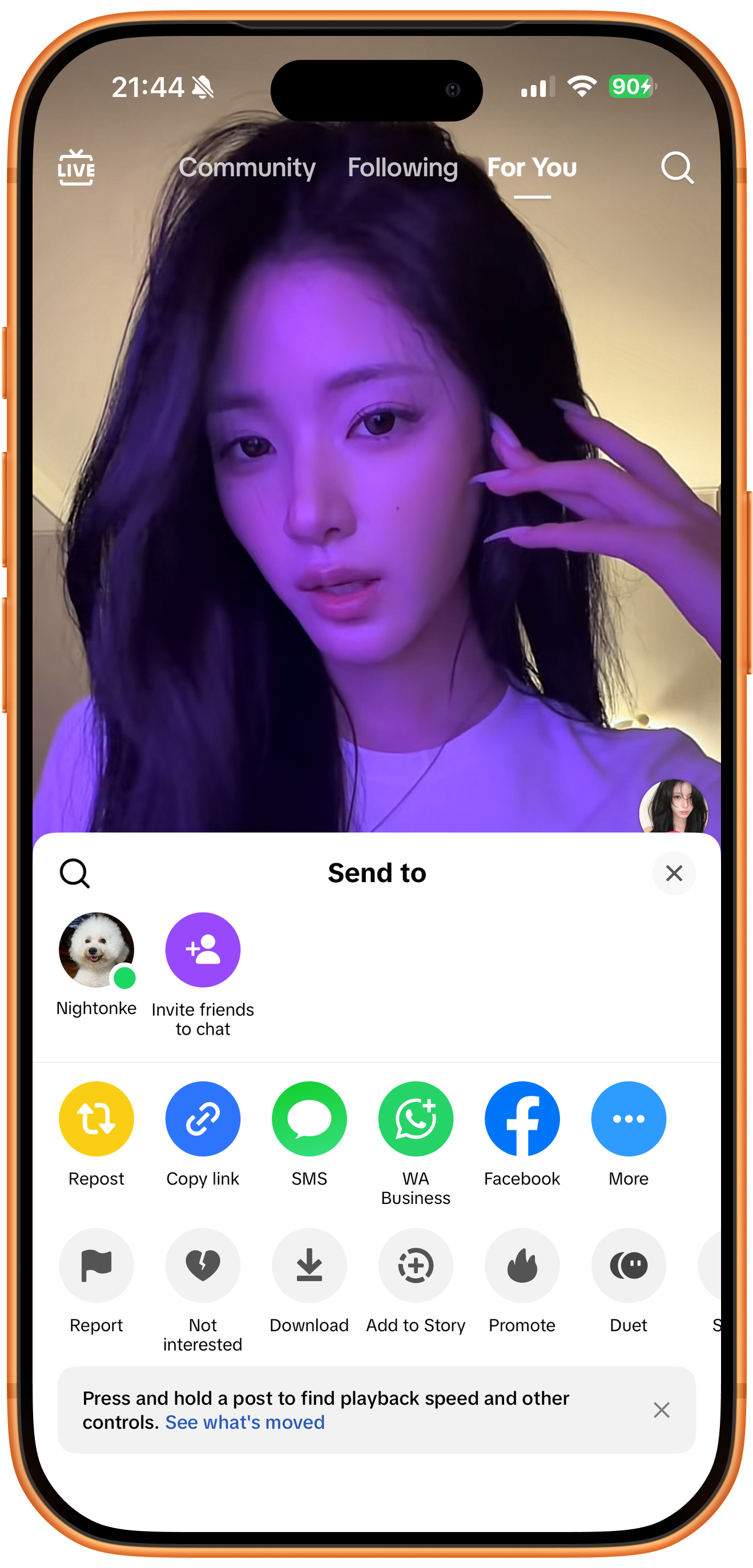
Open the video in Douyin, open its share panel, and choose Copy link. Use the individual video link, rather than a creator profile. The illustration shows TikTok’s Copy link option; the position of Douyin’s button depends on its current interface.
02Steps
Submit the Douyin link to ClipDock
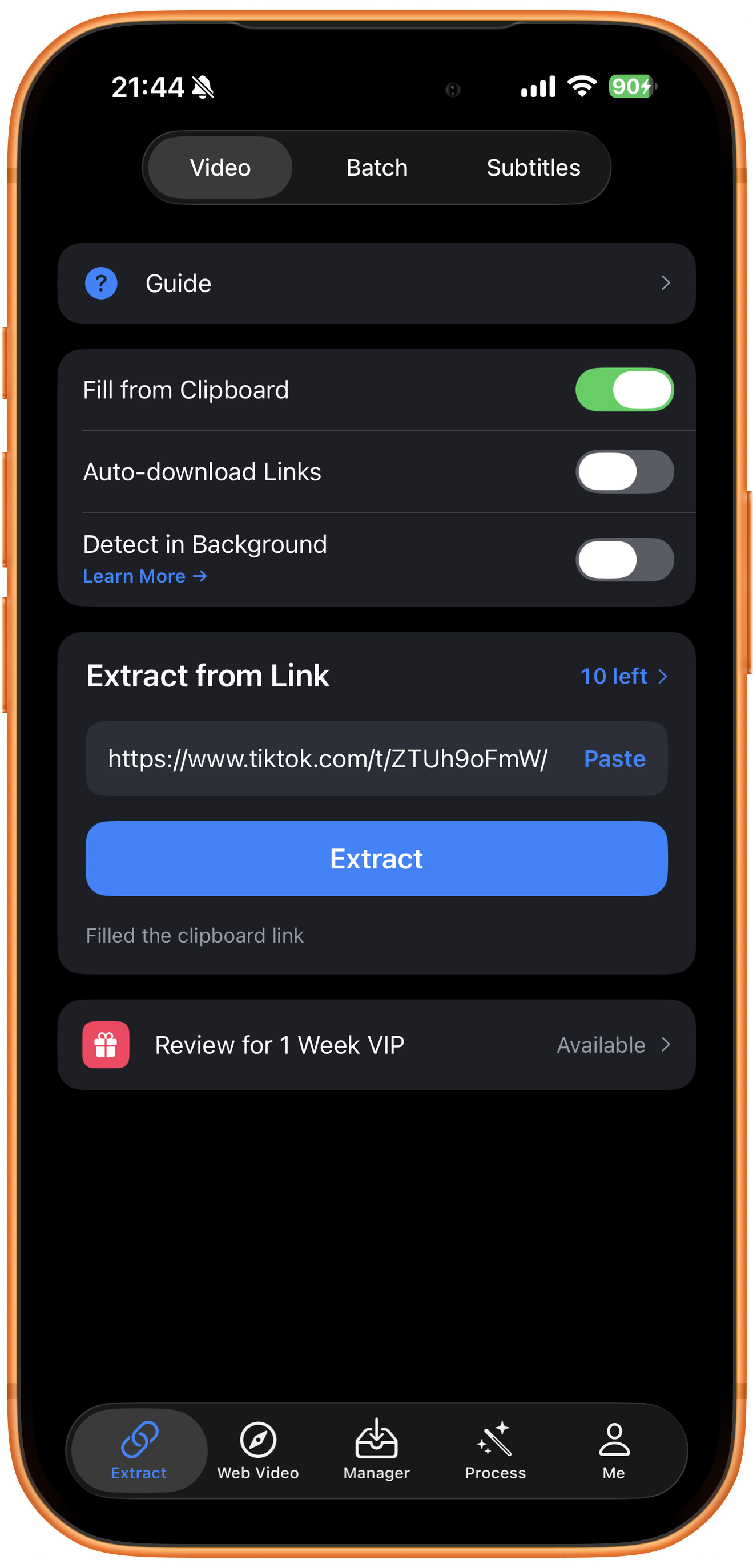
Open Extract, select Video, and check the Extract from Link field. Fill from Clipboard is enabled in the illustration. For your own download, enter the Douyin video link you copied, or tap Paste if the field is empty. Confirm it, then tap Extract.
03Steps
Check download progress
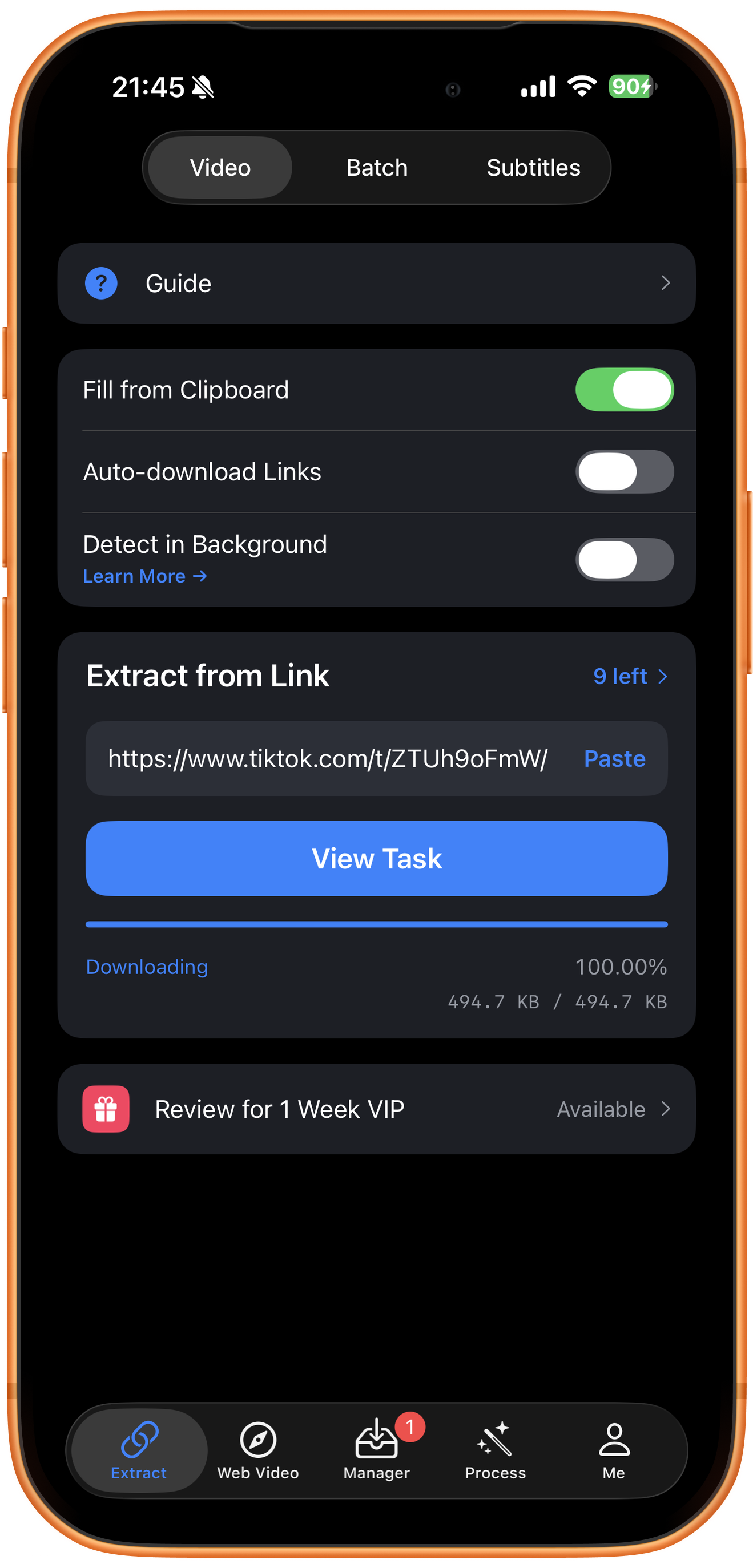
Once the download starts, ClipDock shows Downloading, the progress percentage, and the downloaded size. Tap View Task or open Manager in the bottom navigation to follow the task. Wait for it to finish before opening the video.
04Steps
Preview and save to Photos
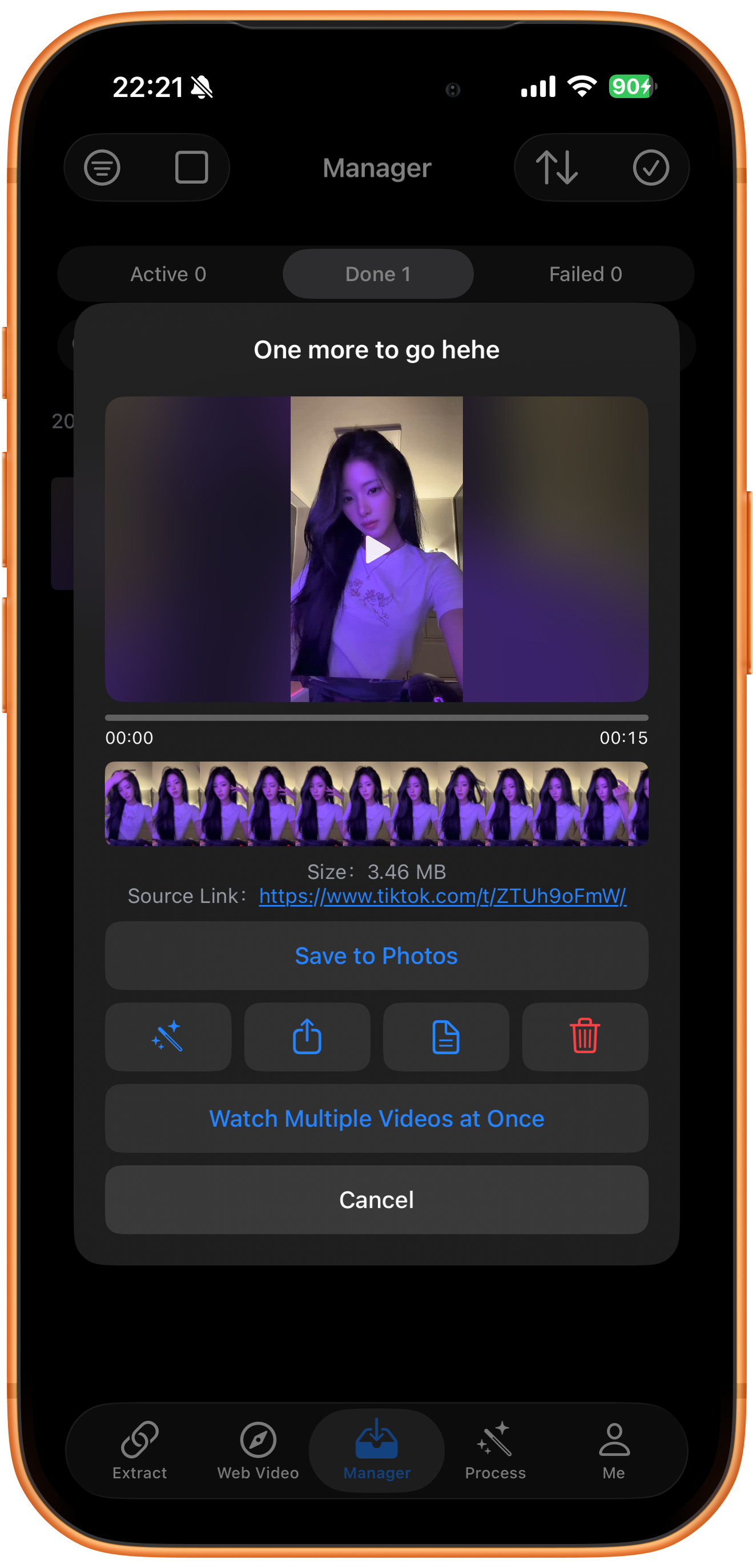
Open the completed video in Manager and play it to check the picture and sound. If the preview contains several items, use the left and right arrows to select the right one. Tap Save to Photos, allow photo access if prompted, and check the result in Photos.
Troubleshooting
The link opens, but no media is found
Confirm that the video is still publicly accessible, then copy its share link again. Sign-in requirements, regional restrictions, and changes to the source page can affect extraction. Repeated retries may not resolve a source restriction.
Frequently asked questions
Why is a completed download missing from Photos?
The ClipDock library and the system Photos library are separate. Wait for the task to finish, then use Save to Photos and check photo permissions.
Why does the screenshot show a TikTok link?
The TikTok images illustrate copying, extracting, downloading, and saving. Use your own Douyin video link; available media depends on the actual extraction result.
Supported platforms
Supported sources include YouTube, Instagram, TikTok, X, Facebook, Vimeo, Reddit, Pinterest, Bilibili, Xiaohongshu, Weibo, and other platforms. Availability depends on the individual resource, region, and access conditions. The screenshots in each guide demonstrate only the workflow described there.
Try it on your device
ClipDock is free to download, with in-app purchases. Features and available options depend on the current app version.
Download on the App Store