
01Steps
Enable automatic downloads and background detection
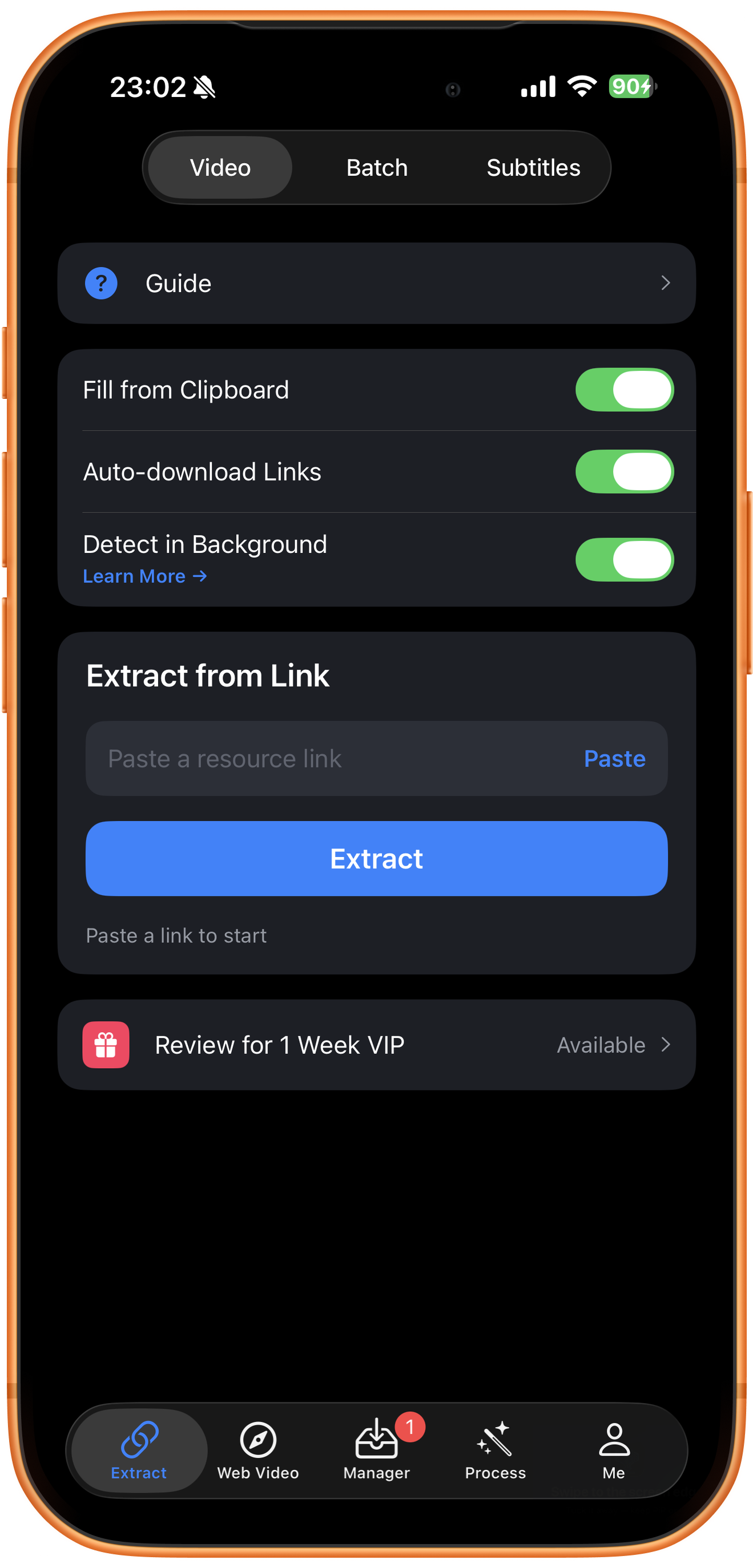
Open Extract in ClipDock and select Video. Turn on Fill from Clipboard, Auto-download Links, and Detect in Background. The screenshot shows all three switches in green.
02Steps
Switch to a video app and keep the floating window open
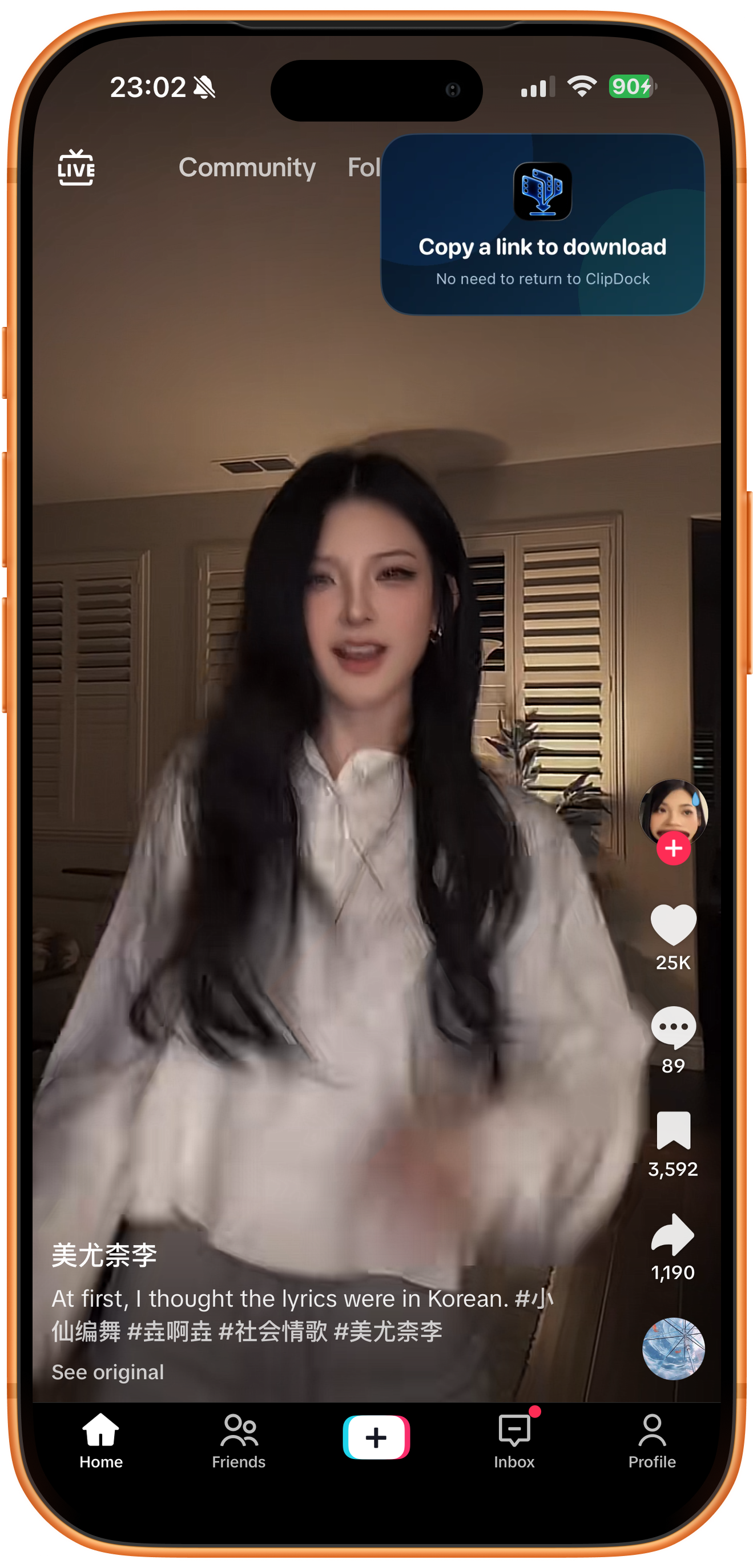
Open TikTok or another video app and check for ClipDock’s picture-in-picture window. Copy a link to download means it is ready. You can slide the floating window to the edge of the screen, but keep picture-in-picture active and do not close it.
03Steps
Copy a video you want to save
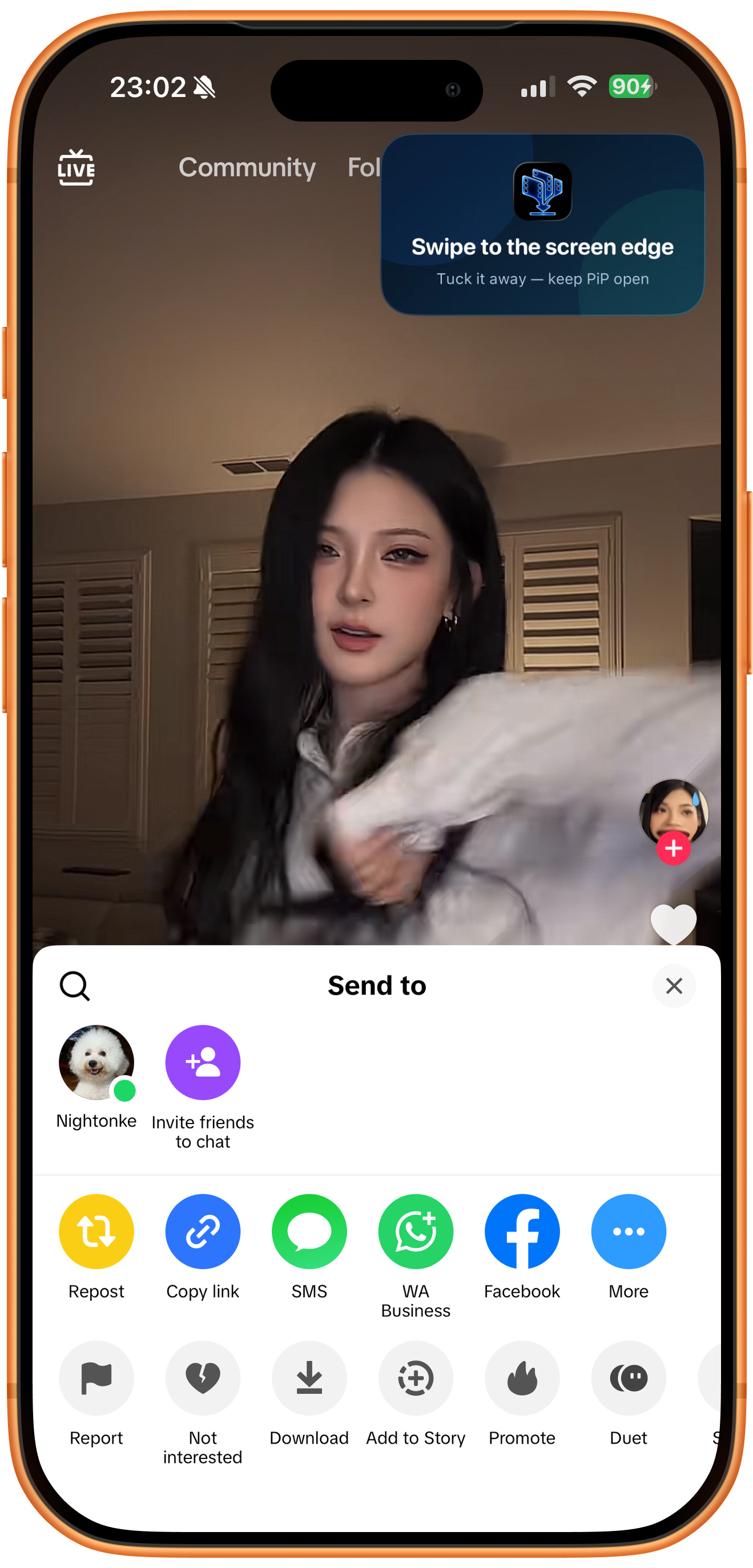
Open the video’s share panel and tap Copy link. You do not need to return to ClipDock to paste. If the floating window gets in the way, slide it to the screen edge while keeping picture-in-picture active.
04Steps
Keep browsing and watch the download notifications
The recording shows continuous copying: ClipDock detects resources and creates download tasks in the background while you browse other videos. Watch the system notifications, then check Manager when you finish browsing. Use Save to Photos if you also want a copy in the system library.
Troubleshooting
A copied link does not start a download
Check the feature’s state, whether the link is supported, your connection, and system prompts. If manual pasting also fails, the source link may be the problem. If manual extraction works but copying does nothing, check the automatic workflow’s operating conditions first.
Frequently asked questions
Will detection always continue after locking the screen or closing the app?
Background detection is not an unconditional always-on service. Behavior after locking, force-quitting, or system resource changes must be checked with the current app version and actual device behavior.
Is this the same as profile batch downloading?
No. This receives the individual share links you copy. Batch downloading extracts multiple posts from one profile or list link.
Try it on your device
ClipDock is free to download, with in-app purchases. Features and available options depend on the current app version.
Download on the App Store