
01Steps
Open Extract Audio
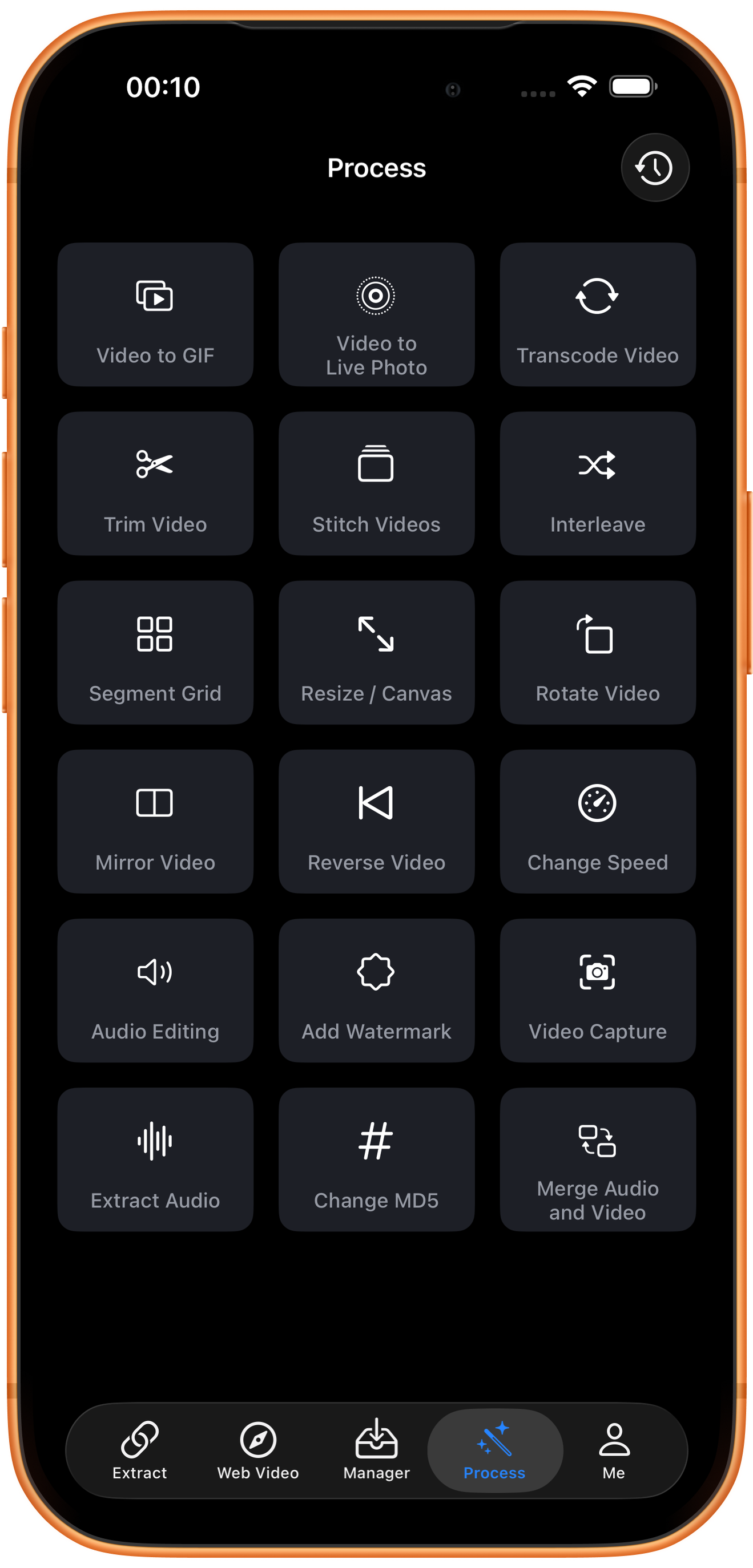
Tap Process in ClipDock and find Extract Audio at the bottom left of the tool grid. Prepare a video that contains sound, such as your own explanation, interview, or authorized footage.
02Steps
Choose a video from Photos
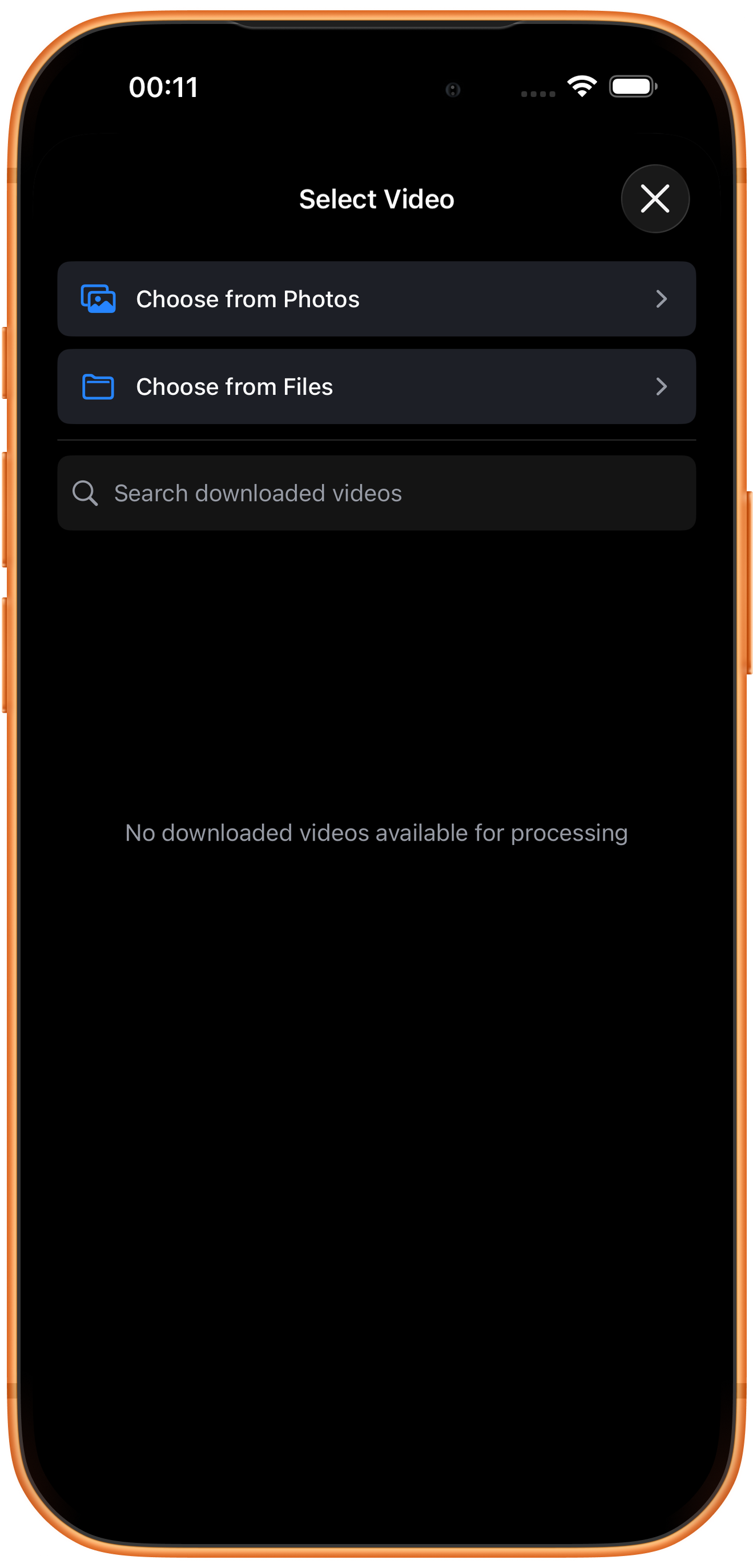
In Select Video, tap Choose from Photos, then select the source in the system picker. An empty download list does not prevent importing from Photos. Use Choose from Files if the source is stored in Files.
03Steps
Wait for audio extraction
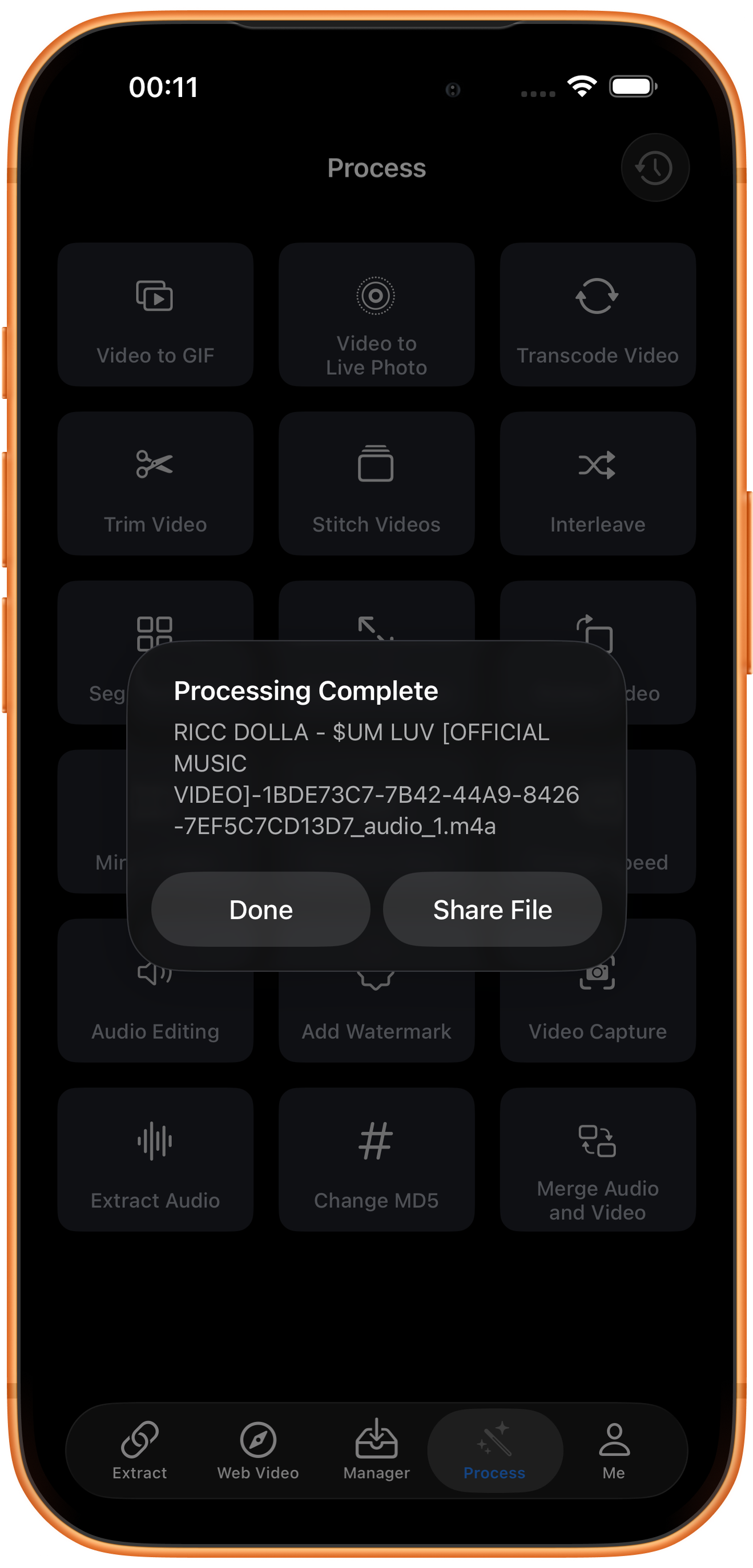
Selecting the video starts extraction directly; no extra start button is needed. The test shows no format-settings page. Processing Complete appears with a filename ending in .m4a. Tap Share File to continue exporting, or Done to dismiss the dialog.
04Steps
Open sharing and saving options
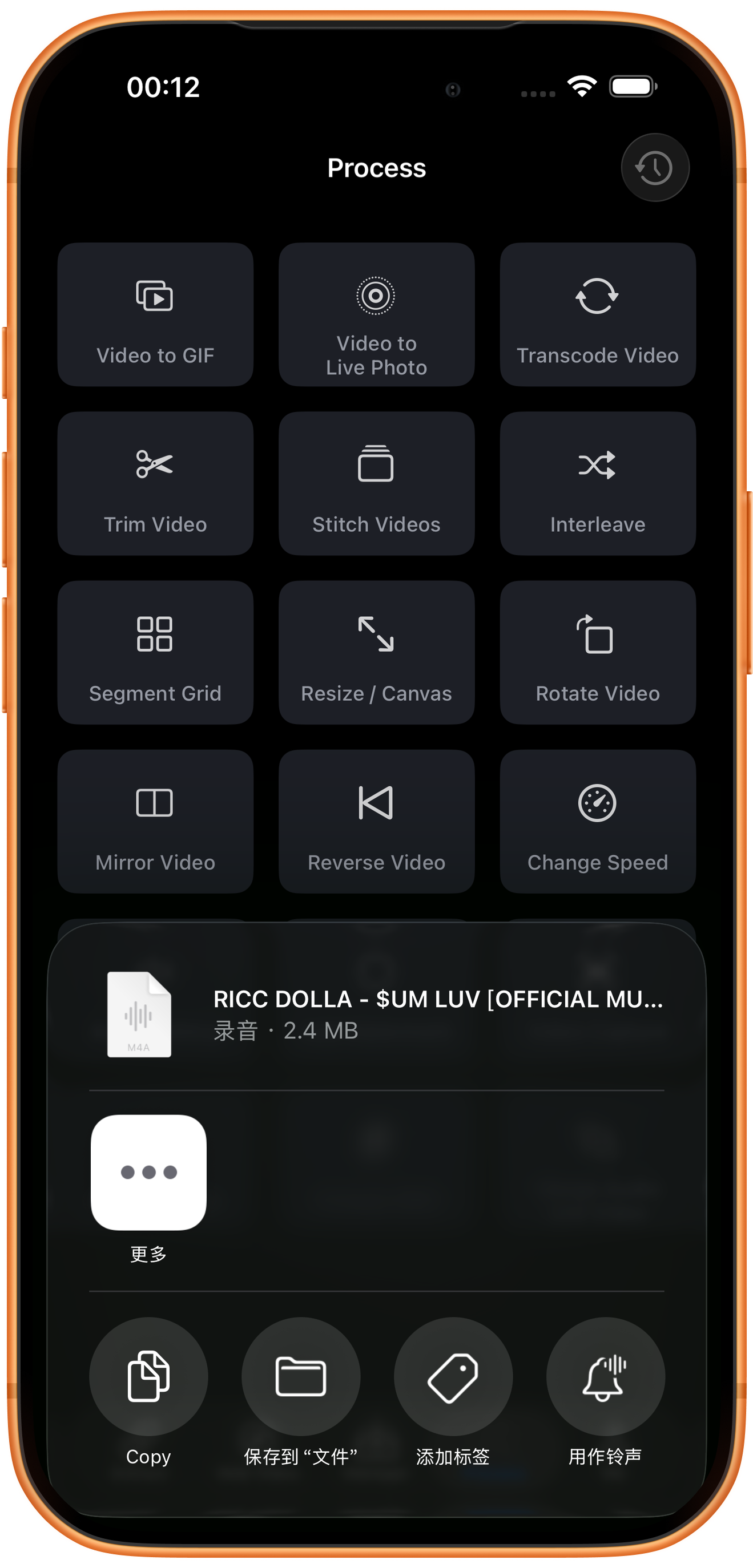
Share File opens a sheet with the audio file and size, about 2.4 MB in this example. Use Save to Files below to retain a separate copy, or inspect More for available receiving apps. After saving, listen to the file to check its sound and duration.
Troubleshooting
No sound in the extracted result?
Play the original and ensure the player is not muted. If there is no audio track, extraction cannot restore one. It also does not automatically improve the source sound quality.
An empty download list is not a blocker
No downloaded videos available for processing only refers to the app’s downloaded library. This guide imports directly from the system library with Choose from Photos.
Frequently asked questions
Can I choose MP3 or another format?
In this test, selecting the source directly generated M4A without a format menu. This guide does not include MP3 conversion steps.
Why is the output missing from Photos?
It is an audio file, rather than a video or photo. Open Share File and use Save to Files or other file-sharing actions.
Can I extract audio directly from a shared video URL?
This guide processes an existing Photos video. If you only have a URL, first follow the relevant platform download guide, then extract audio from the saved file.
Try it on your device
ClipDock is free to download, with in-app purchases. Features and available options depend on the current app version.
Download on the App Store