
01Steps
Enable auto-download and background detection
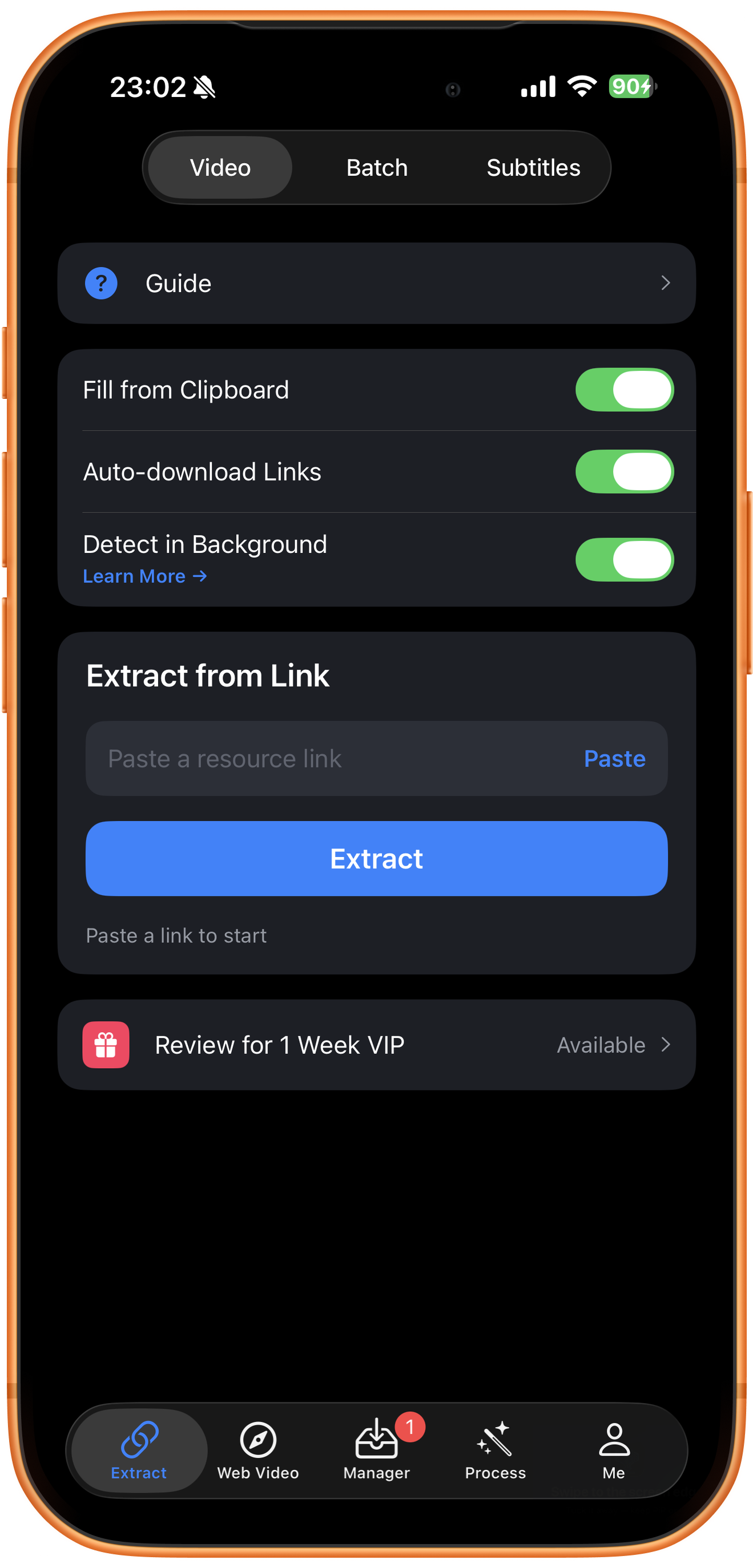
In ClipDock, open Extract and select Video. Enable Fill from Clipboard, Auto-download Links, and Detect in Background, checking that all three switches are green.
02Steps
Return to TikTok and check the floating window
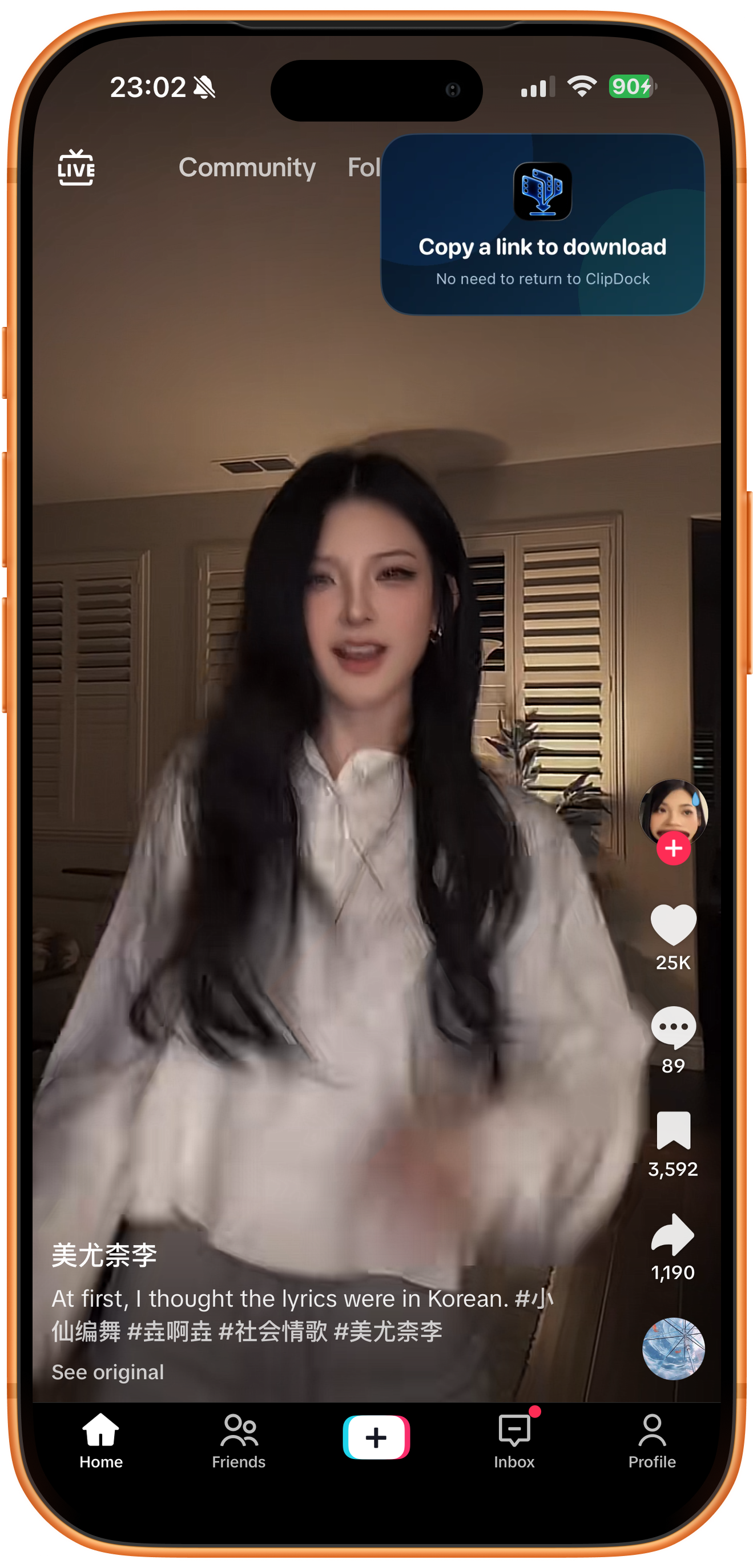
Browse TikTok with ClipDock’s picture-in-picture window open. When it says Copy a link to download, you can begin choosing videos.
03Steps
Open Share and copy the link
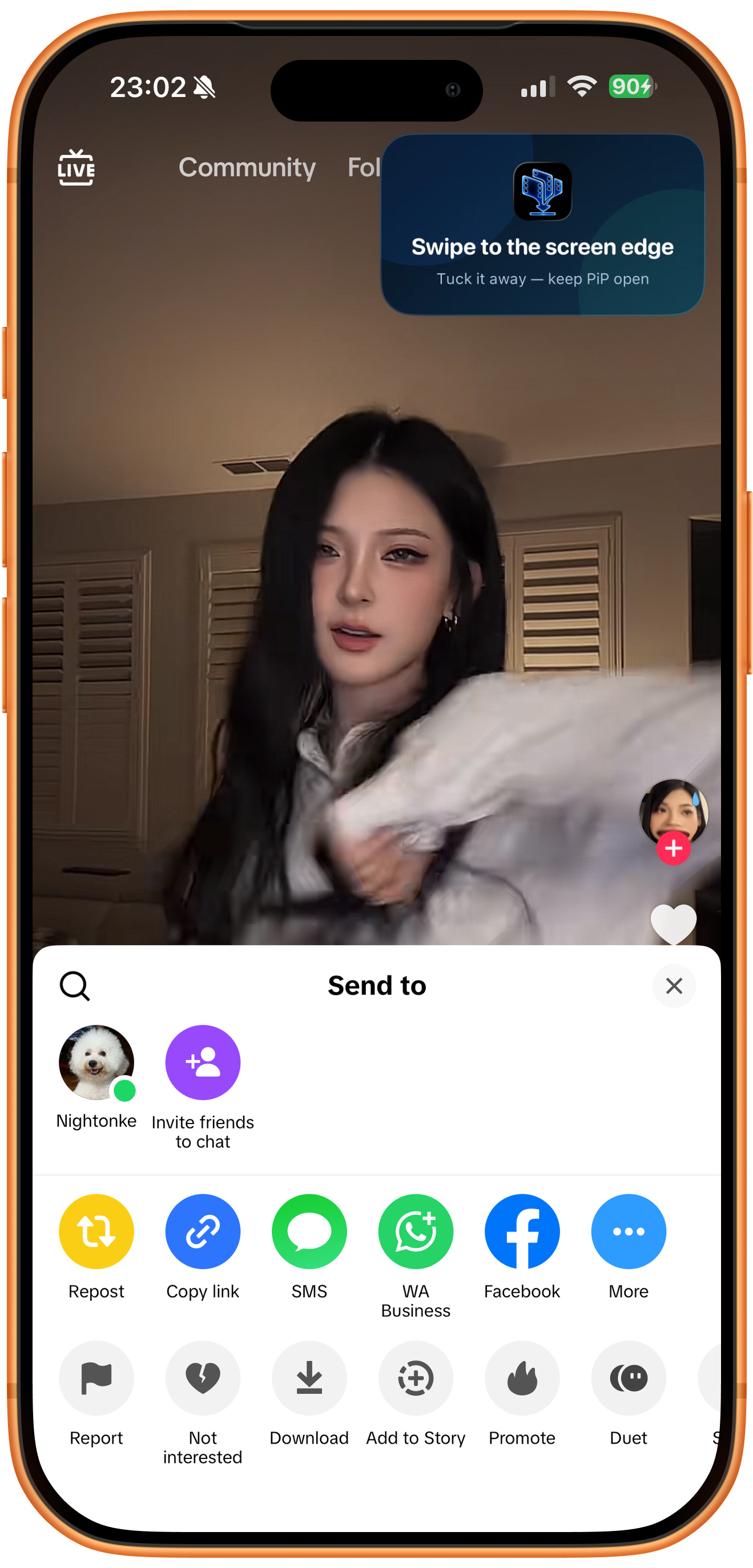
On a video you want, tap Share and choose Copy link, then keep browsing. There is no need to switch back to ClipDock. If the floating window blocks the picture, slide it to the screen edge without closing picture-in-picture.
04Steps
Watch the continuous-copying demo
The recording shows copying several TikTok video links and receiving notifications for background detection and task creation. Confirm that the first link has been received before collecting more. After browsing, check both completed and failed tasks in Manager instead of relying only on notifications.
Troubleshooting
When should I use profile batch downloading?
Use a profile link when you want several posts from the same creator. Keep copying individual links when you want a few selected videos from different creators.
Frequently asked questions
Why is this separate from the regular TikTok download guide?
The regular workflow returns to ClipDock to submit a link manually. This guide focuses on initial setup, verifying automatic receipt, and collecting links continuously.
What should I do with a system permission prompt?
Read and respond to the current system and app prompts. Do not assume the workflow will continue after a prompt is ignored. You do not need to provide account passwords to follow this guide.
Try it on your device
ClipDock is free to download, with in-app purchases. Features and available options depend on the current app version.
Download on the App Store