
01Steps
Copy the Bilibili video link
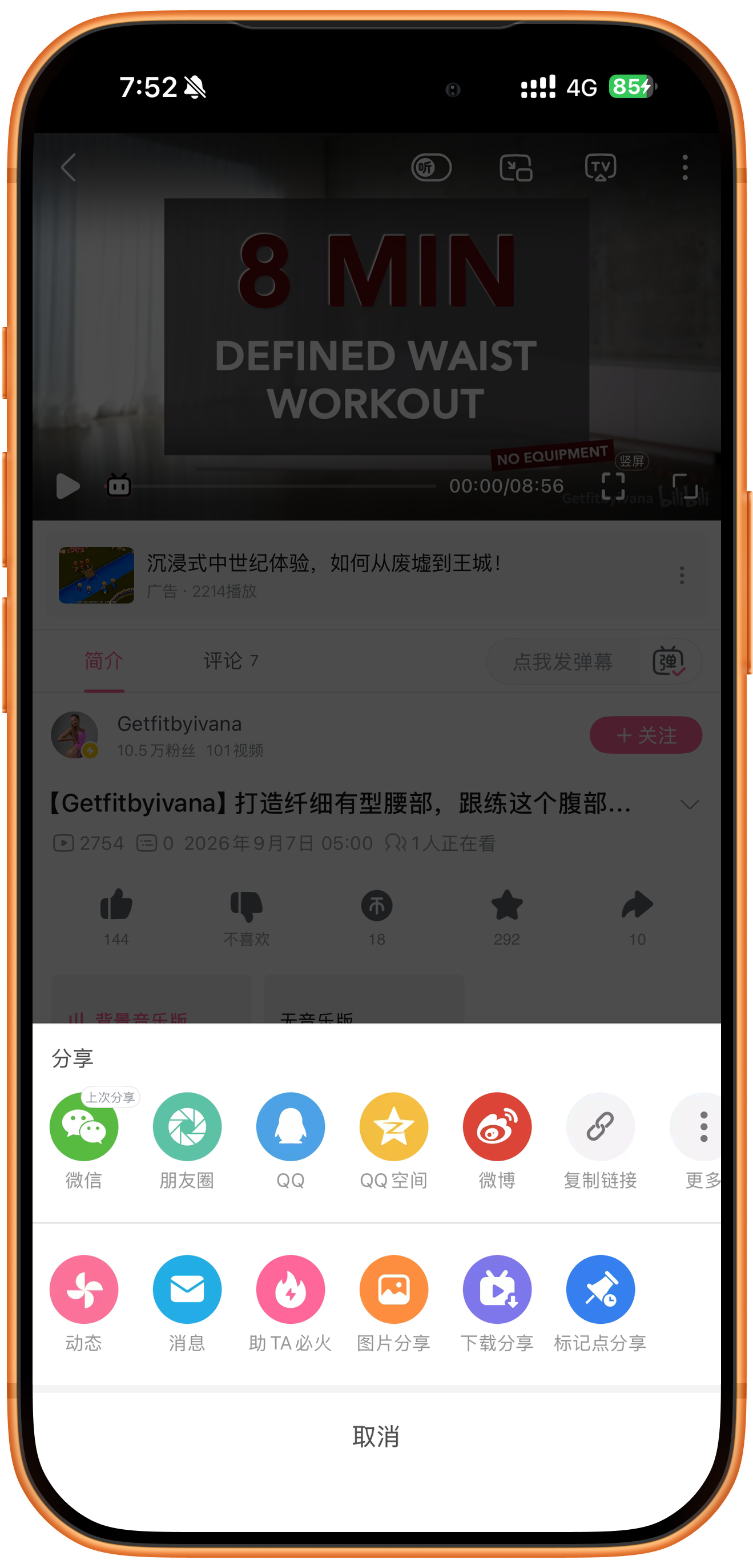
Open the video in Bilibili and open its share panel. Tap Copy link, positioned to the right of Weibo in the screenshot. This is the specific video page’s link. To save multiple uploads from a creator, use the profile batch download guide.
02Steps
Paste the link and extract
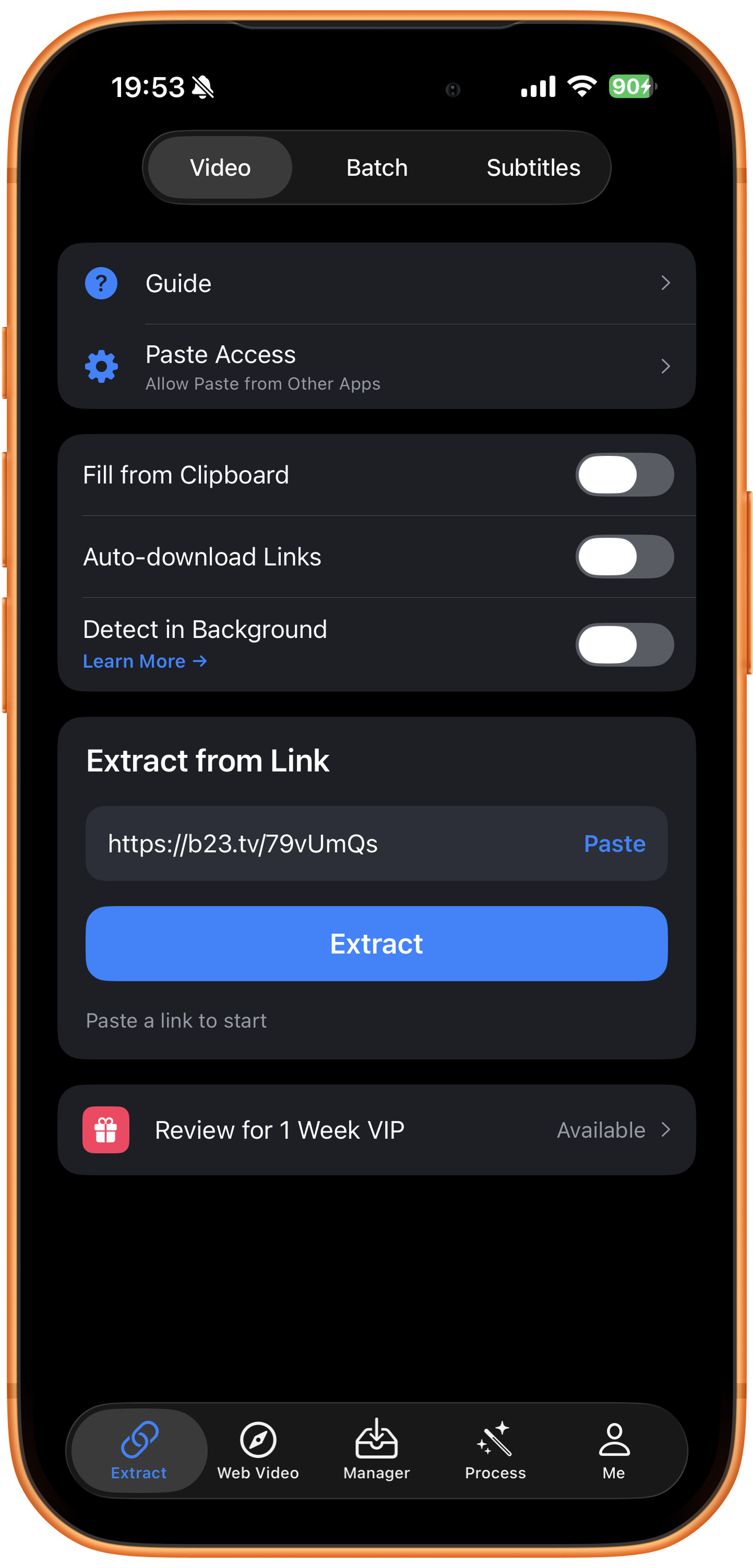
Open Extract in ClipDock, select Video, and tap Paste under Extract from Link. Check the URL and tap Extract. This example uses the b23.tv short share link directly. Automatic filling and downloading can remain off for this manual workflow.
03Steps
Choose a quality and start downloading
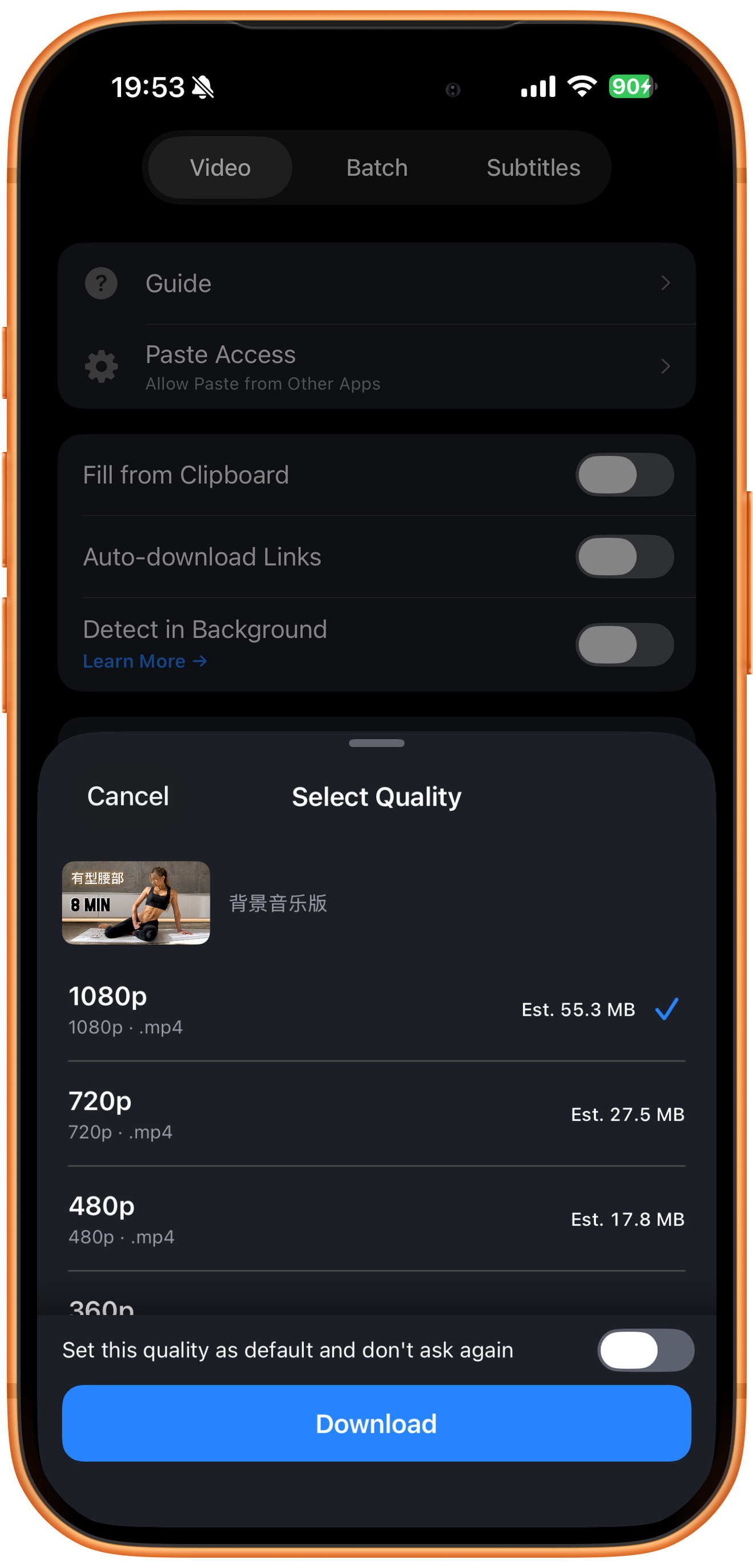
Check the thumbnail and the background-music-version title in Select Quality. The selected option is 1080p MP4, estimated at 55.3 MB. The list also shows 720p MP4 at about 27.5 MB, 480p MP4 at about 17.8 MB, and a 360p option below. Tap Download.
Balance resolution and size
Higher resolution may retain more detail and use more space. Compare the estimates for your needs. These values belong to this example; other videos can return different options.
Decide whether to save a quality preference
Set this quality as default and don’t ask again stores the chosen quality. Leave it off to compare options each time.
04Steps
Monitor the download
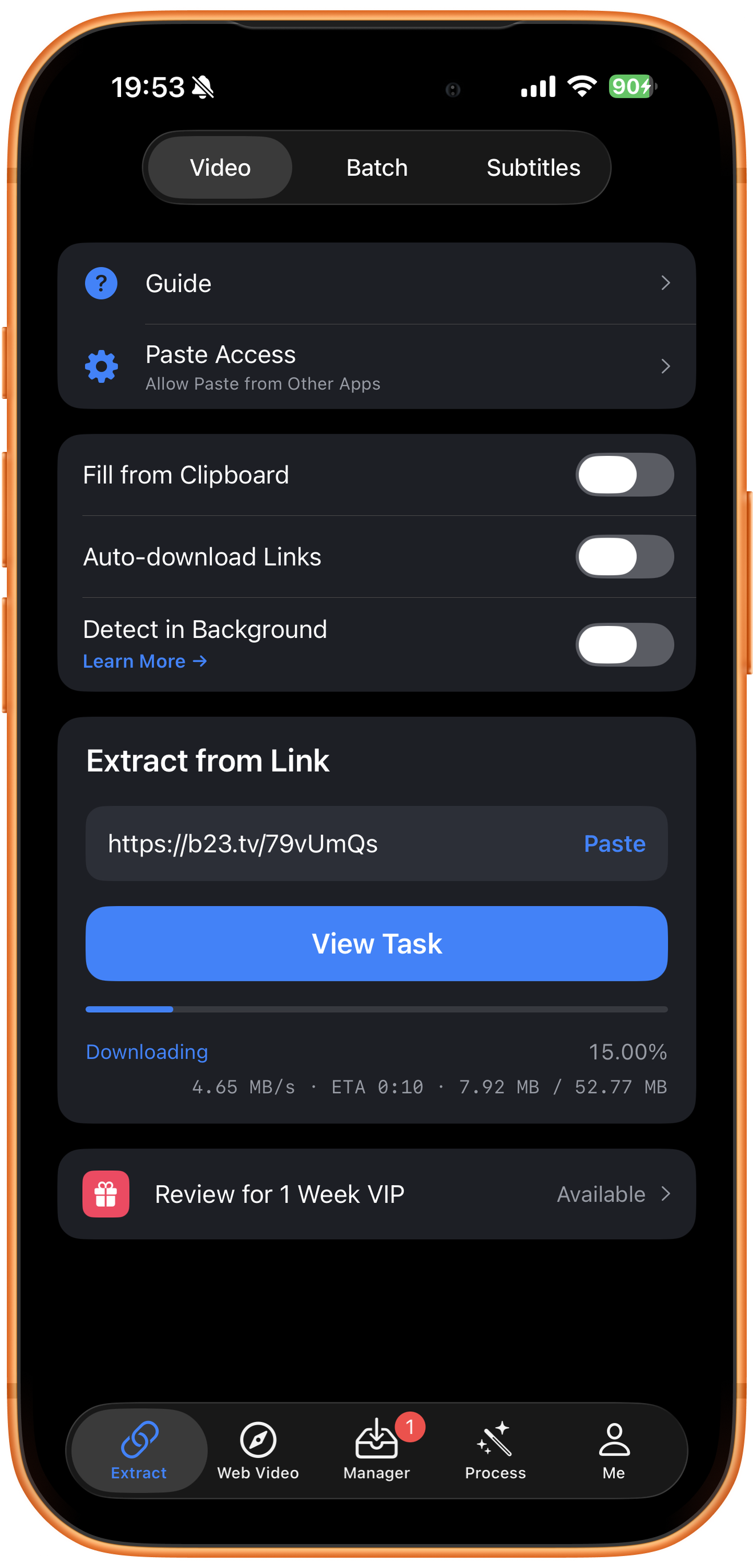
Downloading shows percentage, speed, time remaining, and downloaded size. This screenshot is at 15.00%, so you still need to wait. Tap View Task or open Manager to check the task.
05Steps
Preview and save the video
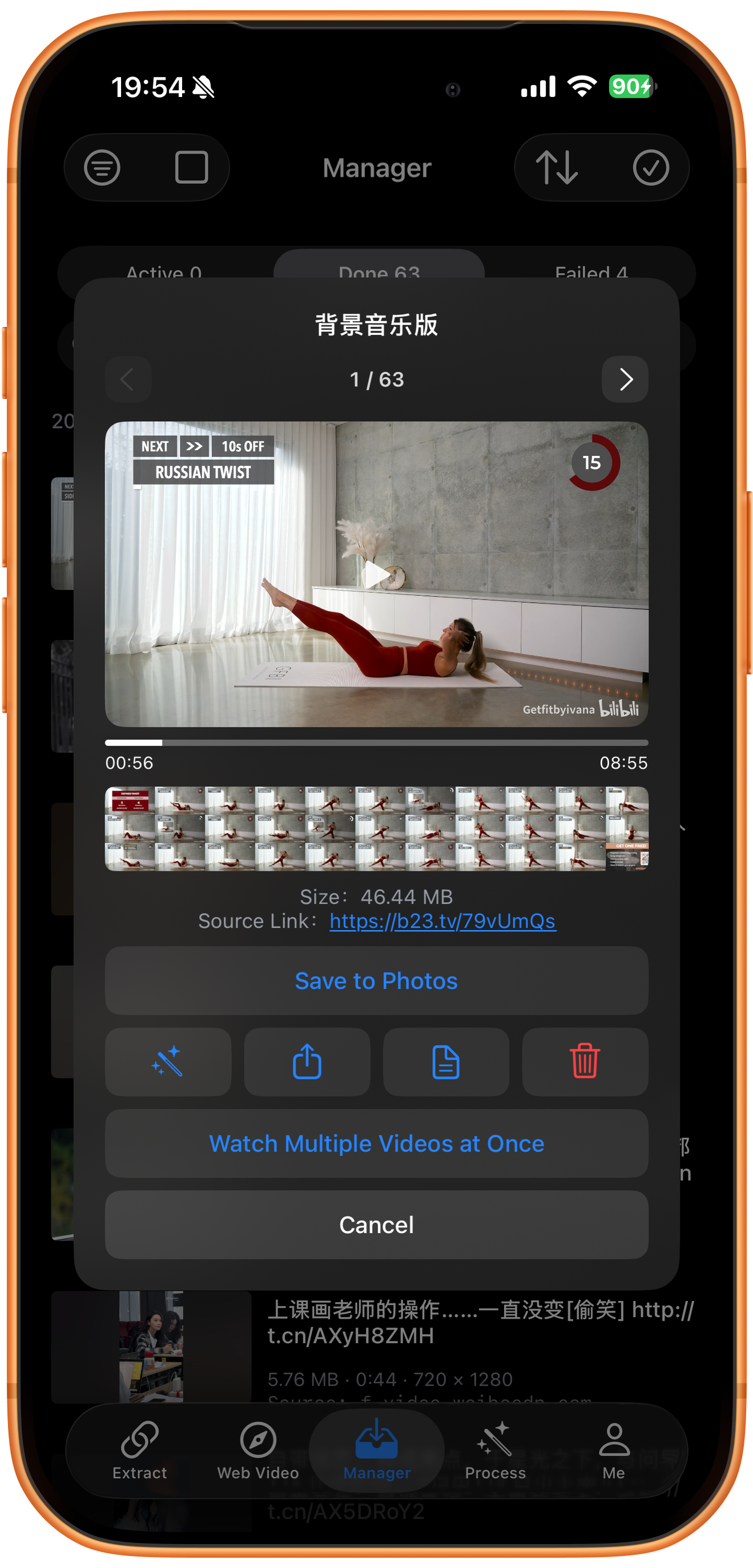
Open the completed video from Done in Manager. The result shows the background-music-version title, about 8 minutes 55 seconds, and 46.44 MB. Playback is at 00:56, and the source link is retained. Play the video to check it, then use Save to Photos.
Use the final file information
The quality estimate, in-progress size, and final size can differ. The result here is 46.44 MB. Check the actual file and playback.
1 / 63 is a position in the preview list
The header shows 1 / 63 and the Done list behind it contains 63 items. This does not mean the video has 63 parts. Confirm the title and source; the arrows switch between preview items.
Done does not mean saved to Photos
After tapping Save to Photos, check permissions and the save message, then open Photos. The screenshot shows the save action, rather than a successful-save confirmation.
Troubleshooting
Check the video version
This example returns a background-music version. If the source has multiple versions or episodes, check the returned title, thumbnail, and downloaded contents before saving.
Frequently asked questions
Can I use a b23.tv short URL directly?
This example copies a b23.tv link from the video share panel and successfully downloads it. Make sure it points to the intended video.
Does every video offer 1080p?
No. Use the resolutions returned for your link.
Does this demonstrate downloading every part of a video?
No. The screenshots show extracting and downloading one video, and do not prove that all parts are included.
How do I download more uploads from a creator?
Copy the creator’s profile link and load it in Batch. See the Bilibili profile batch download guide.
Supported platforms
Supported sources include YouTube, Instagram, TikTok, X, Facebook, Vimeo, Reddit, Pinterest, Bilibili, Xiaohongshu, Weibo, and other platforms. Availability depends on the individual resource, region, and access conditions. The screenshots in each guide demonstrate only the workflow described there.
Try it on your device
ClipDock is free to download, with in-app purchases. Features and available options depend on the current app version.
Download on the App Store