
01Steps
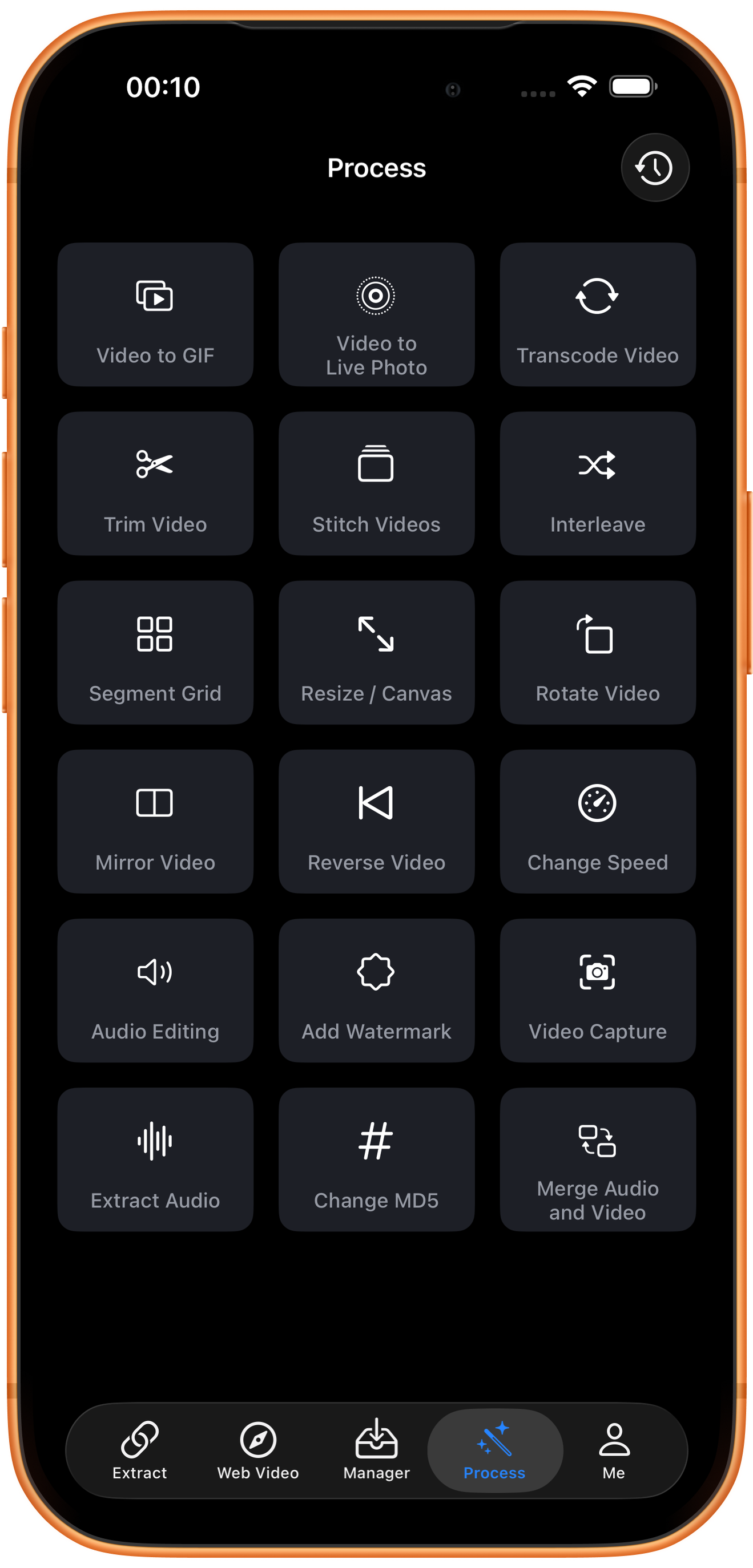
Open Trim Video in Process
Tap Process in the bottom navigation. Find Trim Video in row 2, in the left column, and tap the entry marked by the arrow.
02Steps
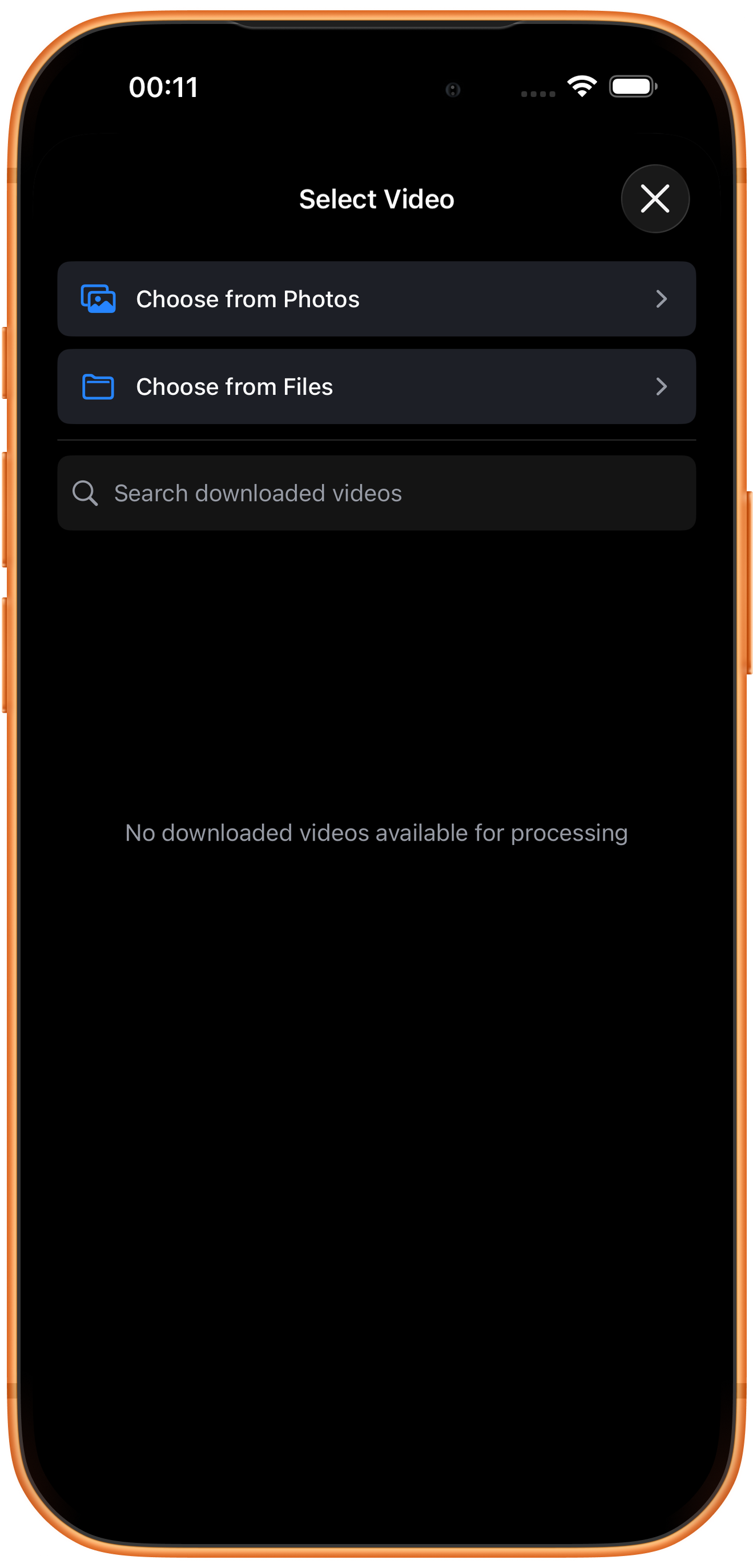
Choose the video to process
In Select Video, tap Choose from Photos and pick your source. Use Choose from Files for media stored in Files. An empty download list does not prevent importing from Photos. Some examples reuse a previously trimmed clip of about six seconds; you can prepare a short sample with Trim Video.
03Steps
Choose the trim mode and time range
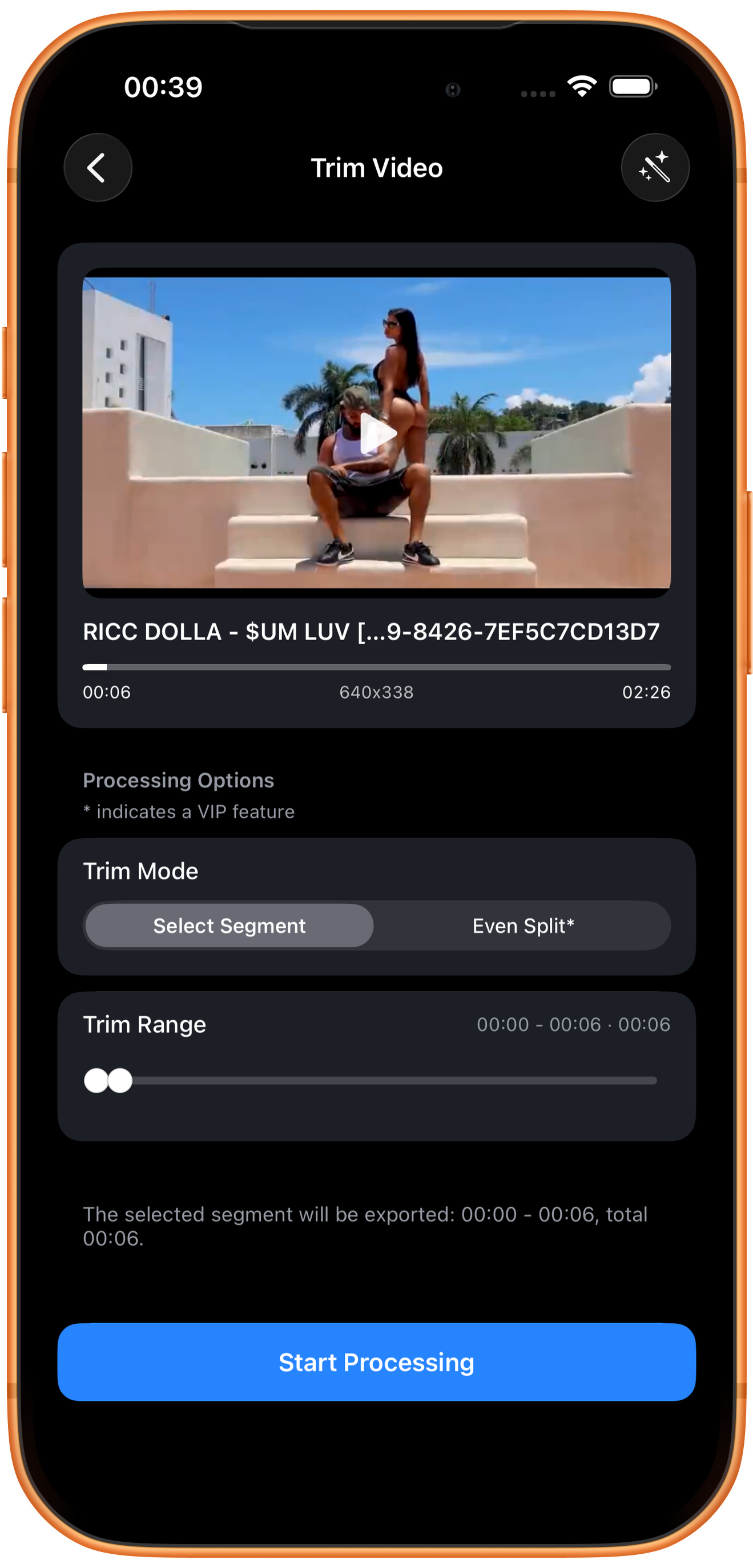
Select Segment under Trim Mode, then move the two Trim Range handles.
Select Segment exports the chosen range
The left handle sets the start and the right sets the end. Times and selected duration appear above, with the export range repeated below. This example keeps 00:00–00:06.
The preview duration is not the trim range
The preview card shows the original video duration. Trim Range identifies what will be retained. Check that you have not cut off the start of an action or the final words.
Even Split* divides the whole video
The option describes splitting the full video into equal pieces and exporting them together. Opening it in the recorded test showed the VIP page; an even-split export was not tested. Use Select Segment for a normal trim.
04Steps
Check the result, then save or keep processing
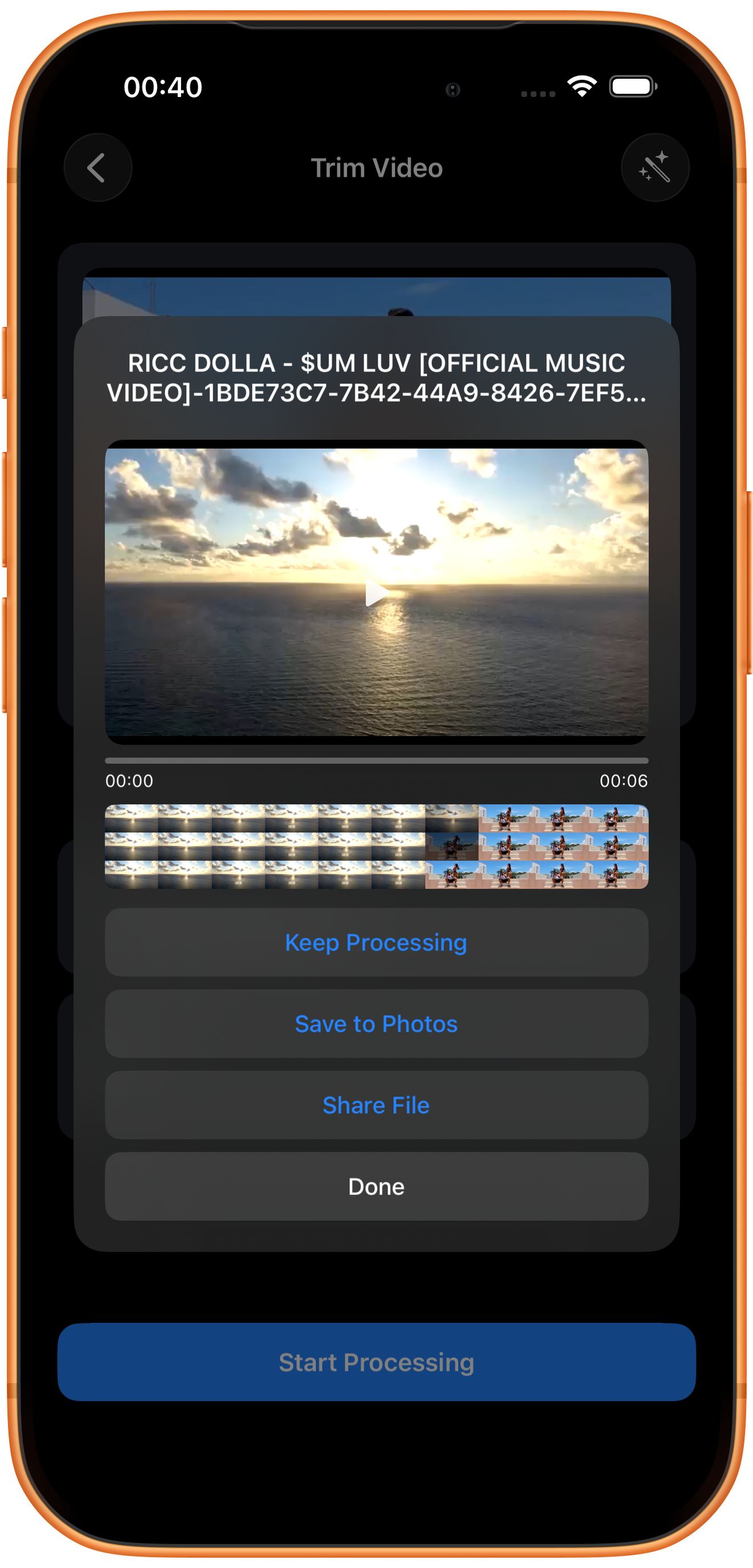
After Start Processing, the example produces _trim.mp4 with a displayed duration of about six seconds. Check both ends before saving. Keep Processing lets you reuse the short clip with another tool.
Preview and save
Play the result and check picture, duration, and sound, then tap Save to Photos. The first save may require permission to add photos and videos. After the success message, check the file in Photos.
What the other buttons do
Keep Processing takes the result into tool selection. Share File opens sharing options. Done closes the result page; it does not save to Photos.
Troubleshooting
This trims time, not the canvas
Trim Video chooses which moments to retain. Use Resize / Canvas to adjust aspect ratio or canvas layout.
Frequently asked questions
How do I keep a segment from the middle?
Move both handles, check the displayed start and end times, then preview and export.
Why does Even Split open VIP?
It is starred and required VIP in the test. The Select Segment workflow successfully exported.
Try it on your device
ClipDock is free to download, with in-app purchases. Features and available options depend on the current app version.
Download on the App Store