
01Steps
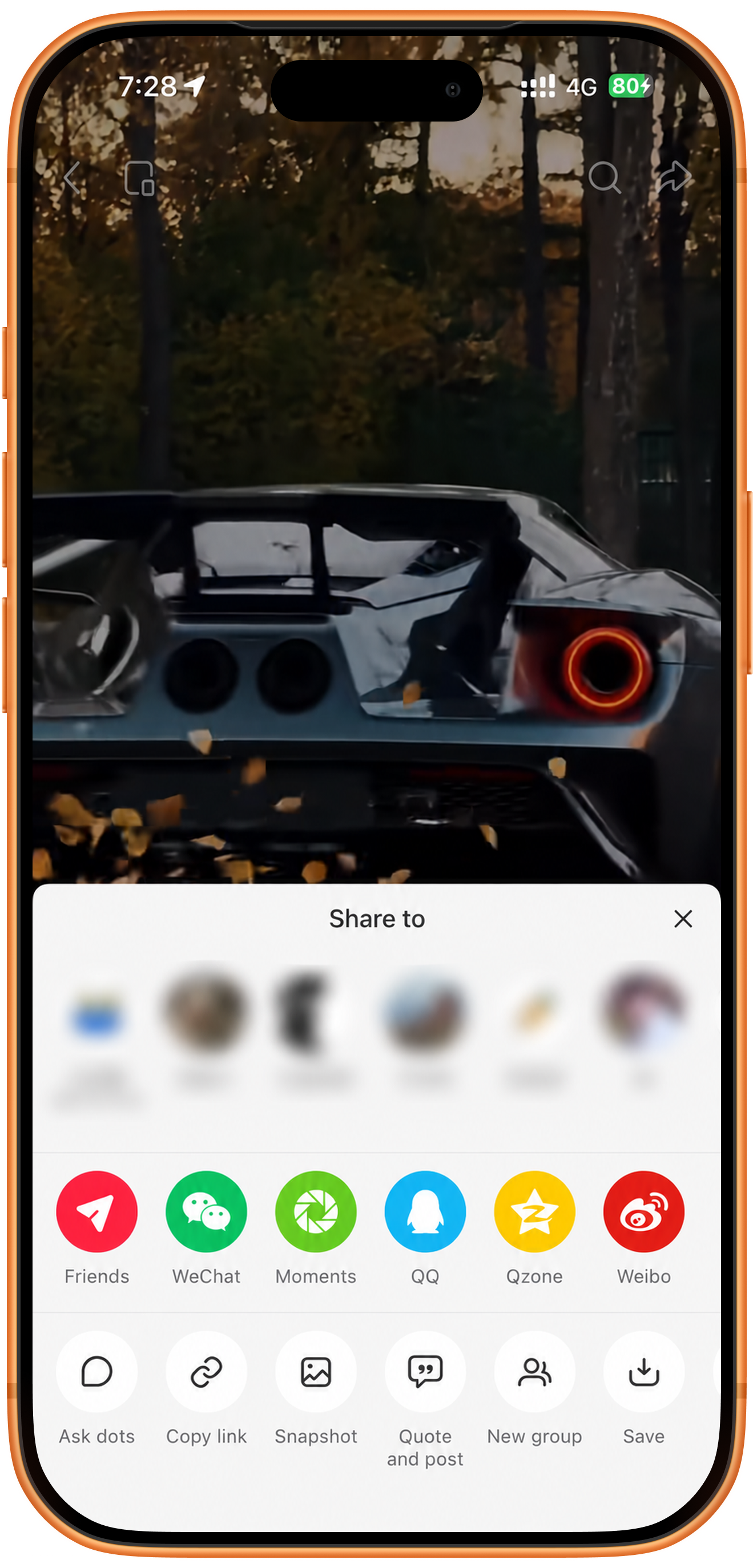
Copy the video post’s link
Open the video post in Xiaohongshu and open Share. Find Copy link at the bottom of Share to; it is the second option from the left in the screenshot’s bottom row. Copy the current post’s share content.
02Steps
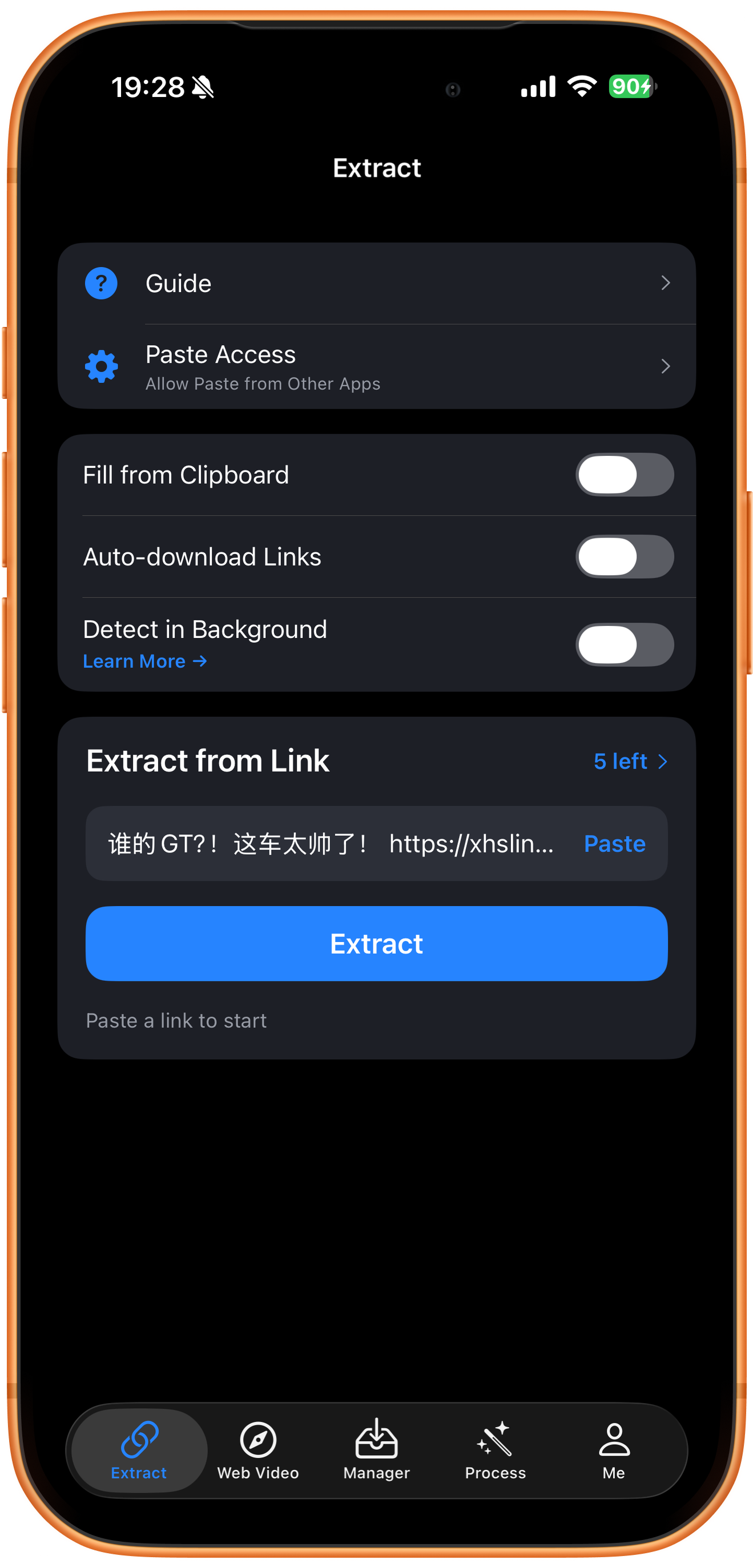
Paste the share content and extract
Open Extract in ClipDock and tap Paste under Extract from Link. The example contains a Chinese caption about a car together with a Xiaohongshu short link. Check that the target link is included, then tap Extract.
Share text can be pasted with the link
The example retains the share caption and proceeds to download. Make sure the pasted content includes the link, rather than just the title. If no link is detected, copy it again or try pasting only the URL.
03Steps
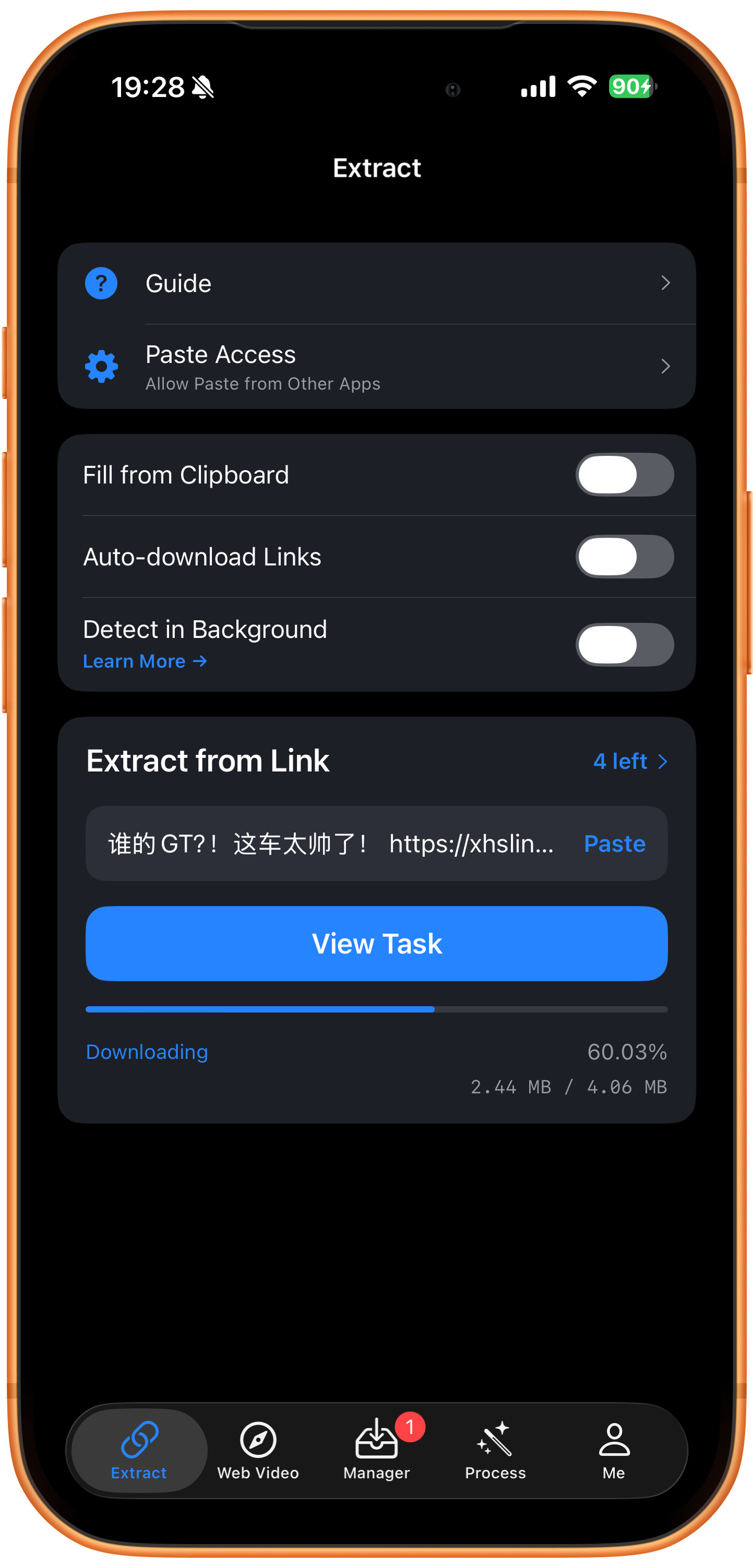
Check download progress
The Downloading view shows percentage and downloaded size. This screenshot reads 60.03% and 2.44 MB / 4.06 MB, so the task is not finished. Tap View Task or open Manager and wait for it to complete.
04Steps
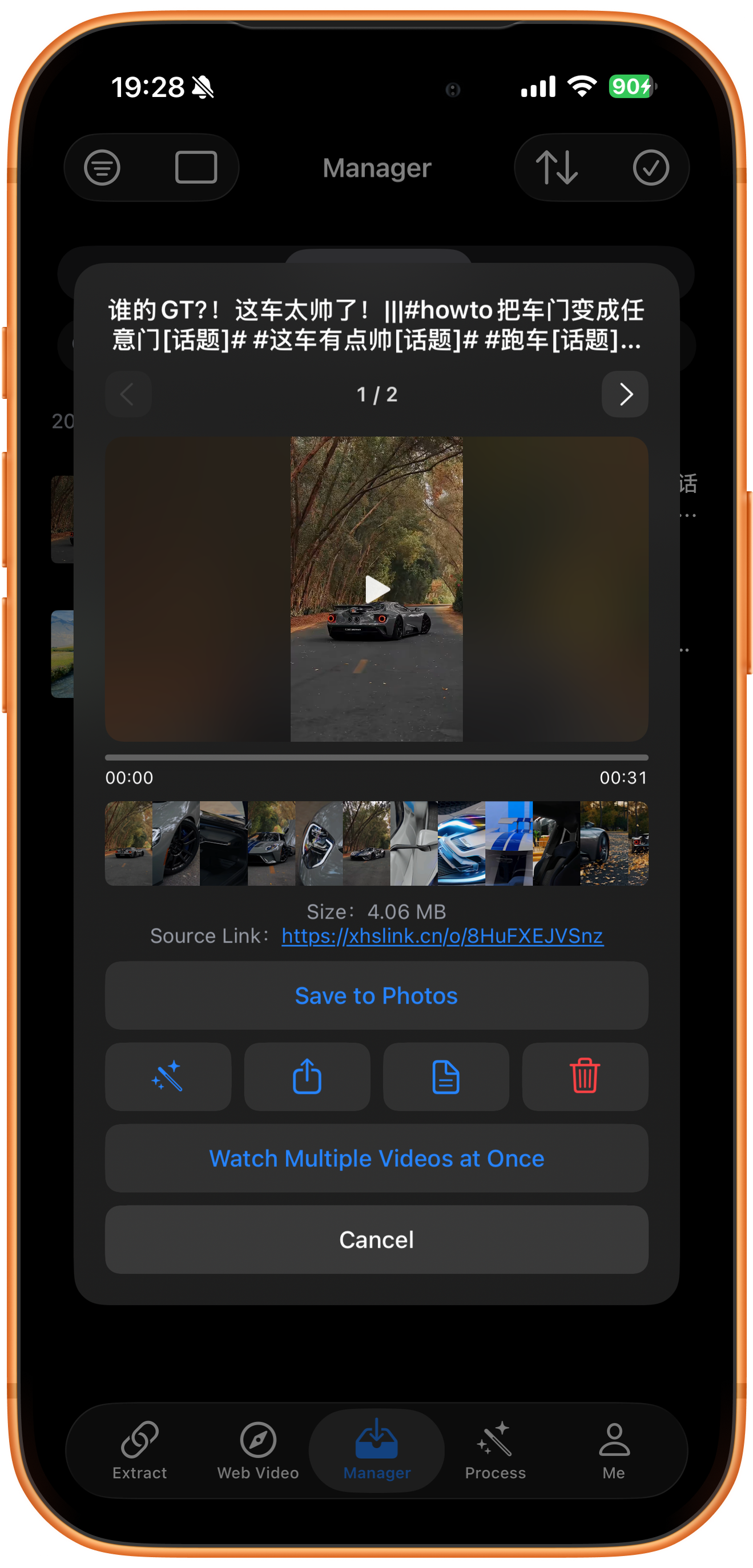
Check the media and save to Photos
Open the completed video in Manager and play it to check the picture and sound. The example is about 31 seconds and 4.06 MB, with its Xiaohongshu source link. Tap Save to Photos, follow the prompts, and check Photos.
Switch between items with the arrows
The preview header shows 1 / 2: the first of two items. Tap the right arrow to inspect the next item before deciding what to save. The counter alone does not establish the other item’s contents or format. Resource counts vary by result.
Save after downloading
Downloading into the app and saving to Photos are separate steps. If the video is missing from Photos, check that you tapped Save to Photos, then check permissions and the save message. The screenshot does not show a successful-save confirmation.
Troubleshooting
Nothing is extracted after pasting
Make sure the share content contains the complete link and the source post still opens. Check whether it has been deleted or its access restricted.
Frequently asked questions
Must I remove the share caption first?
The illustrated download succeeds with both the caption and short URL. If link detection fails, copy the link again or try retaining only the URL.
Does every post return two items?
No. The 1 / 2 counter belongs to this result. Other posts may return different amounts and kinds of media.
Does this guide also demonstrate image posts?
No. These screenshots show a video post, and do not establish the workflow for image posts.
Supported platforms
Supported sources include YouTube, Instagram, TikTok, X, Facebook, Vimeo, Reddit, Pinterest, Bilibili, Xiaohongshu, Weibo, and other platforms. Availability depends on the individual resource, region, and access conditions. The screenshots in each guide demonstrate only the workflow described there.
Try it on your device
ClipDock is free to download, with in-app purchases. Features and available options depend on the current app version.
Download on the App Store