
01Steps
Copy the Facebook video link
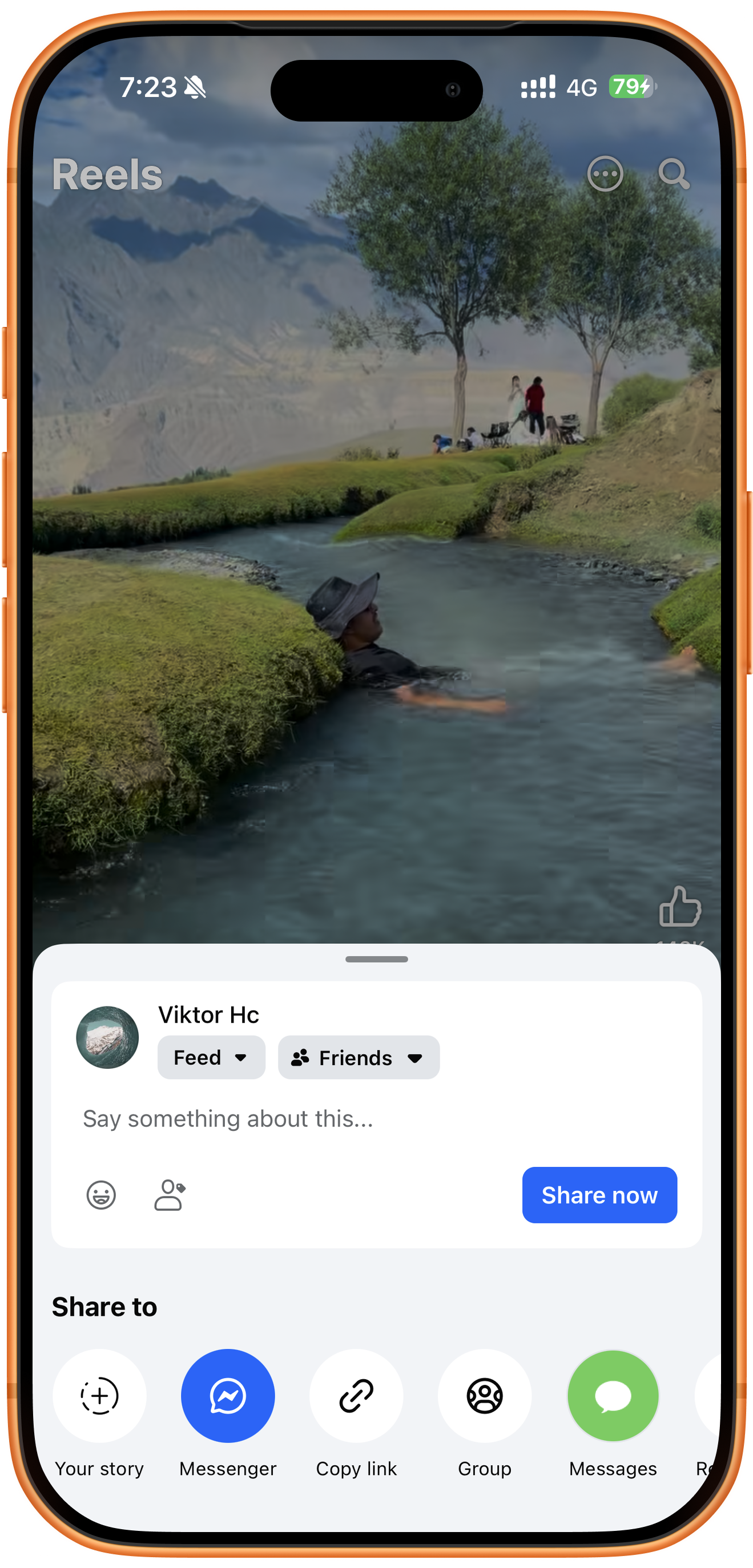
Open the video or Reel in Facebook, open the share panel, and tap Copy link in the Share to row at the bottom. Copy the current item’s link for the next step.
02Steps
Paste the link and extract the video
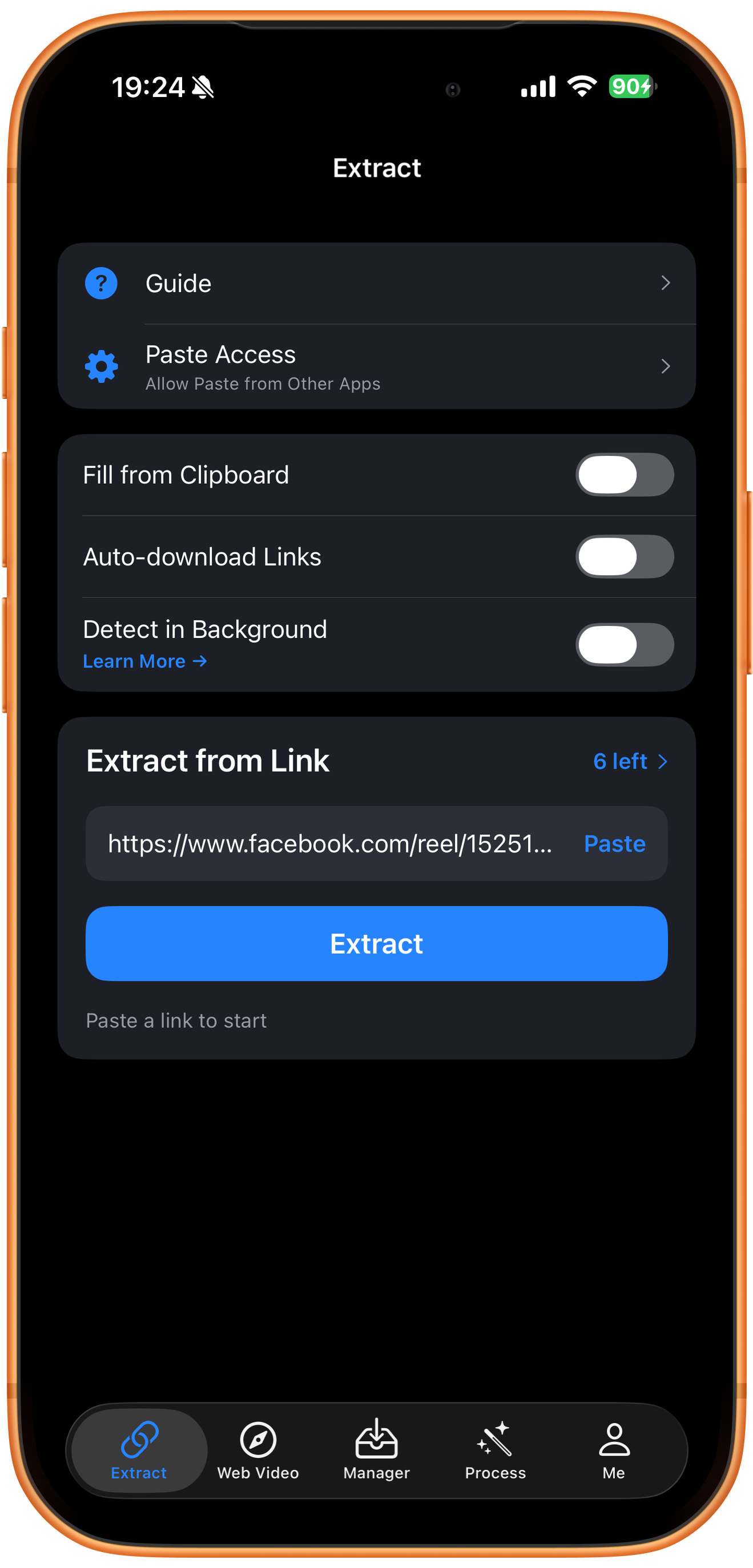
Open Extract in ClipDock and tap Paste under Extract from Link. Confirm that the link points to the Facebook video, then tap Extract. The example URL contains facebook.com/reel/. Automation switches such as Fill from Clipboard are off; manual pasting is sufficient.
03Steps
Choose the quality and file format
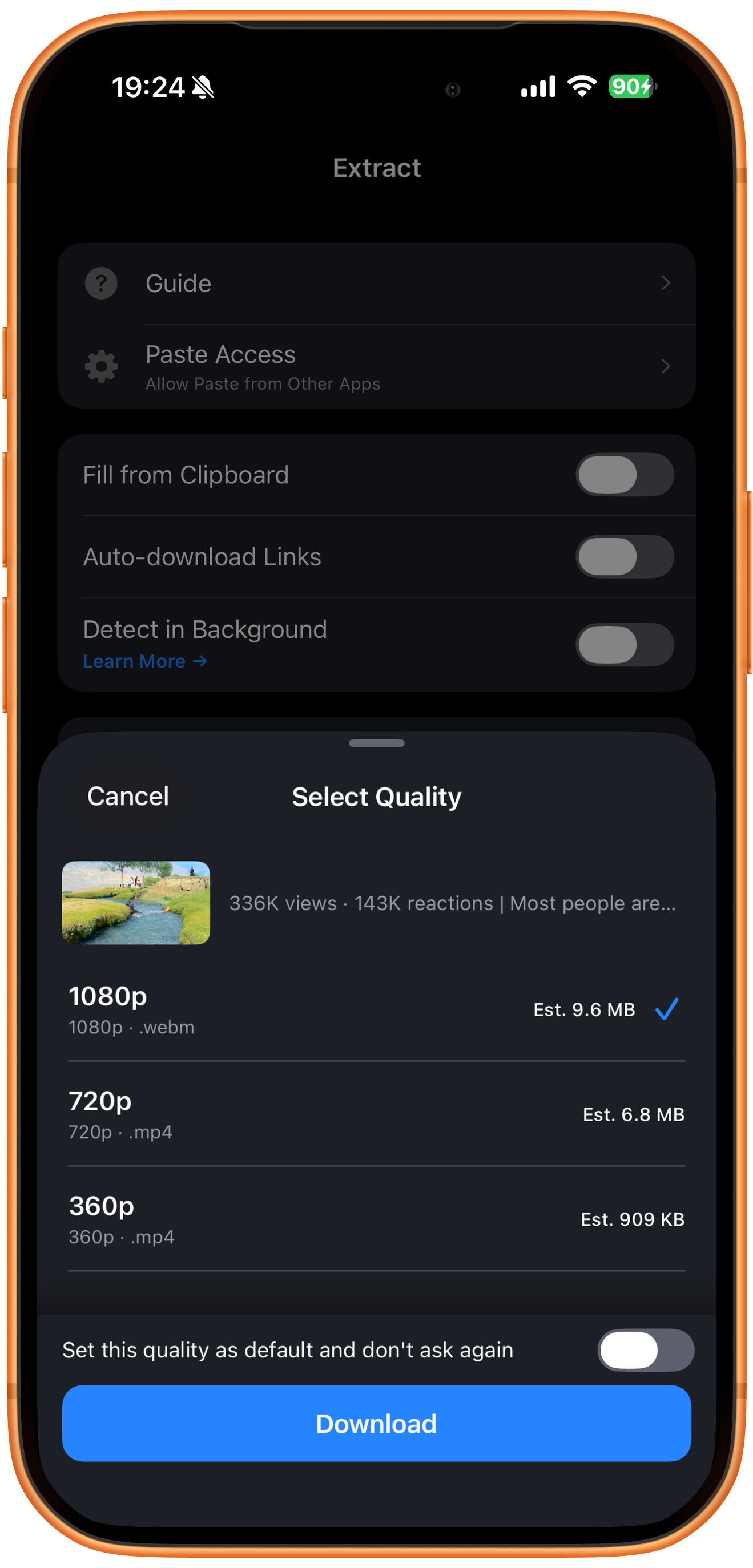
In Select Quality, check the thumbnail, resolution, format, and estimated size. This example offers 1080p WEBM at about 9.6 MB, 720p MP4 at about 6.8 MB, and 360p MP4 at about 909 KB. Select an option and tap Download. Available options depend on the result.
Compare quality and size together
Higher resolutions can retain more detail; smaller versions can reduce transfer time and storage use. The listed size is an estimate, rather than the final file size.
Check MP4 versus WEBM
The 1080p option in this example is .webm; the 720p and 360p options are .mp4. Resolution and file format are separate choices. Check actual compatibility when saving or opening the file in another app.
Set a default quality only if you want to
Set this quality as default and don’t ask again saves the preference. Leave it off, as shown, if you want to compare quality, format, and size for each download.
04Steps
Follow the download
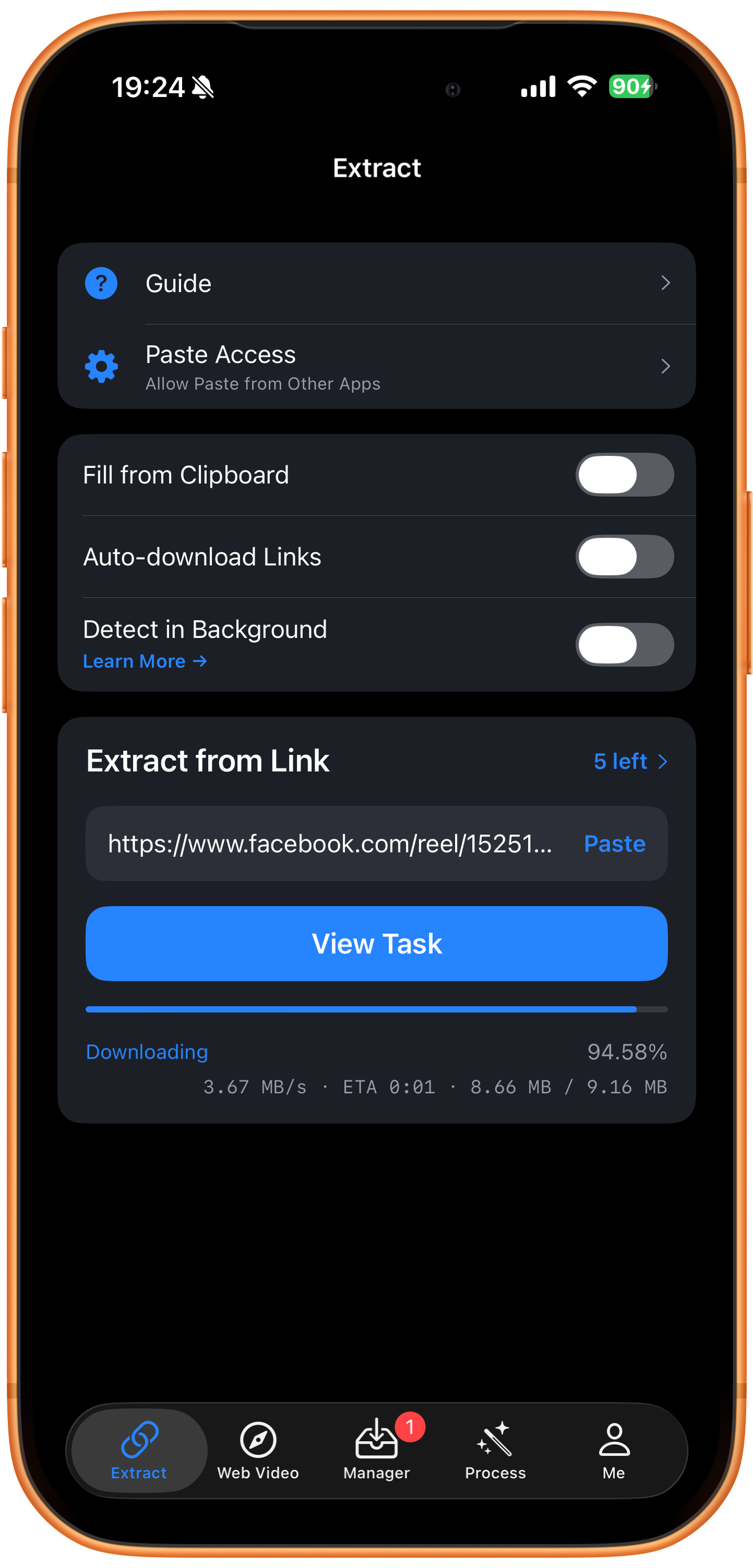
The Downloading view shows percentage, speed, estimated time remaining, and downloaded size. Tap View Task or open Manager and wait for completion. The screenshot shows 94.58%, so the download is still in progress.
05Steps
Preview the result and save to Photos
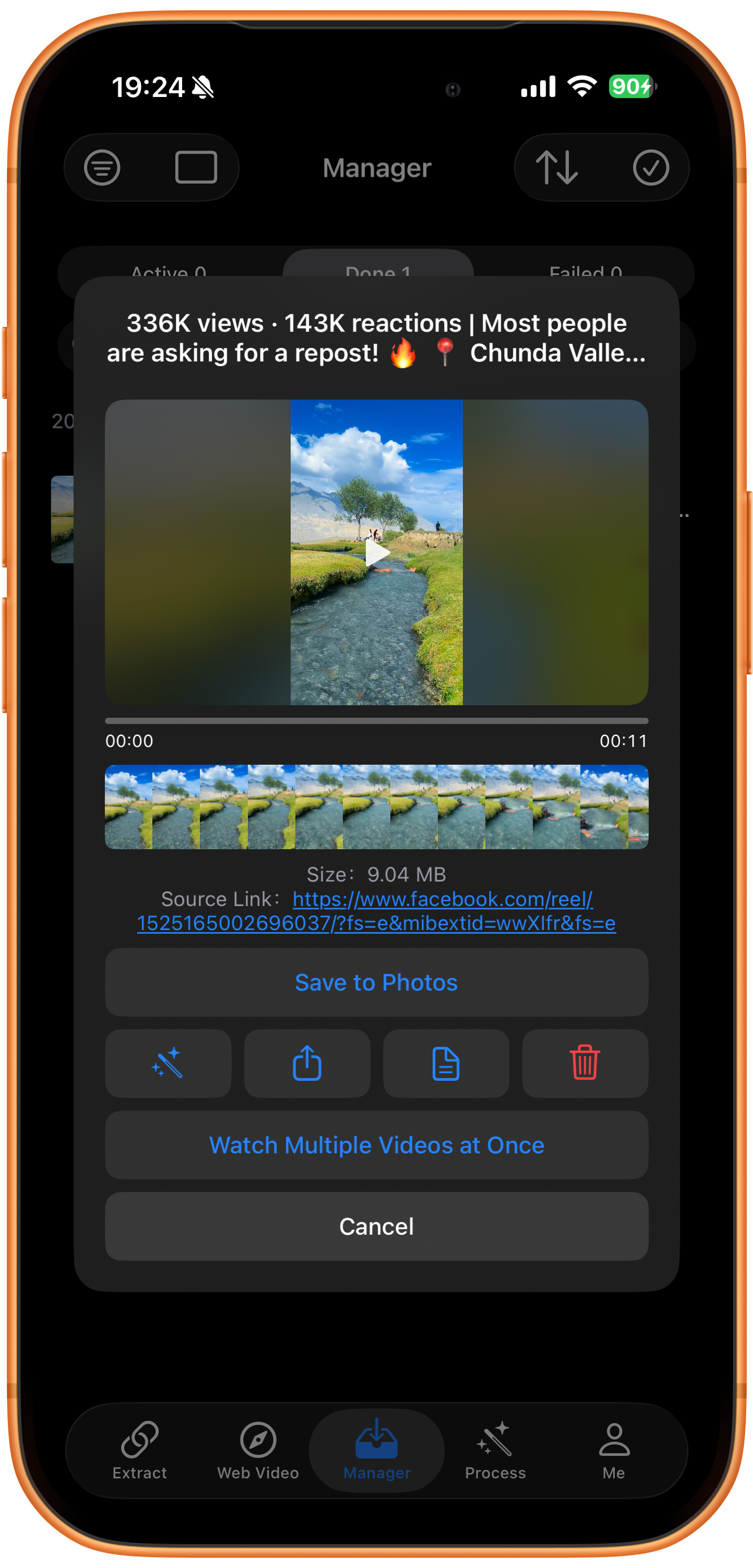
Open the video from Manager’s Done list. The example result is about 11 seconds long and 9.04 MB, with its Facebook source link. Play it to check the picture and sound, then tap Save to Photos and follow the system prompts. Check Photos afterward.
Downloading and saving to Photos are separate steps
Done means the file has downloaded into the app. You still need Save to Photos to export it to the system library. The screenshot shows this action, rather than a successful-save message.
Troubleshooting
No downloadable result?
Check that you copied the current video’s link and that the source is still accessible. If it has been deleted or access is restricted, check the source before retrying.
Frequently asked questions
Does this example use Facebook Reels?
Yes. Its source URL contains facebook.com/reel/. For other Facebook videos, copy the specific item’s link and check the actual available resources.
Can every video be downloaded in 1080p?
No. The 1080p, 720p, and 360p options belong to this example. Other videos can return different resolutions, formats, and sizes.
Why is a completed download missing from Photos?
The ClipDock library and the system Photos library are separate. Wait for the task to finish, then use Save to Photos and check photo permissions.
Supported platforms
Supported sources include YouTube, Instagram, TikTok, X, Facebook, Vimeo, Reddit, Pinterest, Bilibili, Xiaohongshu, Weibo, and other platforms. Availability depends on the individual resource, region, and access conditions. The screenshots in each guide demonstrate only the workflow described there.
Try it on your device
ClipDock is free to download, with in-app purchases. Features and available options depend on the current app version.
Download on the App Store