
01Steps
Open Rotate Video in Process
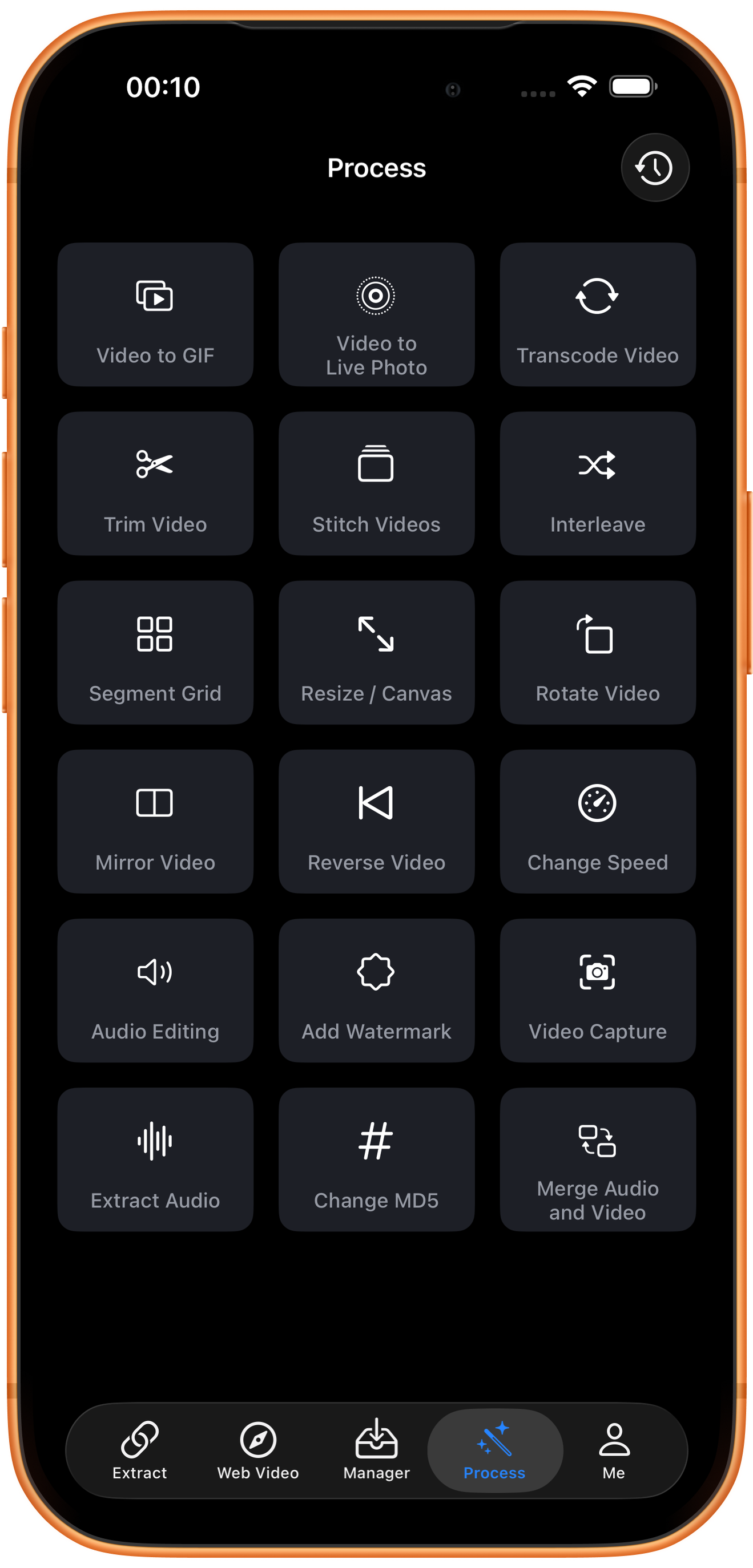
Tap Process in the bottom navigation. Find Rotate Video in row 3, in the right column, and tap the entry marked by the arrow.
02Steps
Choose the video to process
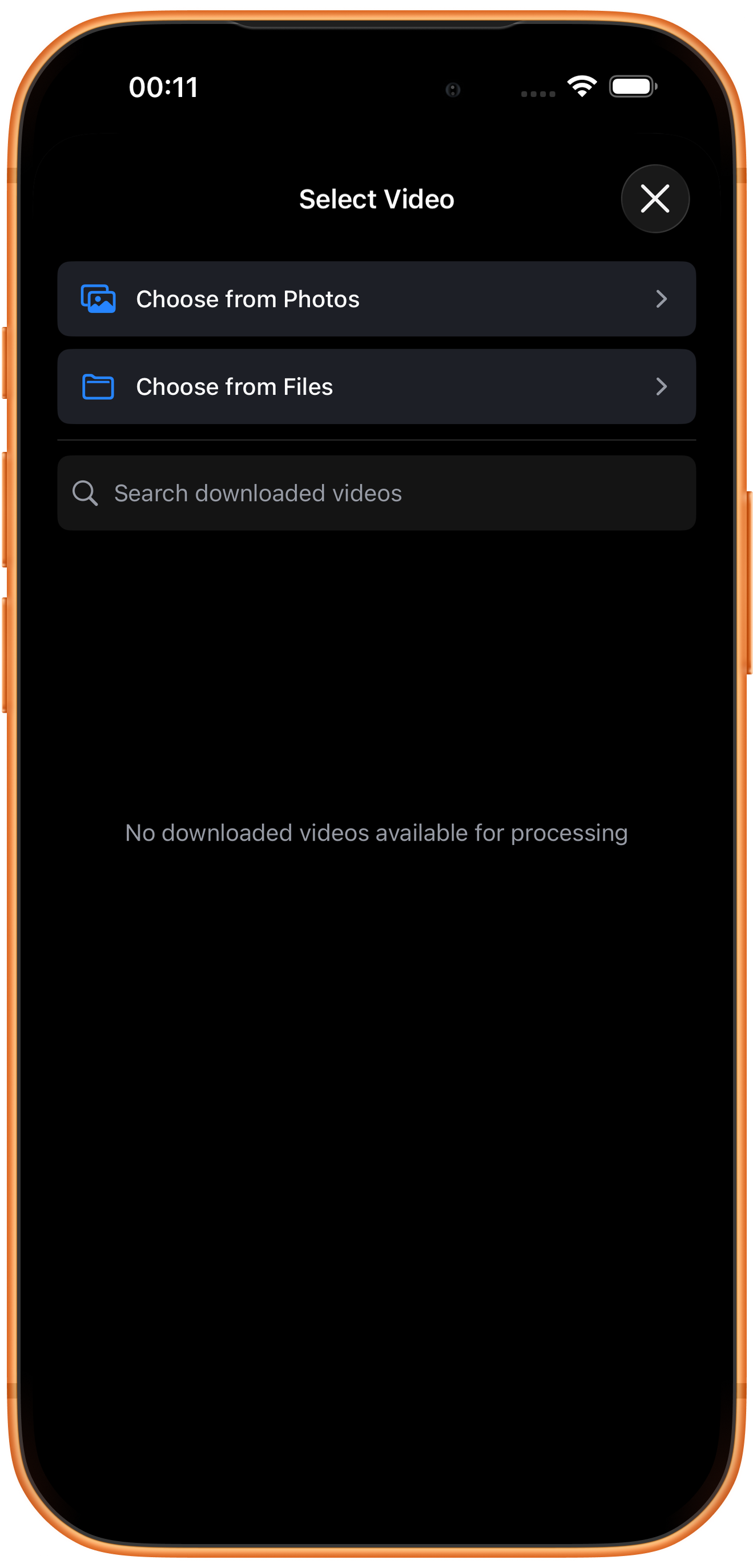
In Select Video, tap Choose from Photos and pick your source. Use Choose from Files for media stored in Files. An empty download list does not prevent importing from Photos. Some examples reuse a previously trimmed clip of about six seconds; you can prepare a short sample with Trim Video.
03Steps
Choose the rotation direction
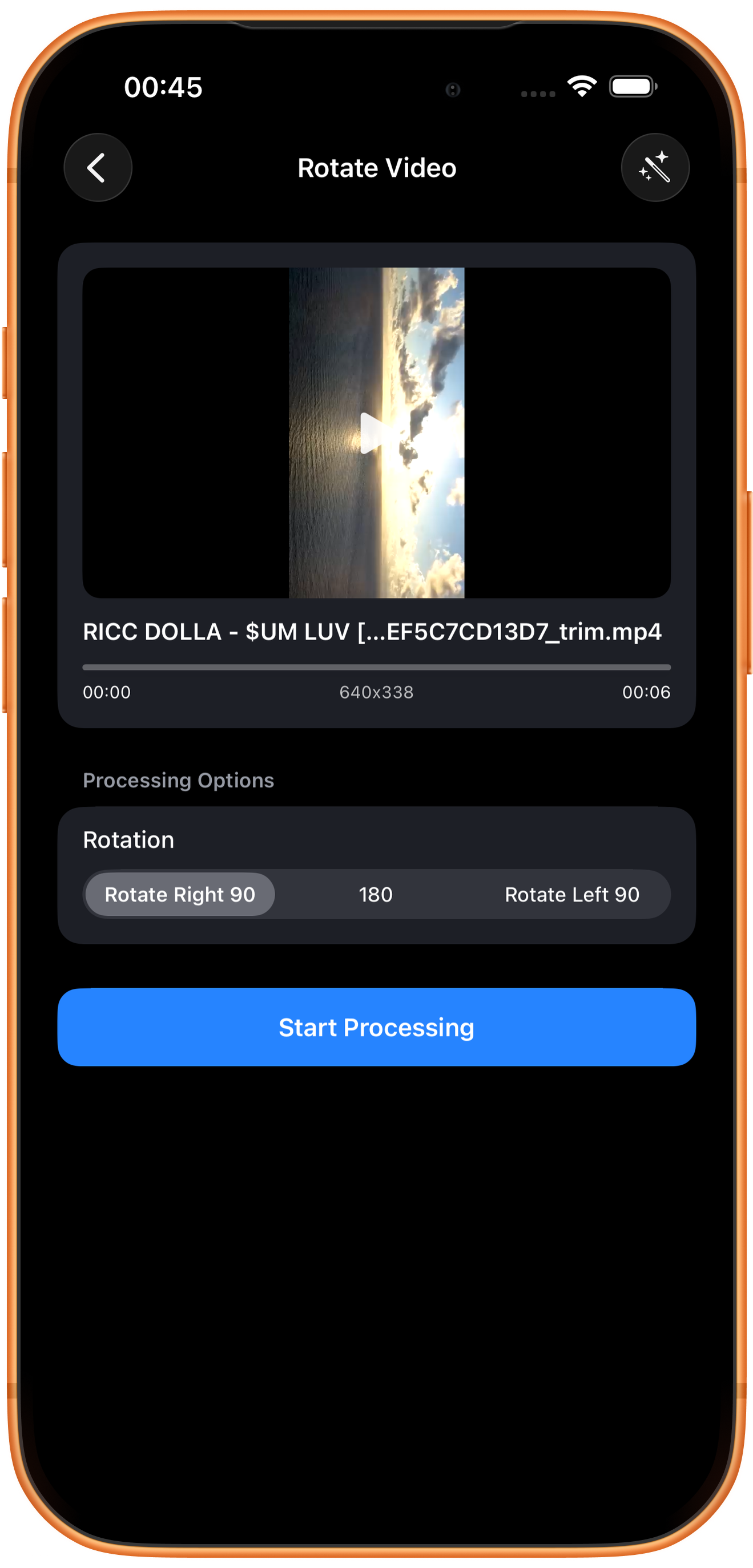
Select an angle under Rotation and check the preview. The example uses Rotate Right 90.
Right 90°, 180°, and left 90°
Rotate Right 90 turns clockwise by a quarter turn. 180 turns upside down. Rotate Left 90 turns counterclockwise by a quarter turn. A 90-degree turn swaps landscape and portrait orientation.
Black bars in the preview
A portrait picture inside a landscape preview card may show bars. This does not necessarily mean those same bars are encoded into the file. Check the actual exported dimensions and appearance.
04Steps
Check the result, then save or keep processing
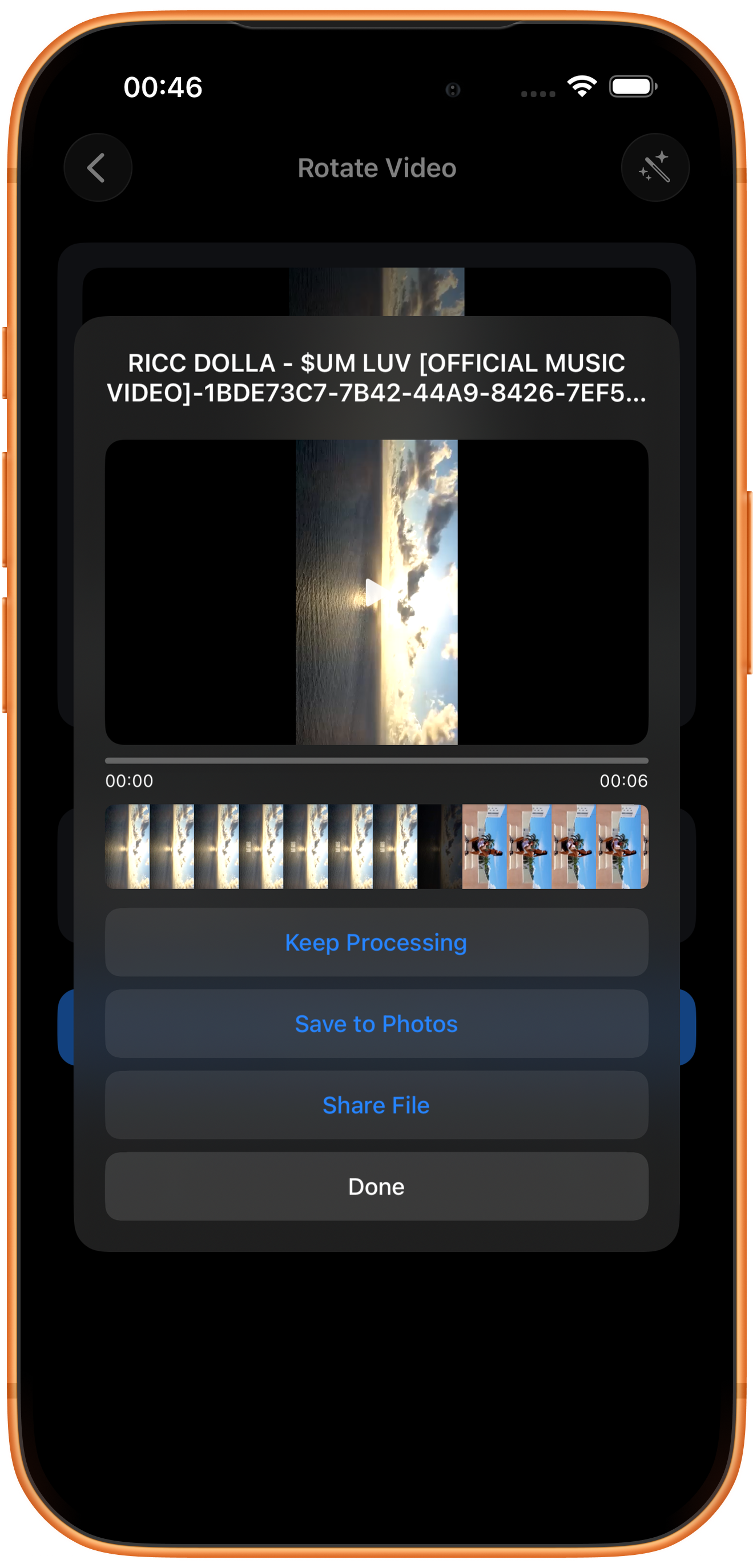
After Start Processing, the output picture is rotated 90 degrees right and remains about six seconds long. Check text and subject orientation before saving.
Preview and save
Play the result and check picture, duration, and sound, then tap Save to Photos. The first save may require permission to add photos and videos. After the success message, check the file in Photos.
What the other buttons do
Keep Processing takes the result into tool selection. Share File opens sharing options. Done closes the result page; it does not save to Photos.
Troubleshooting
Rotation and mirroring differ
Rotation changes orientation; mirroring swaps left and right or top and bottom. Use Mirror Video for reversed selfie text.
Frequently asked questions
Which option fixes an upside-down video?
Choose 180 and confirm the subject’s orientation in preview.
Does rotation change duration?
This operation changes direction. The roughly six-second input in this example remains about six seconds long.
Try it on your device
ClipDock is free to download, with in-app purchases. Features and available options depend on the current app version.
Download on the App Store