
01Steps
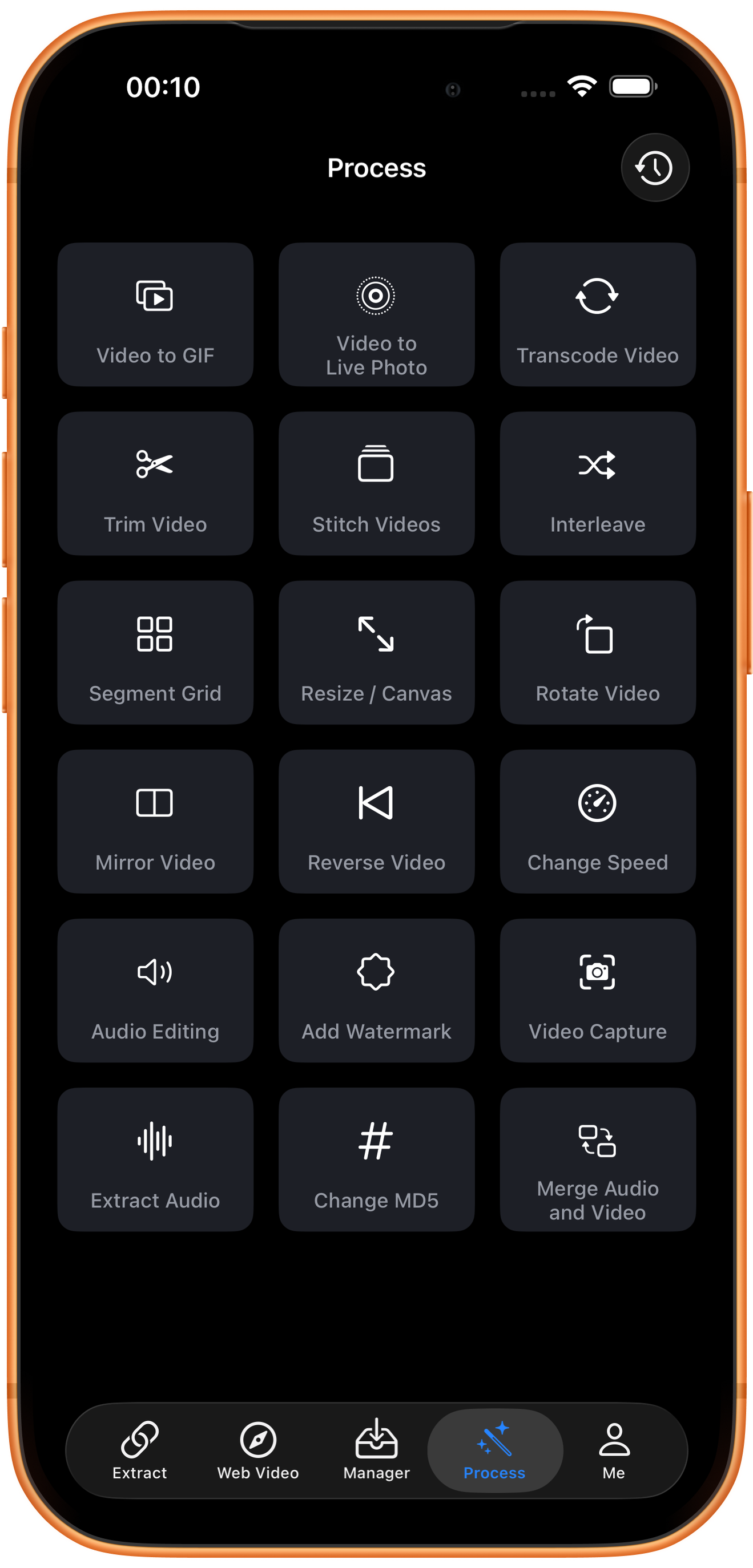
Open Resize / Canvas in Process
Tap Process in the bottom navigation. Find Resize / Canvas in row 3, in the middle column, and tap the entry marked by the arrow.
02Steps
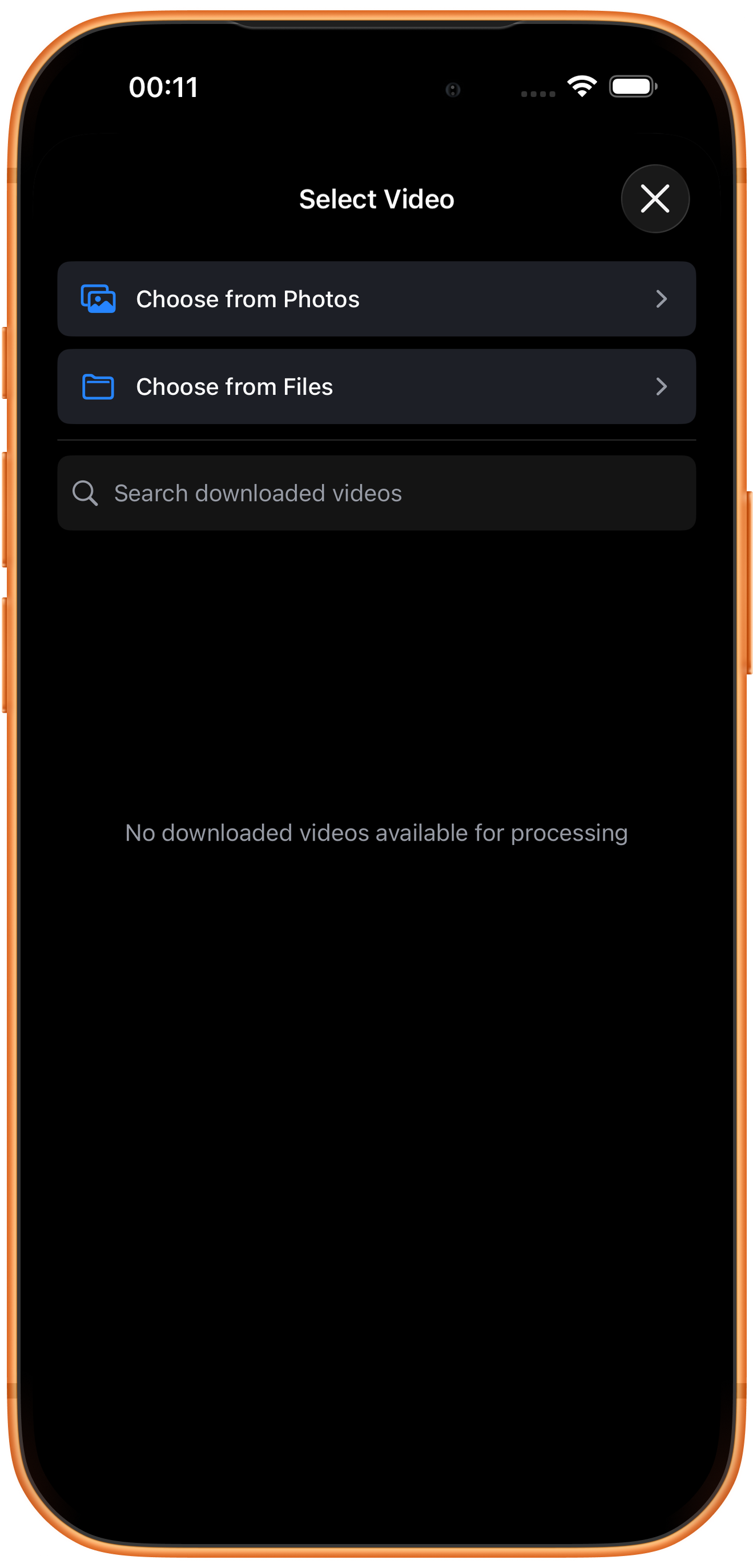
Choose the video to process
In Select Video, tap Choose from Photos and pick your source. Use Choose from Files for media stored in Files. An empty download list does not prevent importing from Photos. Some examples reuse a previously trimmed clip of about six seconds; you can prepare a short sample with Trim Video.
03Steps
Choose the canvas ratio
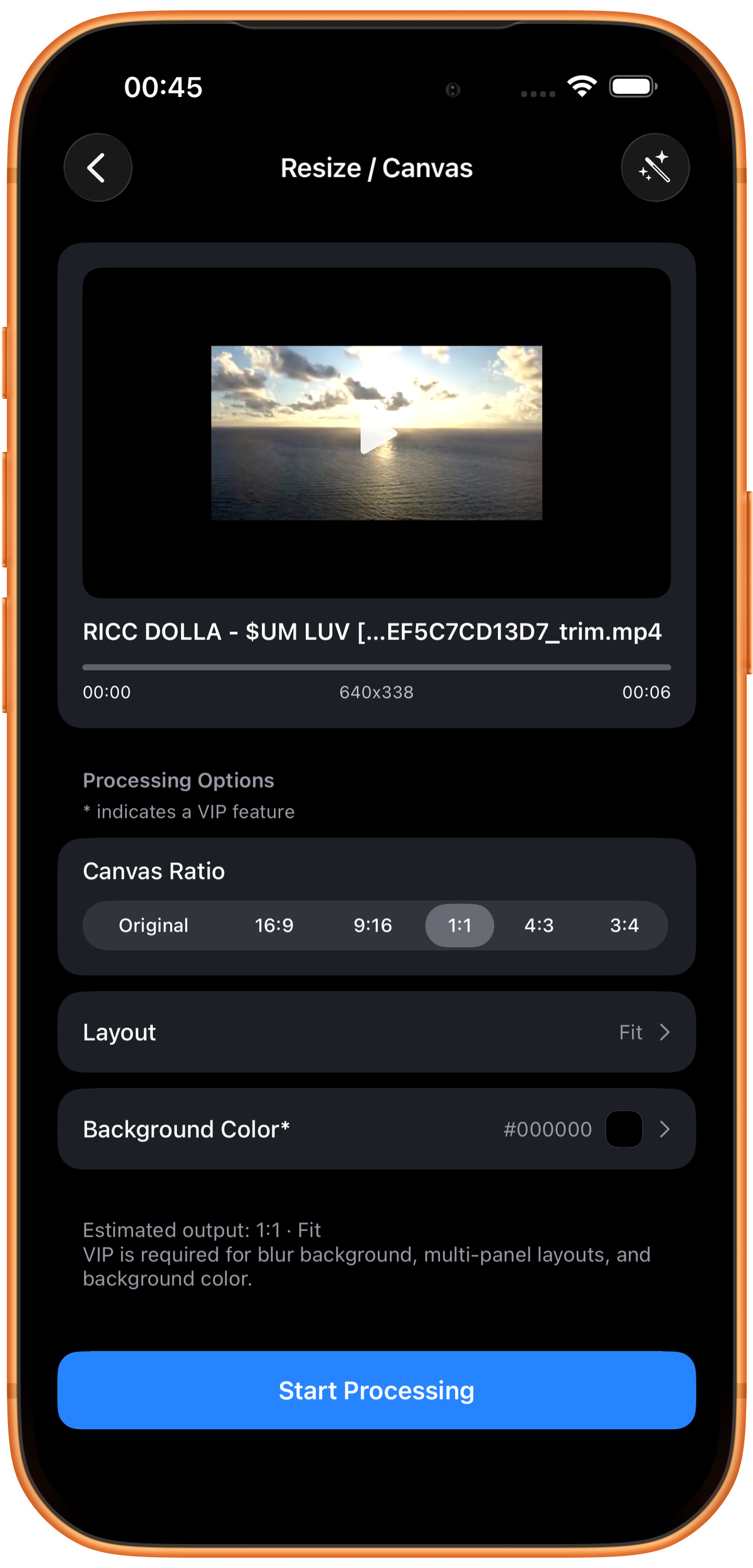
Select Canvas Ratio, then check Layout and background color. The example uses 1:1, Fit, and black.
Original, 16:9, 9:16, 1:1, 4:3, and 3:4
Original keeps the source ratio. 16:9 is a common landscape ratio, 9:16 portrait, and 1:1 square. A ratio describes width relative to height, rather than a pixel resolution such as 1080p.
Background Color*
#000000 is black. When Fit places a differently shaped picture inside the canvas, the remaining area shows this background. Changing the color requires VIP.
04Steps
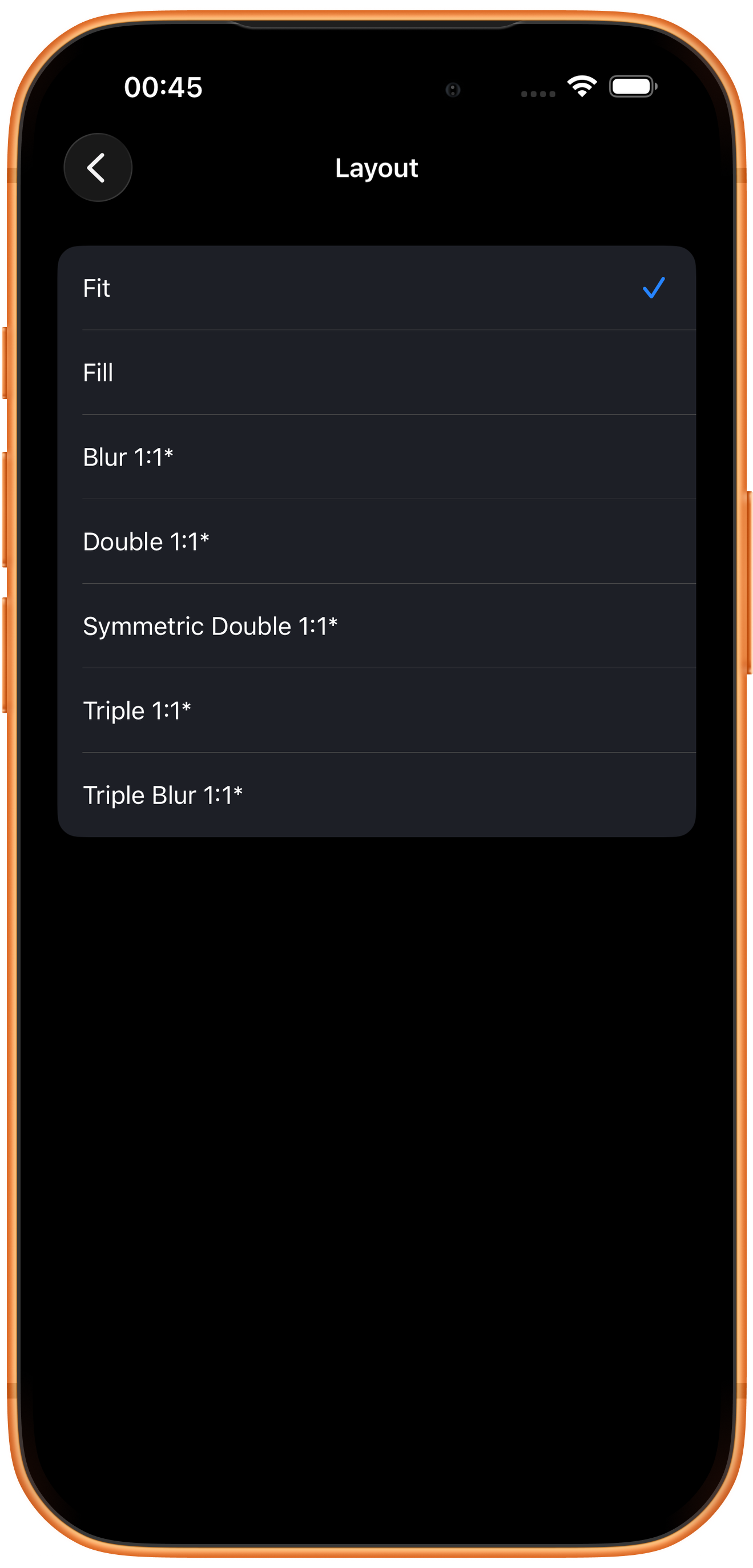
Choose Fit, Fill, or another layout
Open Layout, select a mode, then return to confirm the summary and tap Start Processing.
Fit keeps the whole picture
Fit scales the entire picture proportionally, potentially leaving background areas. Use it when subjects, subtitles, or edge details must remain visible. This is the tested mode.
Fill covers the canvas
Fill scales proportionally to cover the canvas and may crop edges when the ratios differ. Check subtitles, heads, and side edges in the preview.
Starred blur and multi-panel layouts
The menu includes Blur 1:1*, Double 1:1*, Symmetric Double 1:1*, Triple 1:1*, and Triple Blur 1:1*. These VIP blur-background or multi-panel modes were not export-tested here.
05Steps
Check the result, then save or keep processing
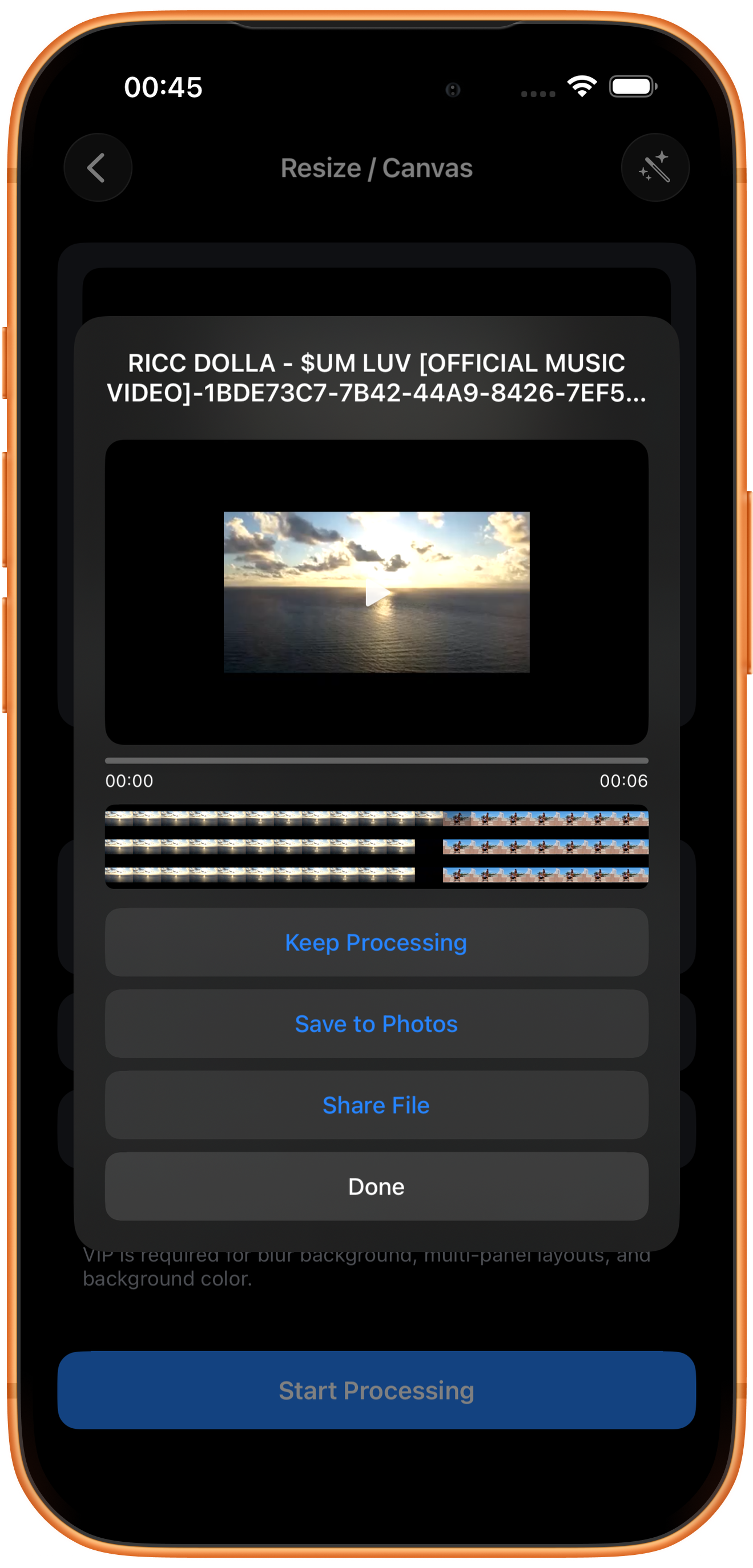
The _resize.mp4 result preserves the whole landscape image with surrounding black background. Check playback and final dimensions for your intended use.
Preview and save
Play the result and check picture, duration, and sound, then tap Save to Photos. The first save may require permission to add photos and videos. After the success message, check the file in Photos.
What the other buttons do
Keep Processing takes the result into tool selection. Share File opens sharing options. Done closes the result page; it does not save to Photos.
Troubleshooting
Decide whether edge cropping is acceptable
Try Fit first when text or important subjects are near the edges. Try Fill for full coverage, and inspect important frames.
Frequently asked questions
Does changing the ratio stretch the picture?
The tested Fit layout preserves proportions and adds background. Inspect other modes in preview rather than assuming a canvas change always stretches the image.
How do I change pixel resolution?
This tool focuses on canvas ratio and layout. See the Resolution choices in Transcode Video for size and format conversion.
Try it on your device
ClipDock is free to download, with in-app purchases. Features and available options depend on the current app version.
Download on the App Store