
01Steps
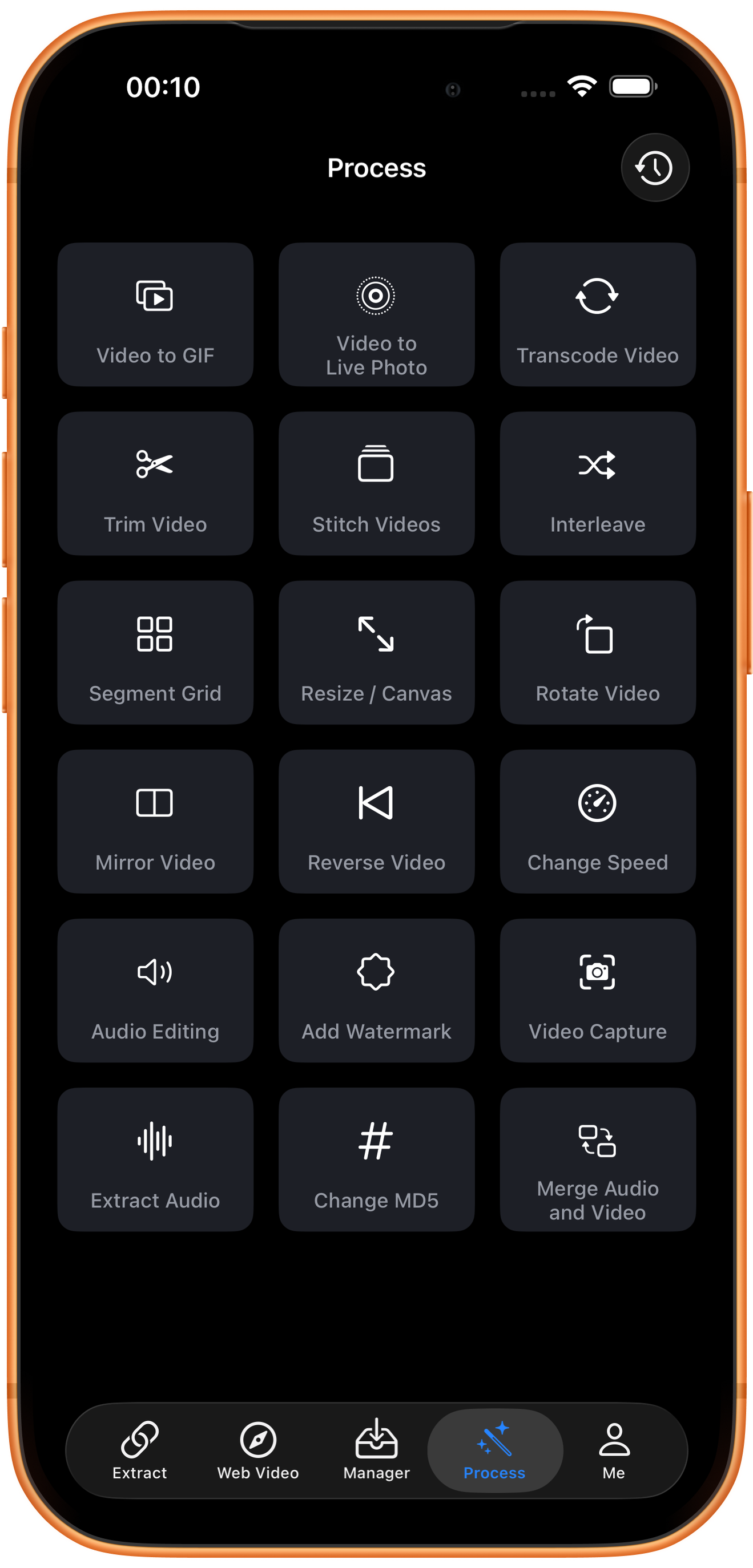
Open Change Speed in Process
Tap Process in the bottom navigation. Find Change Speed in row 4, in the right column, and tap the entry marked by the arrow.
02Steps
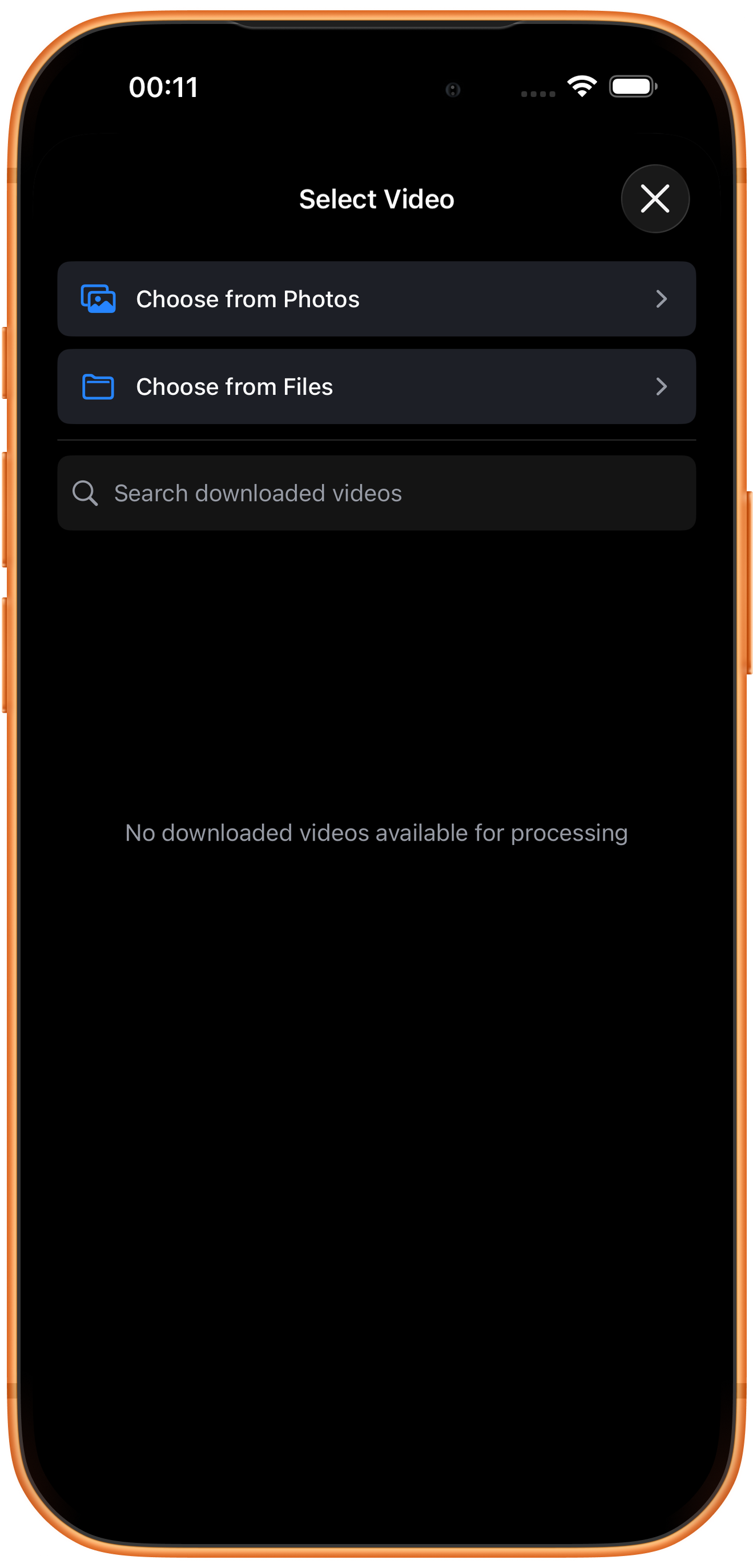
Choose the video to process
In Select Video, tap Choose from Photos and pick your source. Use Choose from Files for media stored in Files. An empty download list does not prevent importing from Photos. Some examples reuse a previously trimmed clip of about six seconds; you can prepare a short sample with Trim Video.
03Steps
Set speed and pitch behavior
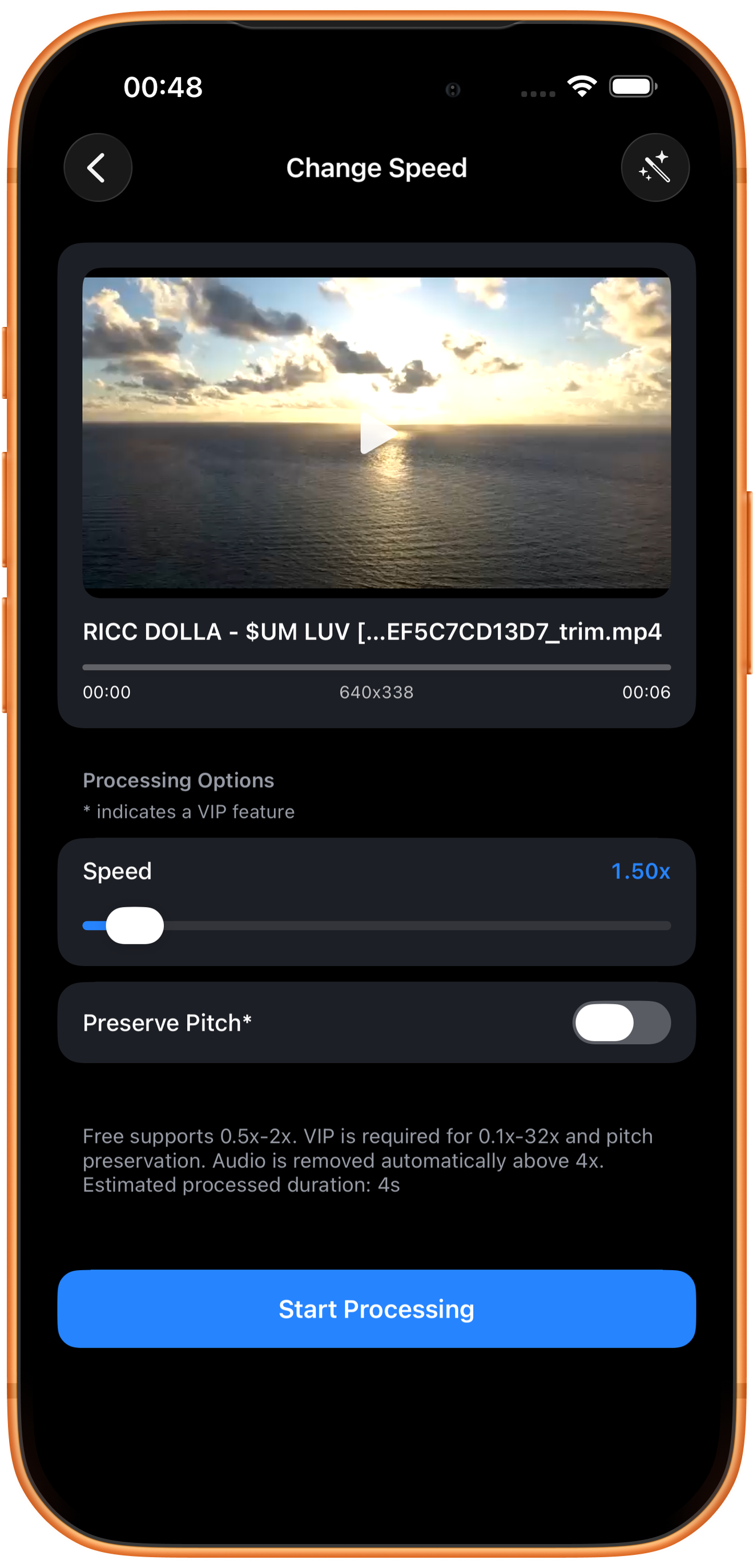
Drag Speed and read the multiplier at the right and Estimated processed duration below. Confirm, then tap Start Processing.
Multiplier and duration
1x is original speed, above 1 is faster, and below 1 is slower. Duration is approximately the source duration divided by the multiplier: six seconds / 1.5 is about four seconds. Check the actual result.
Preserve Pitch*
This VIP option retains pitch while changing speed. Without it, pitch may change. Listen carefully to dialogue or singing after export.
Speed limits and fast-playback audio
The page lists 0.5x–2x as free. The wider 0.1x–32x range and pitch preservation need VIP. Speeds above 4x automatically remove audio.
04Steps
Check the result, then save or keep processing
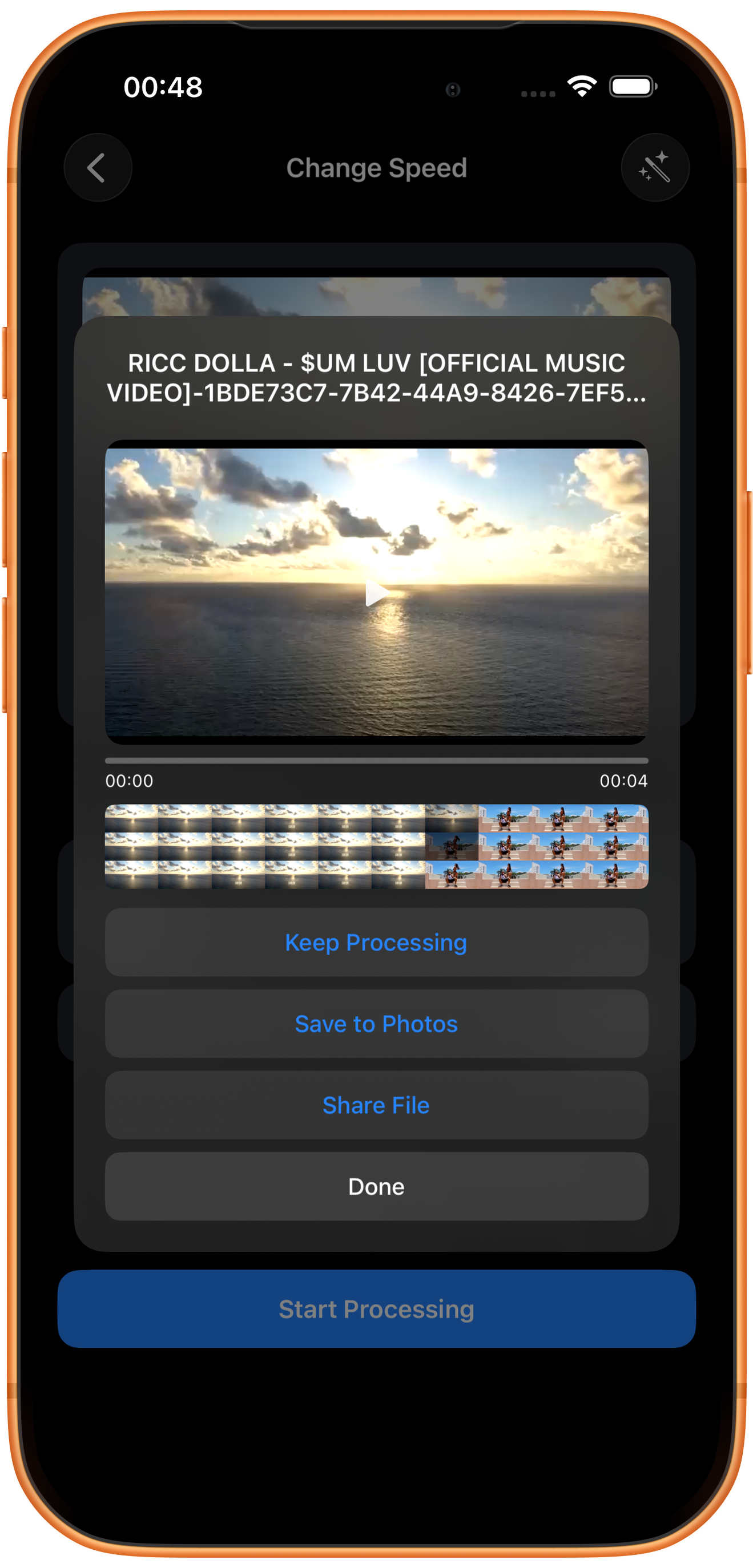
At 1.50x with pitch preservation off, the output shows about four seconds, matching the estimate. Check rhythm and sound before saving.
Preview and save
Play the result and check picture, duration, and sound, then tap Save to Photos. The first save may require permission to add photos and videos. After the success message, check the file in Photos.
What the other buttons do
Keep Processing takes the result into tool selection. Share File opens sharing options. Done closes the result page; it does not save to Photos.
Troubleshooting
Slower does not always mean smoother
Slow motion can reveal low source frame rate or motion blur. Compare a short sample rather than judging only by the multiplier.
Frequently asked questions
How long is a video at 2x?
Usually about half its original duration. Use the final output duration as the reference.
Why is there no audio at high speed?
The illustrated page explicitly states that speeds above 4x remove audio automatically.
Try it on your device
ClipDock is free to download, with in-app purchases. Features and available options depend on the current app version.
Download on the App Store