
01Steps
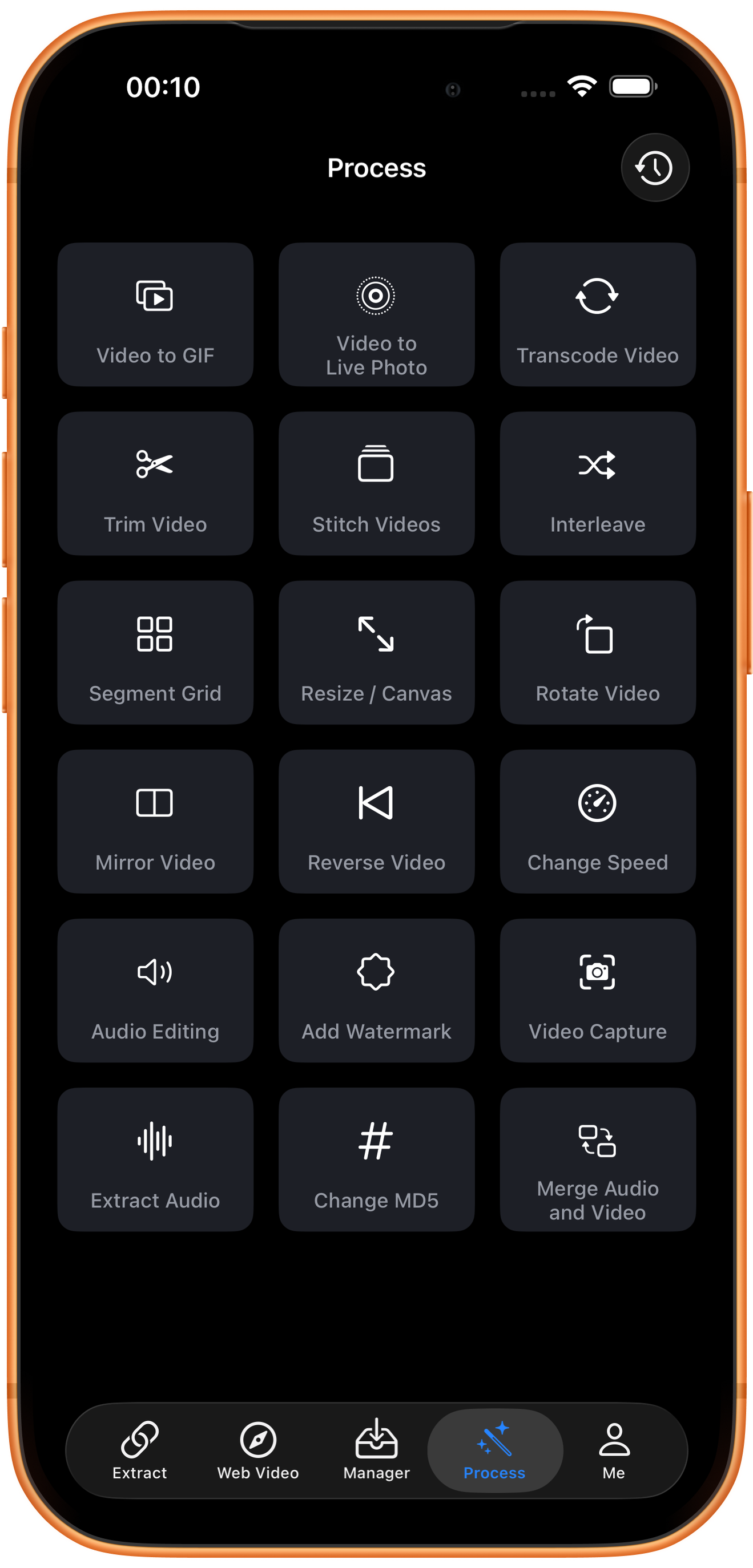
Open Audio Editing in Process
Tap Process in the bottom navigation. Find Audio Editing in row 5, in the left column, and tap the entry marked by the arrow.
02Steps
Choose the video to process
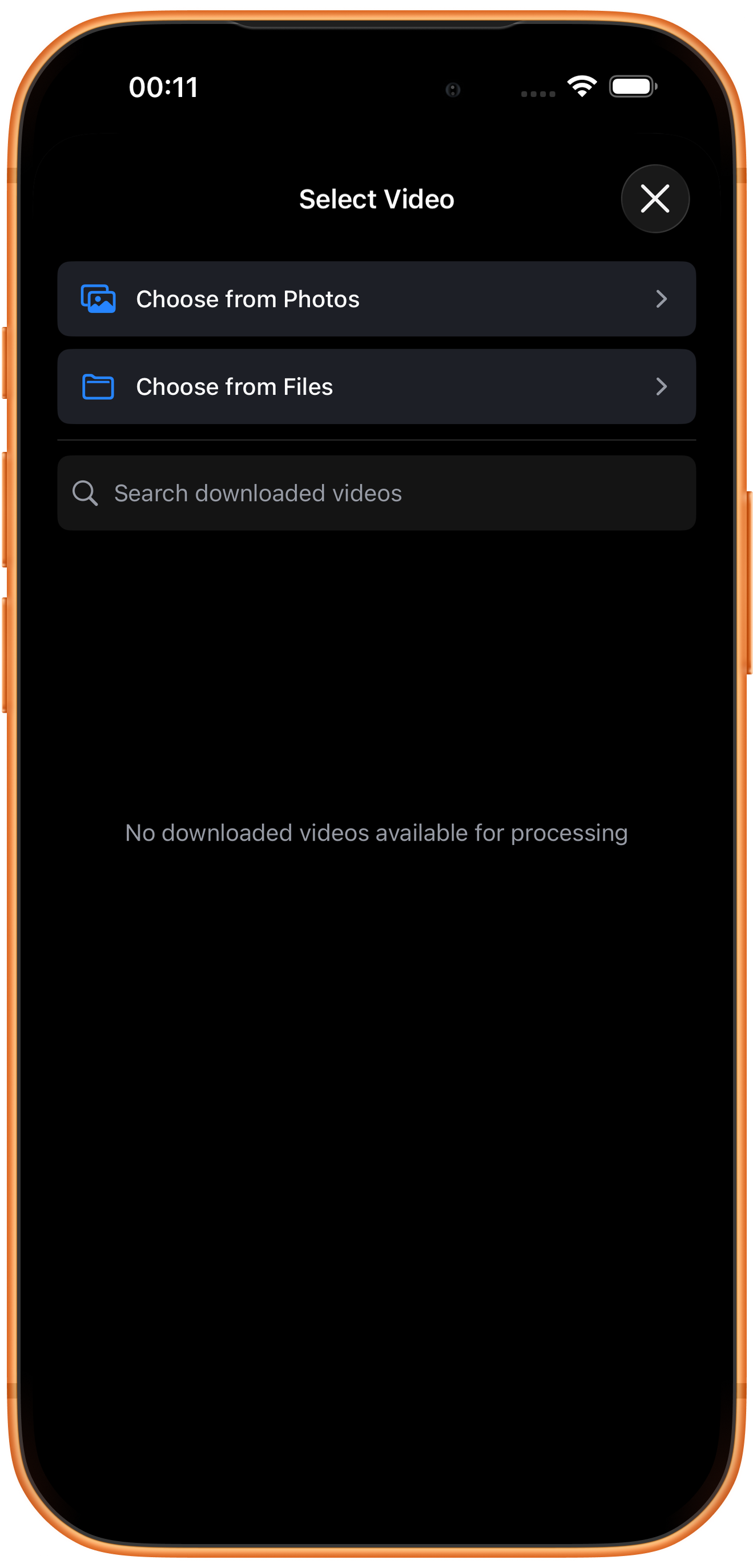
In Select Video, tap Choose from Photos and pick your source. Use Choose from Files for media stored in Files. An empty download list does not prevent importing from Photos. Some examples reuse a previously trimmed clip of about six seconds; you can prepare a short sample with Trim Video.
03Steps
Choose the audio processing mode
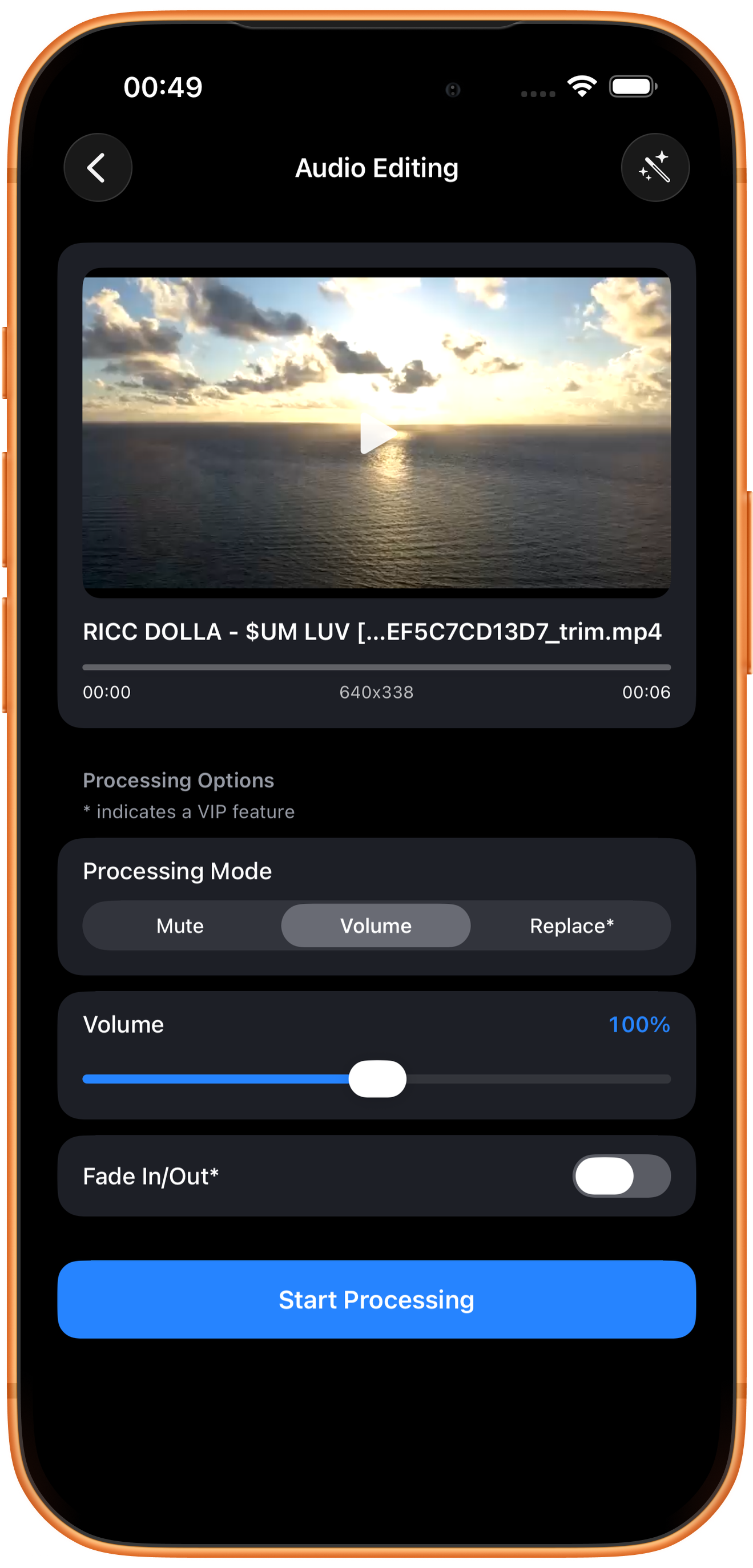
Select Mute, Volume, or Replace* under Processing Mode. Volume expands the level slider and fade switch.
Mute removes audio
Choose Mute when you only need the picture. Play the export to confirm sound was removed, rather than simply muting the player.
Volume changes the audio level
The percentage at the right is the selected level; this example uses 100%. Read the label after dragging and listen to the result. Raising volume does not repair noise or improve recording quality.
Replace* and Fade In/Out*
Replace changes the audio source, while Fade In/Out fades audio at the ends. Both are marked VIP and were not executed in this test. For separate audio and video inputs, see Merge Audio and Video.
04Steps
Check the result, then save or keep processing
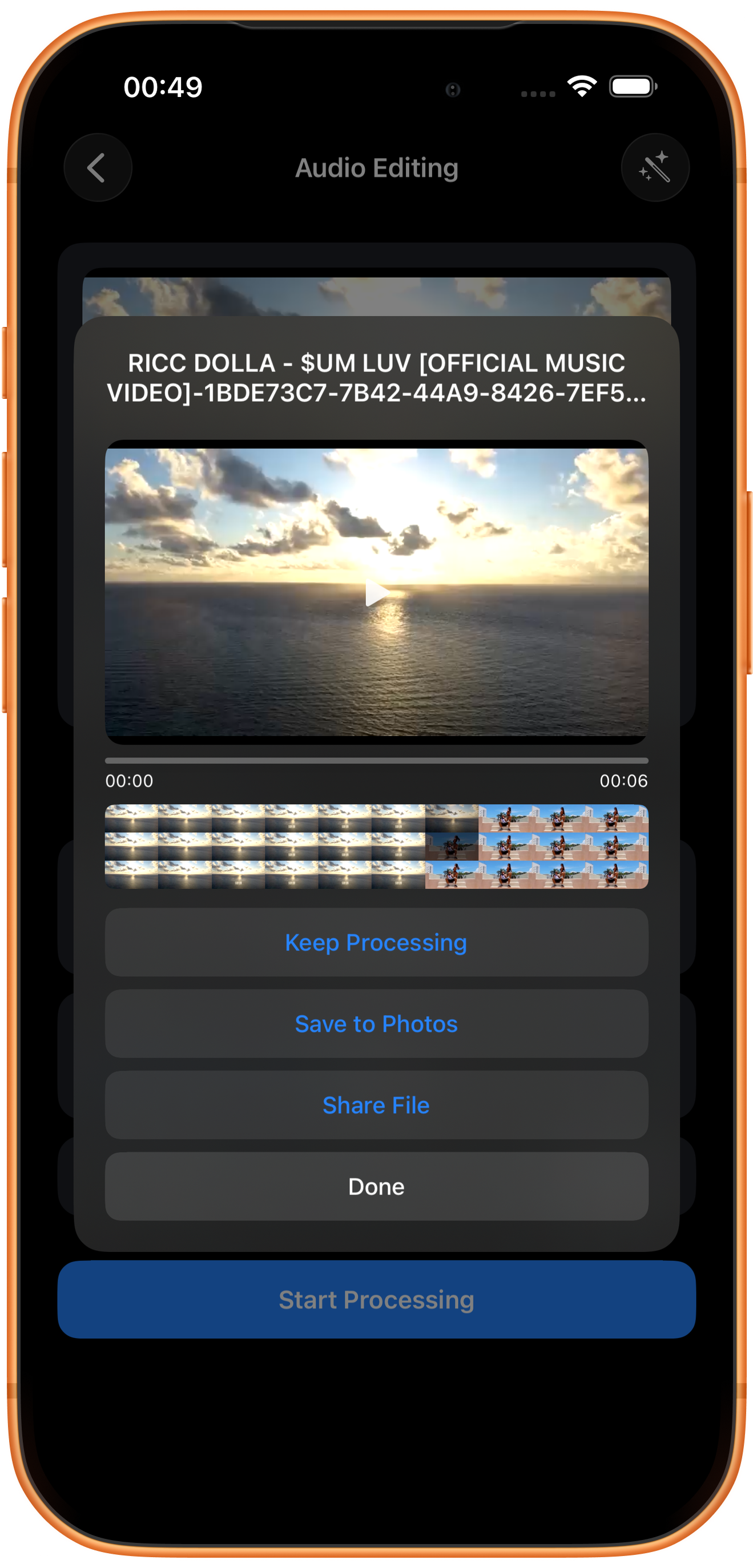
The _audio_edit.mp4 file was generated at Volume 100%, also shown in export history. To change loudness, confirm that the slider percentage actually changes, then export and compare by listening.
Preview and save
Play the result and check picture, duration, and sound, then tap Save to Photos. The first save may require permission to add photos and videos. After the success message, check the file in Photos.
What the other buttons do
Keep Processing takes the result into tool selection. Share File opens sharing options. Done closes the result page; it does not save to Photos.
Troubleshooting
Audio is distorted or noisy
Check the original recording, then adjust moderately. Raising volume can amplify noise too. Keep the original for comparison.
Frequently asked questions
Does this export an audio-only file?
No. This tool edits sound within a video, and the example output remains a video. Use Extract Audio for an independent audio file.
How can I confirm the chosen volume?
Read the slider percentage and export history summary, then play the result.
Try it on your device
ClipDock is free to download, with in-app purchases. Features and available options depend on the current app version.
Download on the App Store