
01Steps
Open Video to GIF in Process
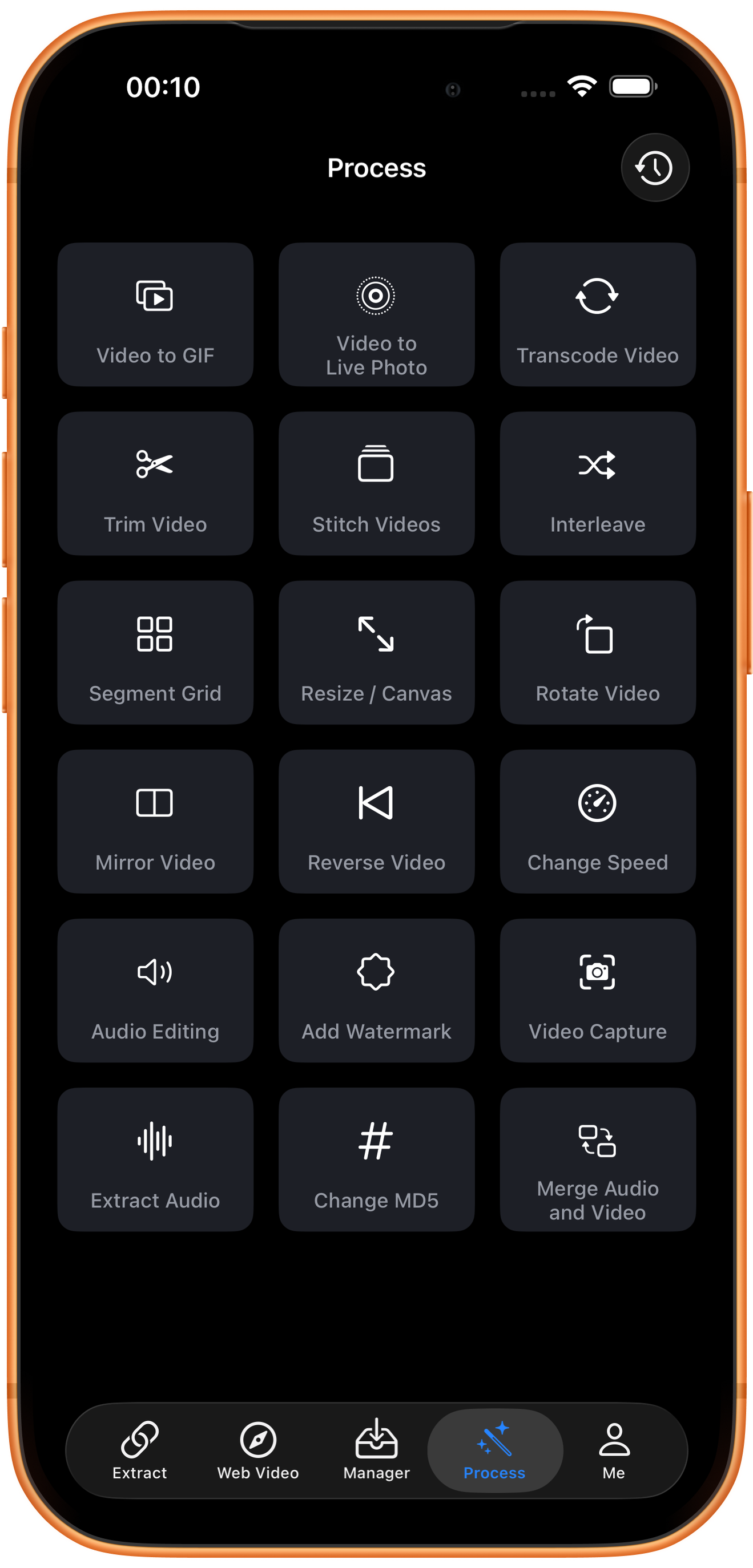
Tap Process in the bottom navigation. Find Video to GIF in row 1, in the left column, and tap the entry marked by the arrow.
02Steps
Choose the video to process
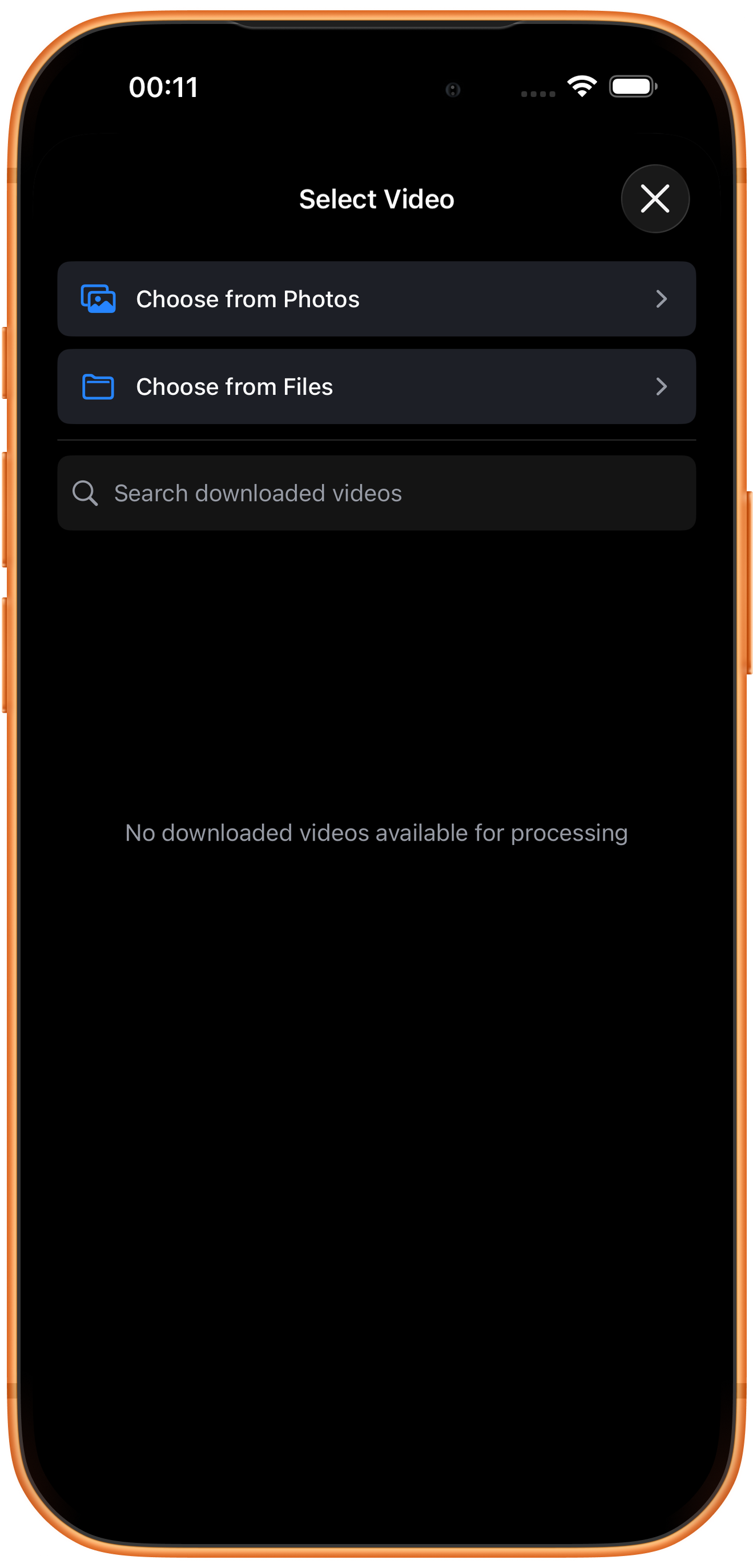
In Select Video, tap Choose from Photos and pick your source. Use Choose from Files for media stored in Files. An empty download list does not prevent importing from Photos. Some examples reuse a previously trimmed clip of about six seconds; you can prepare a short sample with Trim Video.
03Steps
Choose the clip and preset
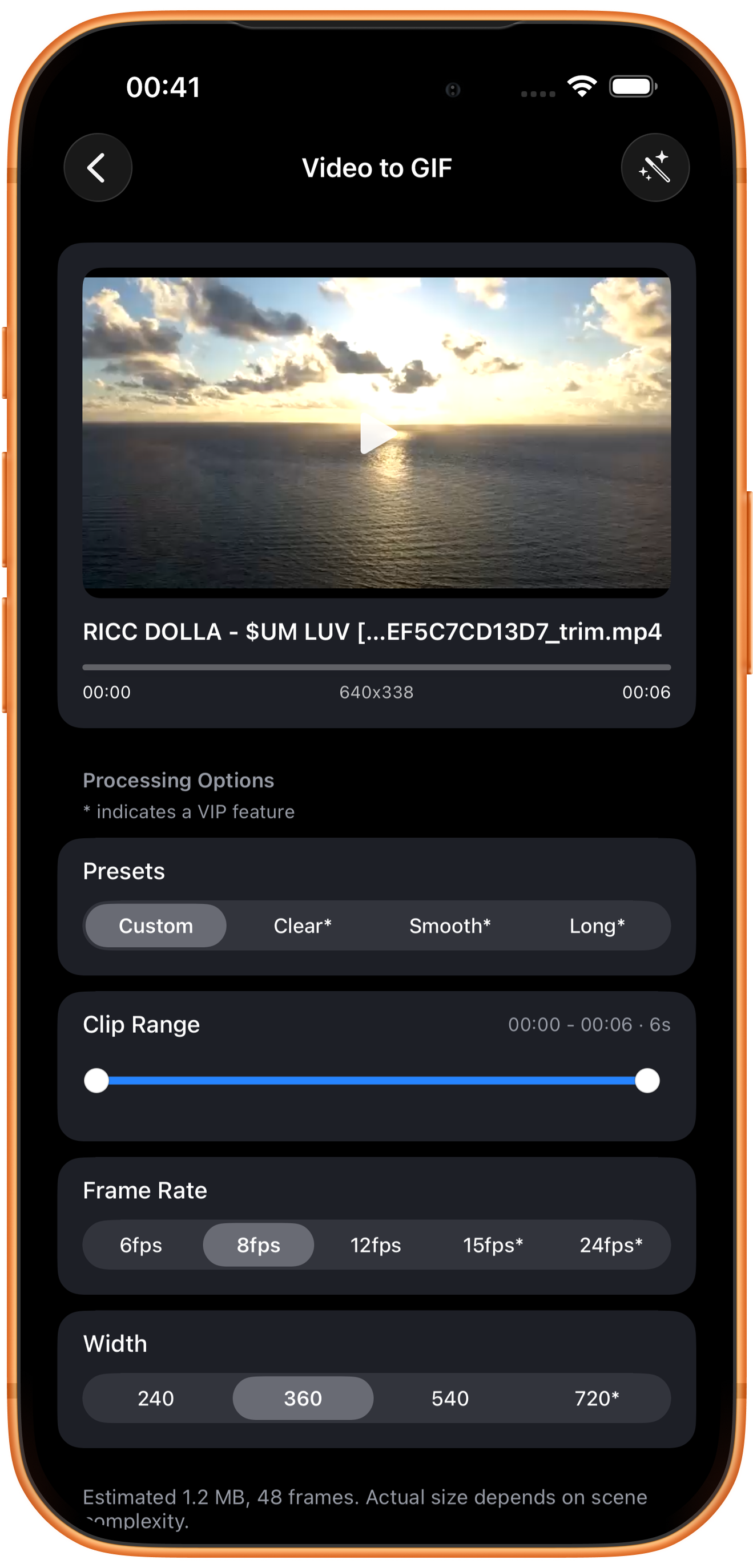
Preview the imported video, then inspect Presets and Clip Range. This example uses Custom and retains about six seconds.
Custom and starred presets
Custom lets you choose settings yourself. Clear*, Smooth*, and Long* are presets aimed at detail, smoothness, and longer clips. A star marks VIP access. This test exports with Custom; the exact paid preset settings were not verified.
Clip Range: keep the action you need
Drag the round handles to set start and end points. The selected times and duration appear above. Longer clips generally need more frames and space. Clips longer than 10 seconds require VIP.
04Steps
Set frame rate and width
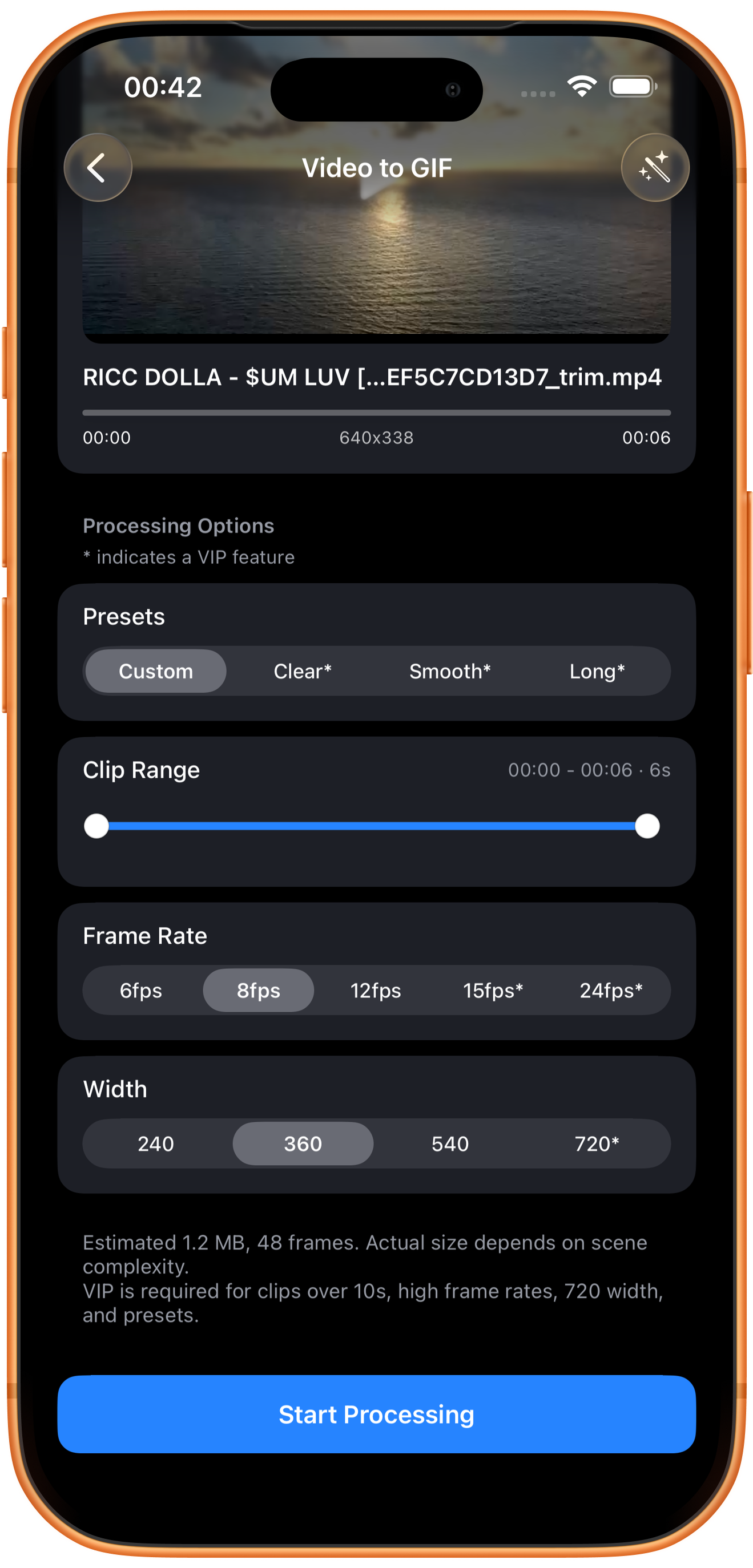
Scroll to Frame Rate, Width, and the size estimate, then tap Start Processing. This example uses 8fps and width 360; the estimate is about 1.2 MB and 48 frames.
Frame Rate: frames per second
Options are 6, 8, 12, 15*, and 24* fps. More frames can make motion smoother but increase size. Try 8fps for simple movement and compare higher rates for faster action. 15 and 24fps are marked VIP.
Width: pixels across the GIF
Choices are 240, 360, 540, and 720*. More pixels may retain more detail and increase size; 720 requires VIP. Enlarging the output cannot recover detail missing from the source.
An estimate is not the final size
Six seconds at 8fps is about 48 frames. Compression also depends on picture complexity, so check the exported file. GIF has no sound; use video if audio is needed.
05Steps
Save the generated GIF
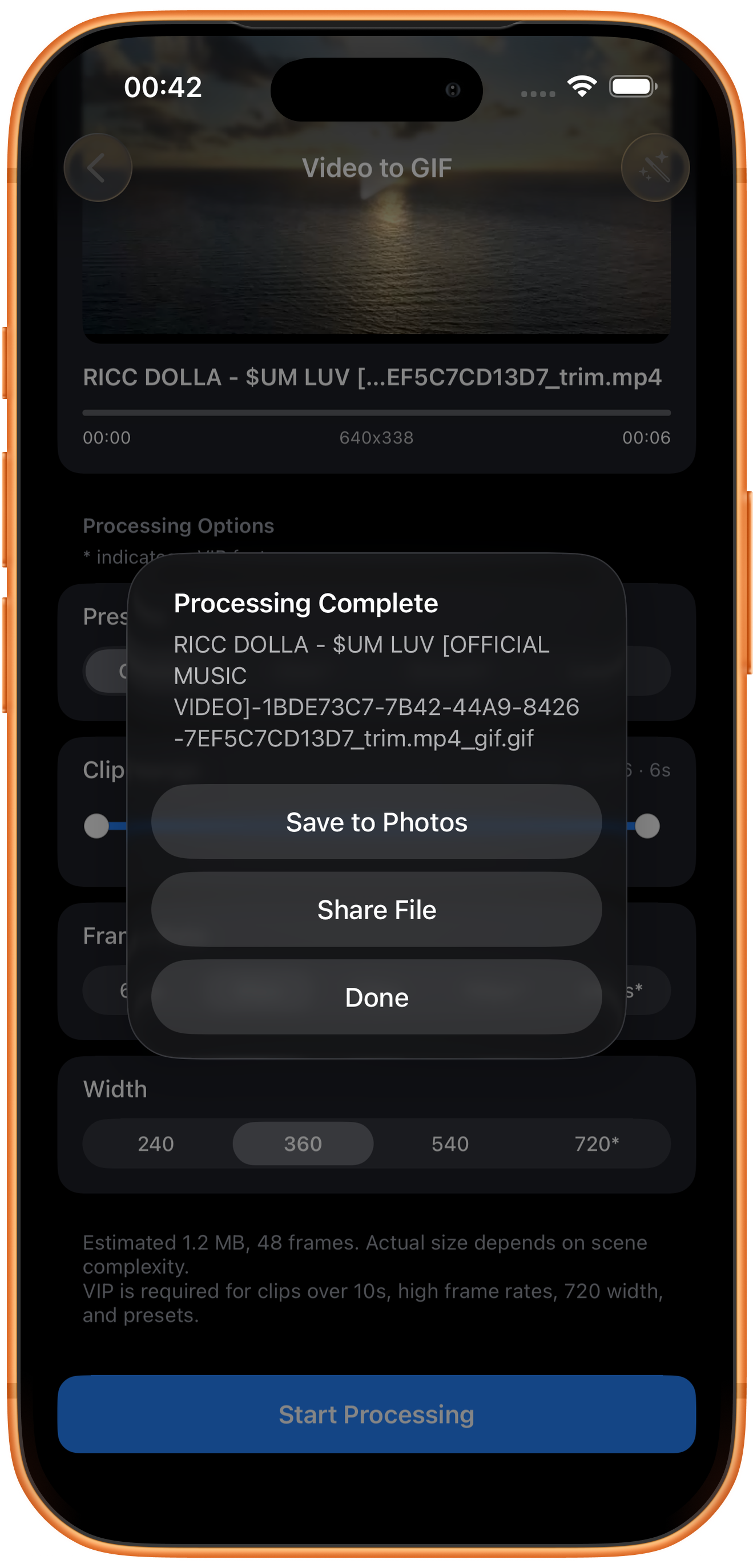
Processing Complete appears with a file ending in .gif. Use Save to Photos to save the animation or Share File to share it. Done dismisses the dialog. Check the motion in an app that plays GIFs.
Troubleshooting
The GIF is too large
Shorten the clip first, then reduce width or frame rate. Change one setting at a time to find an acceptable balance.
Frequently asked questions
Why is there no sound?
GIF does not carry audio. Use a video format if sound is required.
Why do some options have a star?
The page marks clips over 10 seconds, high frame rates, width 720, and presets as VIP features. This example uses free settings.
Try it on your device
ClipDock is free to download, with in-app purchases. Features and available options depend on the current app version.
Download on the App Store