
01Steps
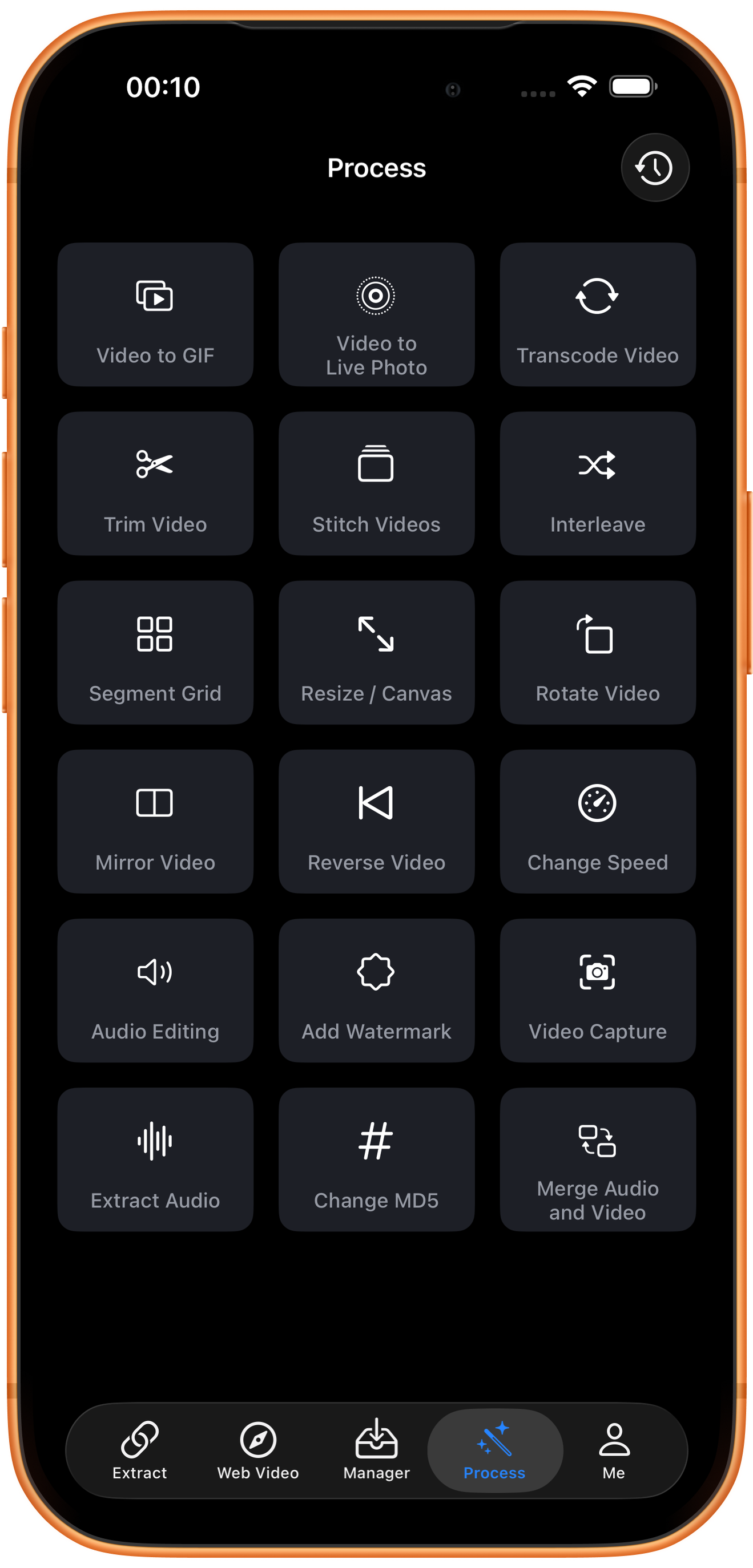
Open Change MD5 in Process
Tap Process in the bottom navigation. Find Change MD5 in row 6, in the middle column, and tap the entry marked by the arrow.
02Steps
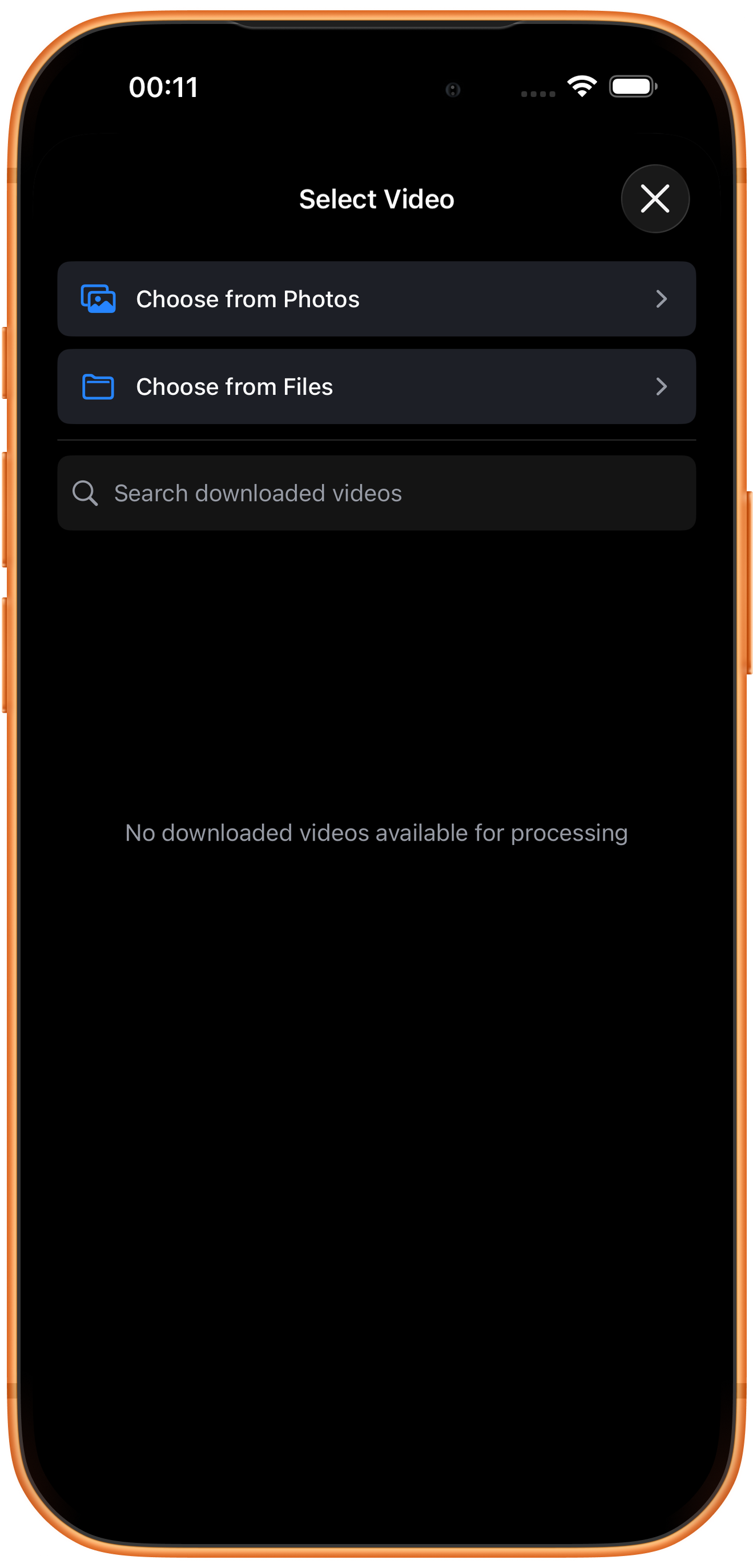
Choose a video and wait for processing
After opening Change MD5, use Choose from Photos or another appropriate source. The test uses a previously exported short clip through Quick Edit. Processing starts directly without a separate settings page.
There is no target-digest input
This workflow shows no MD5 input field or format parameters. Do not treat it as a tool for choosing any arbitrary digest value.
03Steps
Check the result, then save or keep processing
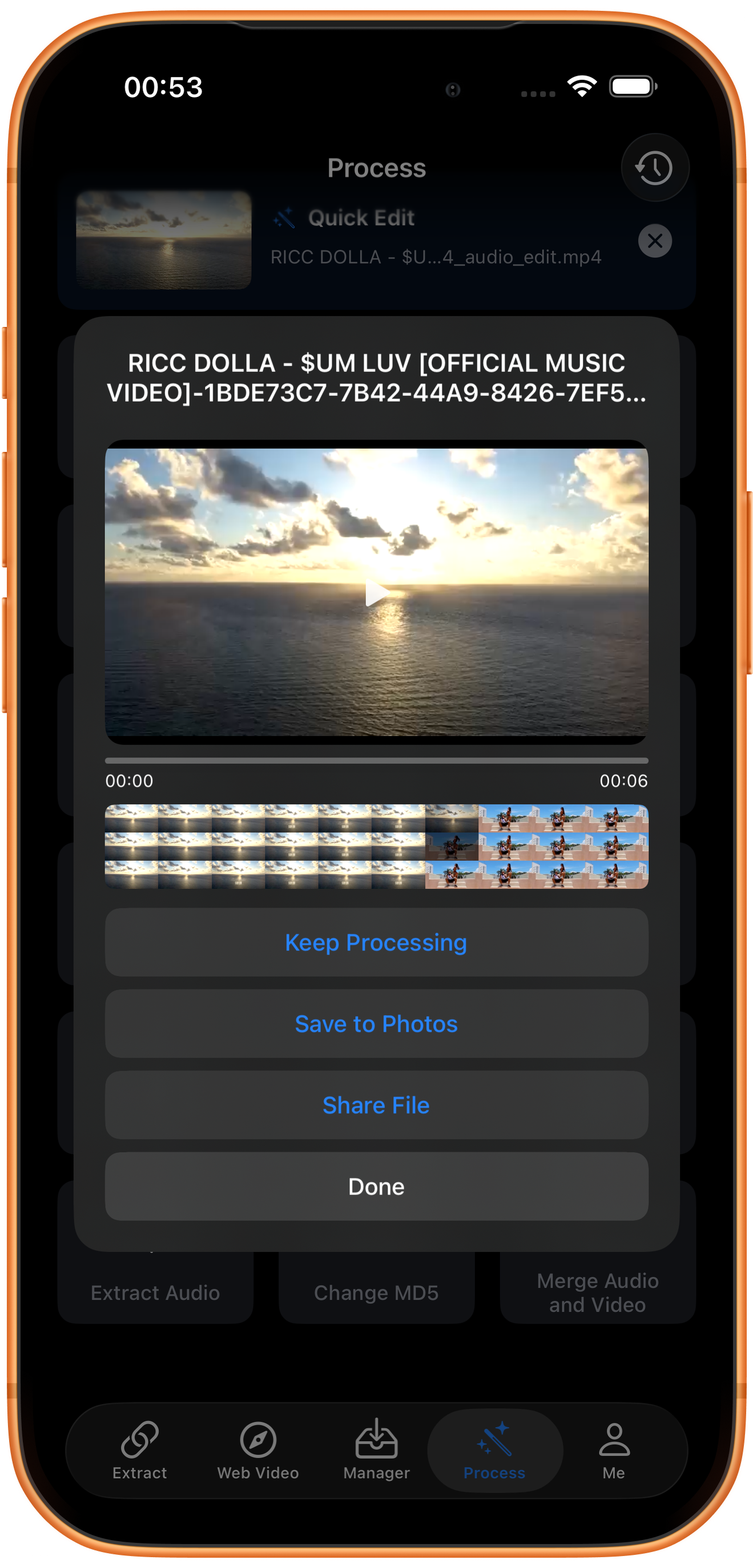
A new _md5.mp4 file appears, showing about six seconds. The test reached the output page but did not compare input and output MD5 values. If you need digest evidence, calculate the actual hashes of both files separately.
Preview and save
Play the result and check picture, duration, and sound, then tap Save to Photos. The first save may require permission to add photos and videos. After the success message, check the file in Photos.
What the other buttons do
Keep Processing takes the result into tool selection. Share File opens sharing options. Done closes the result page; it does not save to Photos.
Troubleshooting
Verify the actual files
A changed filename does not prove the MD5 changed. Calculate and compare input and output hashes if your use depends on the digest, rather than relying on the completion screen.
Frequently asked questions
Does it improve quality or reduce file size?
This guide does not describe MD5 changes as enhancement or compression. Use Transcode Video for compression.
Does a changed digest change my rights to use the video?
No. File-digest changes do not alter content rights.
Try it on your device
ClipDock is free to download, with in-app purchases. Features and available options depend on the current app version.
Download on the App Store