
01Steps
Paste a YouTube video link
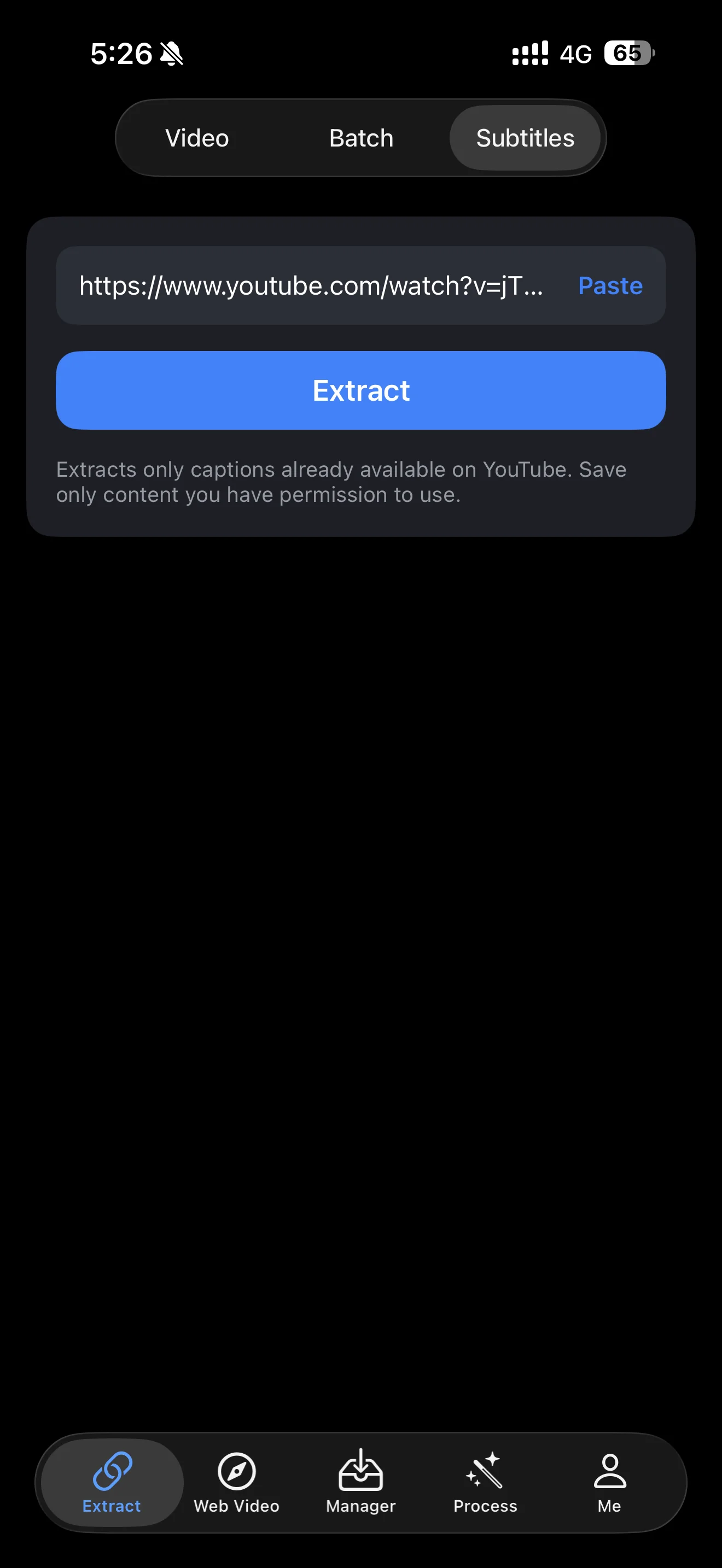
Copy the video’s share link in YouTube. Open ClipDock, go to Extract in the bottom navigation, then select the Subtitles tab at the top. Tap Paste or enter the link yourself. Use a link to an individual video.
02Steps
Extract the available captions
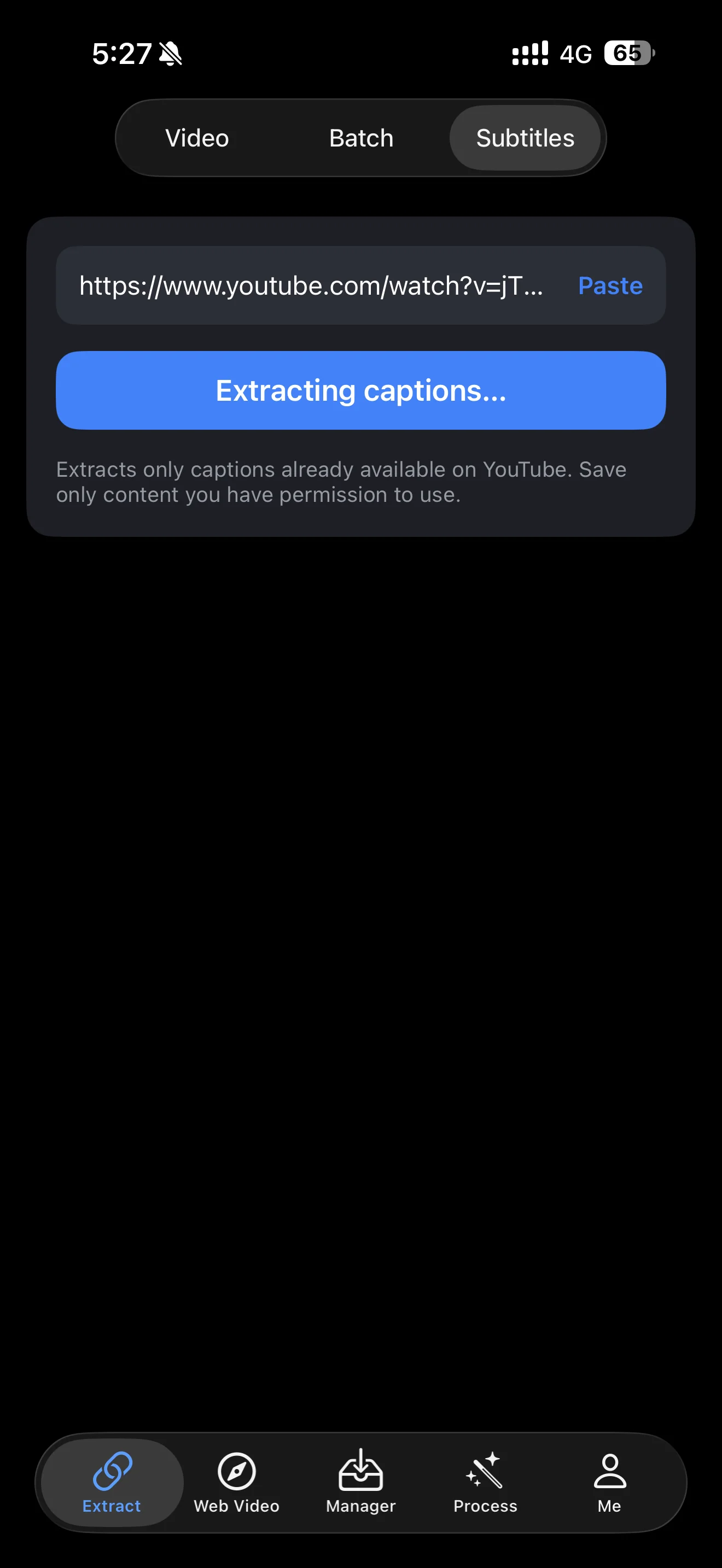
Check the link and tap Extract. Wait while the button shows “Extracting captions…”. This feature retrieves captions that already exist on YouTube; it does not transcribe videos that have no captions.
03Steps
Choose your caption languages
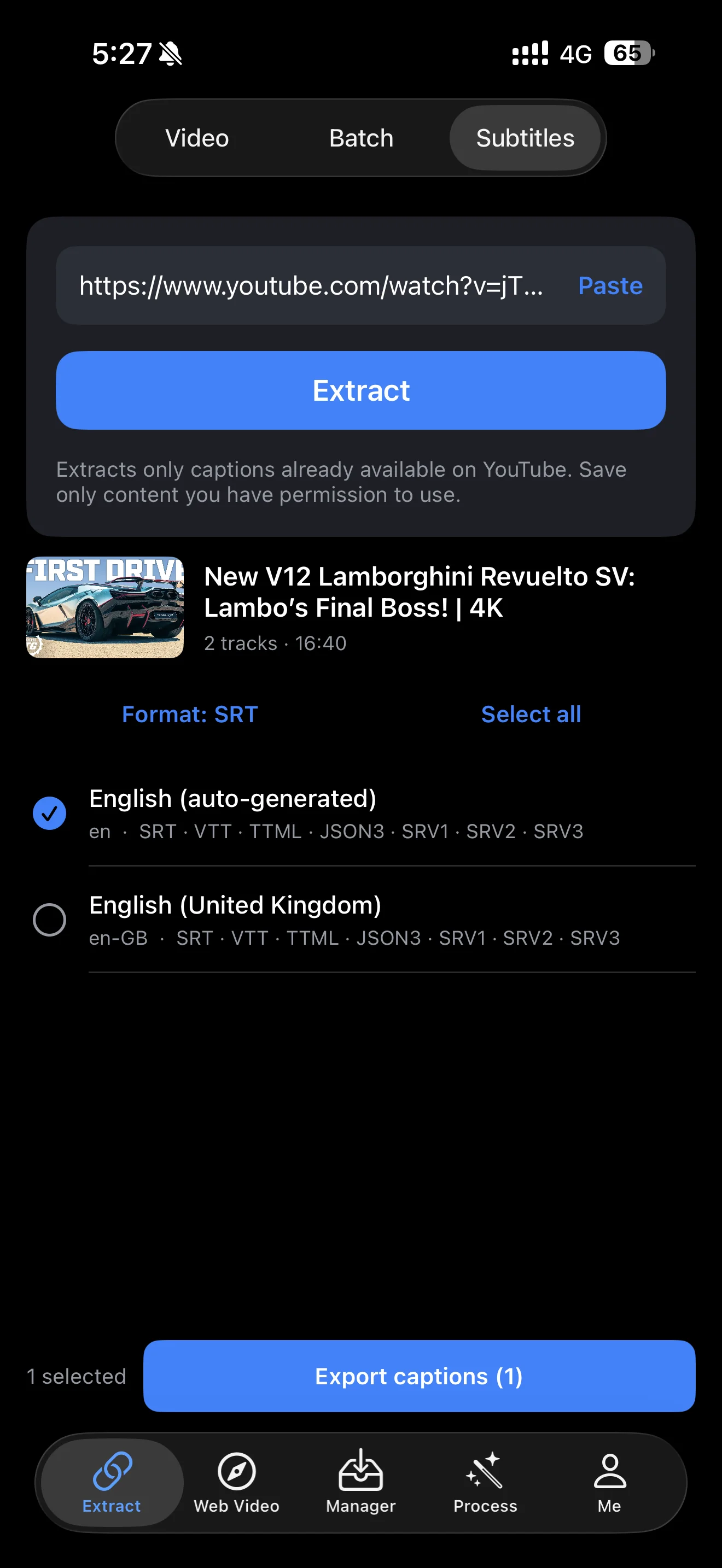
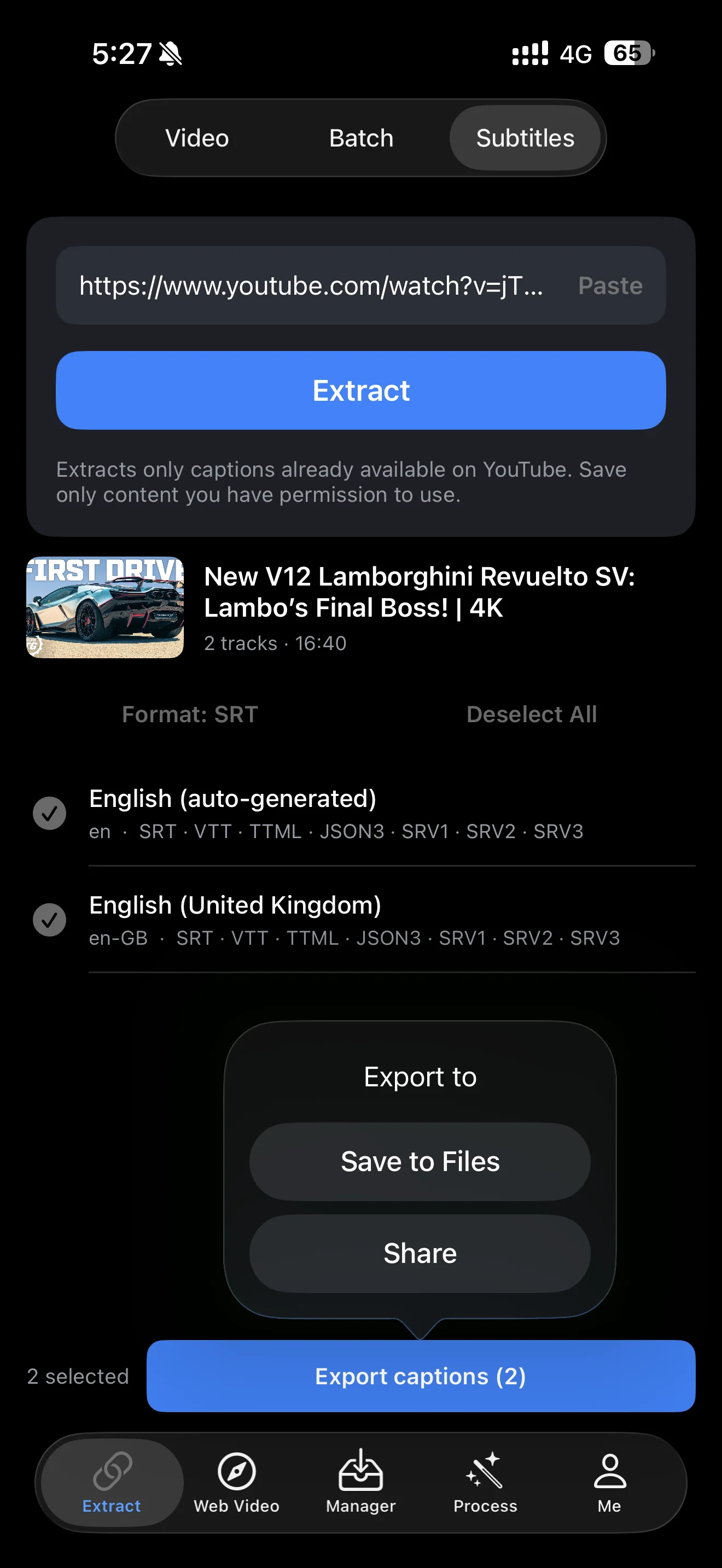
When extraction finishes, you will see the video thumbnail, title, duration, and available caption tracks. Tap the circle beside a track to select it, choose several tracks, or tap Select all. The example shows English (auto-generated) and English (United Kingdom). Languages and track counts depend on the video.
04Steps
Choose a file format
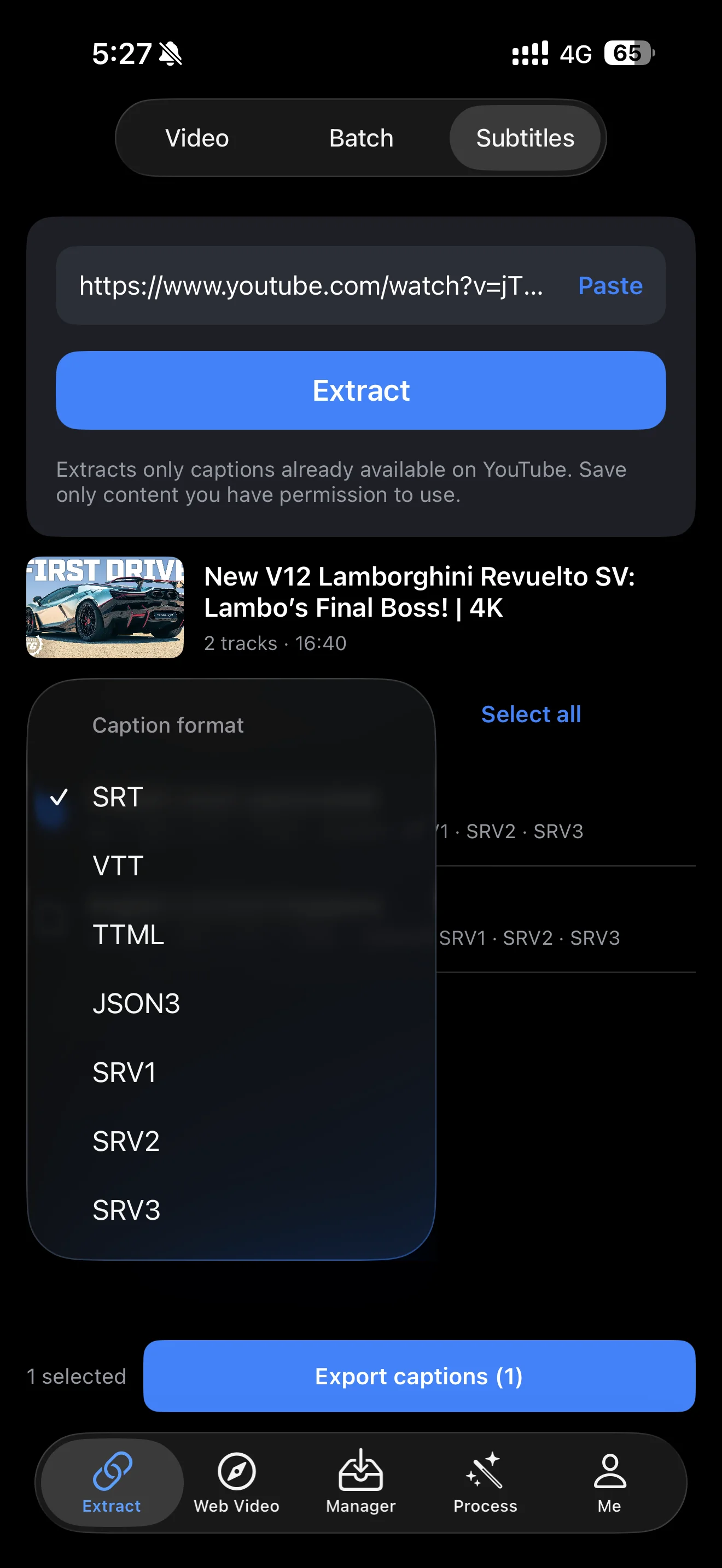
Tap Format: SRT to open the Caption format menu. The screenshot lists SRT, VTT, TTML, JSON3, SRV1, SRV2, and SRV3. Choose a format supported by the app you plan to use, and check the formats listed beneath each selected track.
Not sure which format to choose?
Start with SRT. For a web video player, use VTT if the player requires it. If your receiving app specifies a format, follow its requirements.
05Steps
Save the files or share them
Once you have chosen the languages and format, tap Export captions at the bottom. The number in parentheses is the number of selected tracks; this example has two. The Export to menu offers Save to Files and Share.
Save to Files
Choose Save to Files, select a location in the system dialog, and confirm. Open the Files app to check the exported captions. The screenshot shows the export menu, rather than a completed save.
Share with another app
Choose Share, then select an app or sharing method from the system share sheet. The exported items are caption files. Only save and use content you own or have permission to use.
Troubleshooting
No captions found?
Make sure the video link opens normally, and check whether captions are available on YouTube. This feature cannot create captions when none exist. If the video has captions, check the link and your connection, then try again.
Errors in the caption text?
YouTube’s auto-generated captions may contain recognition errors. After exporting, check names, technical terms, and timing against the original video before using them.
Frequently asked questions
Can I extract auto-generated captions?
Yes, when the video provides them. The English (auto-generated) track in the screenshot is one example. Availability depends on the extraction results.
Can I export several languages together?
Yes. Select multiple caption tracks, or tap Select all, then use Export captions. You can choose from the tracks already available on that video.
Does this translate or transcribe a video?
This tutorial covers extracting existing YouTube captions. The interface shown here does not include translation or audio transcription.
Are captions saved to Photos?
Captions are files. Use Save to Files to keep them in the Files app, or use Share to send them to another app.
Try it on your device
ClipDock is free to download, with in-app purchases. Features and available options depend on the current app version.
Download on the App Store