
01Steps
Open Merge Audio and Video in Process
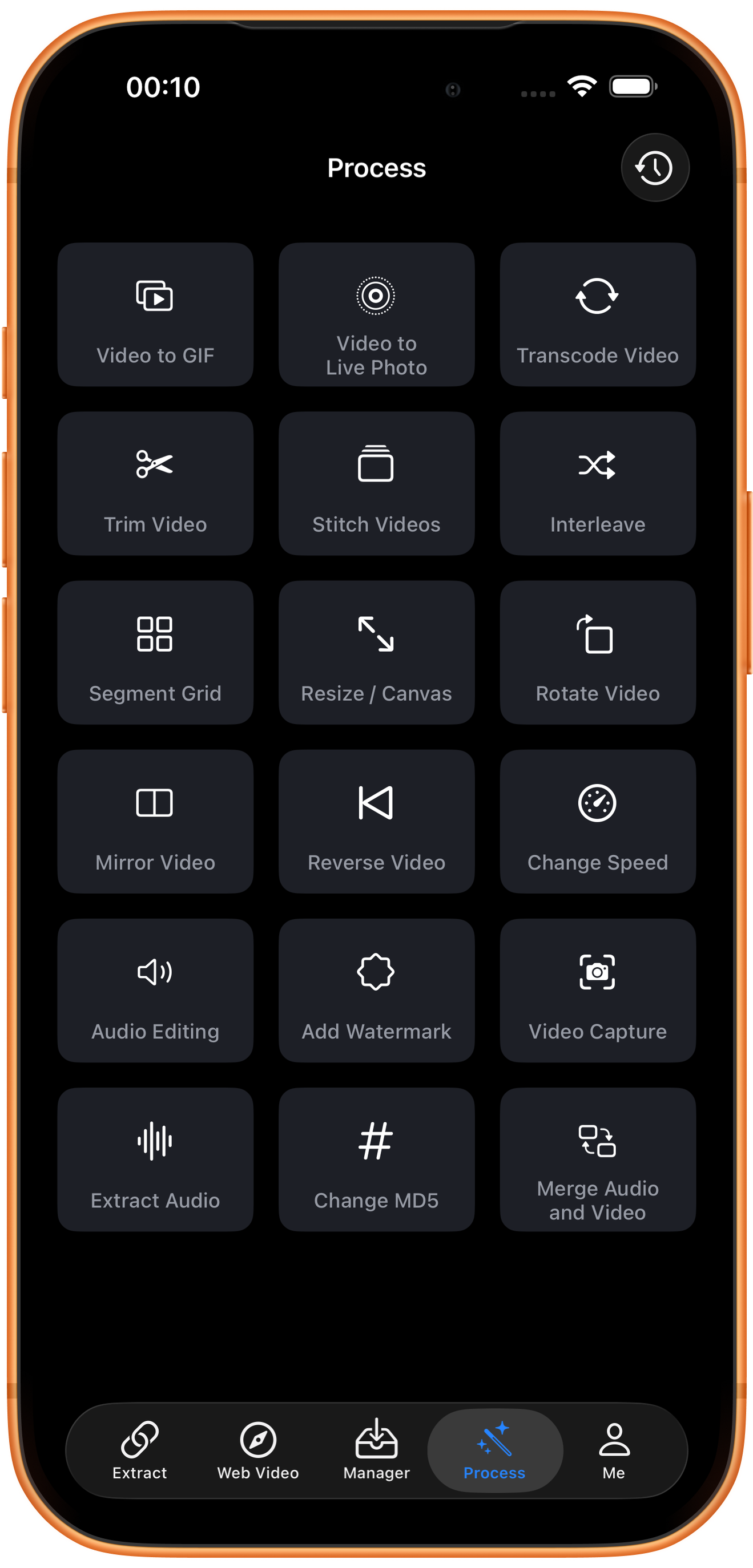
Tap Process in the bottom navigation. Find Merge Audio and Video in row 6, in the right column, and tap the entry marked by the arrow.
02Steps
Choose the video to process
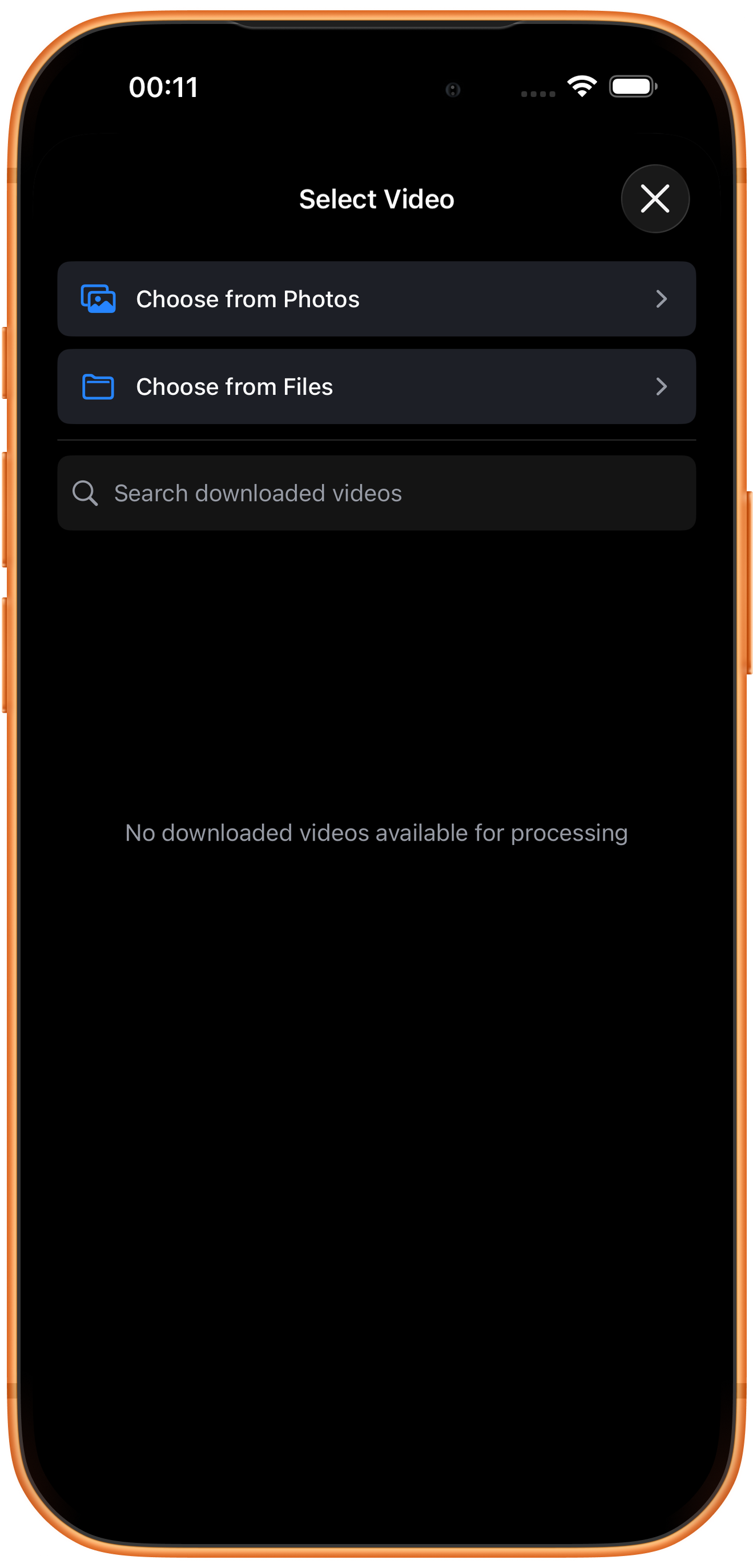
In Select Video, tap Choose from Photos and pick your source. Use Choose from Files for media stored in Files. An empty download list does not prevent importing from Photos. Some examples reuse a previously trimmed clip of about six seconds; you can prepare a short sample with Trim Video.
03Steps
Choose the picture source first
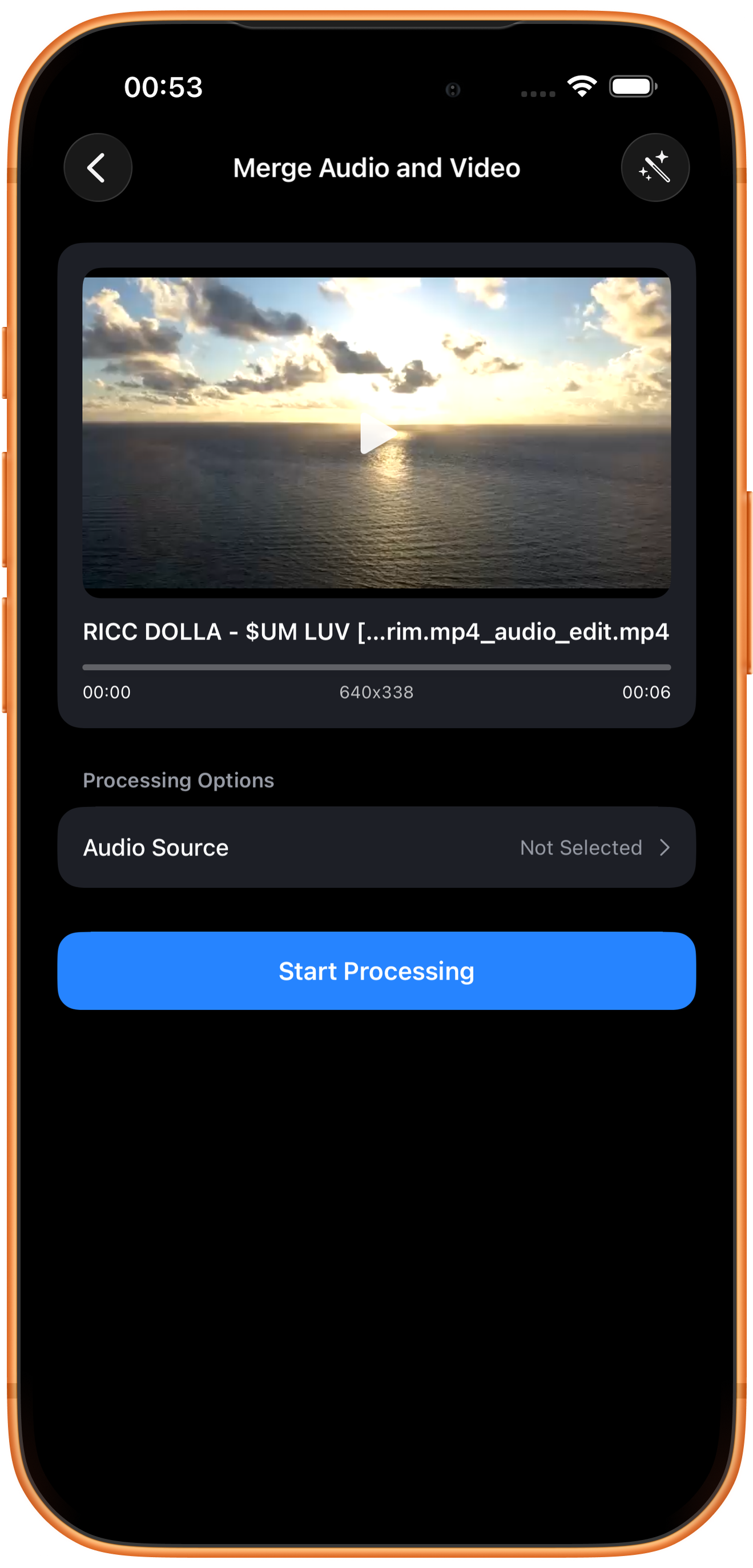
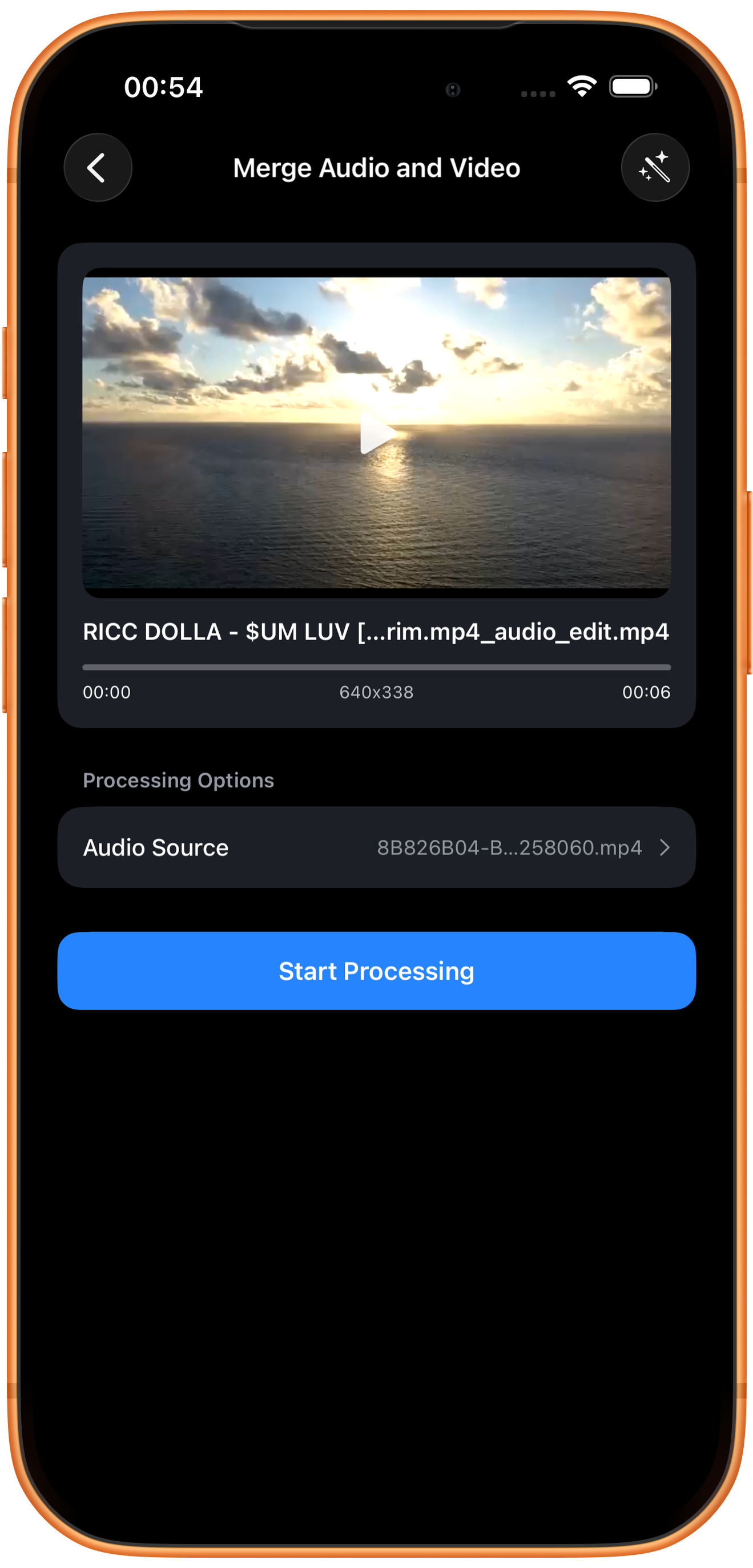
Import the video whose picture you want to retain. The card shows its preview, dimensions, and duration. Audio Source initially reads Not Selected.
Picture and audio sources are separate
Choose which file supplies the picture before selecting sound. A visible video preview does not mean the audio source has been set.
04Steps
Choose the audio source
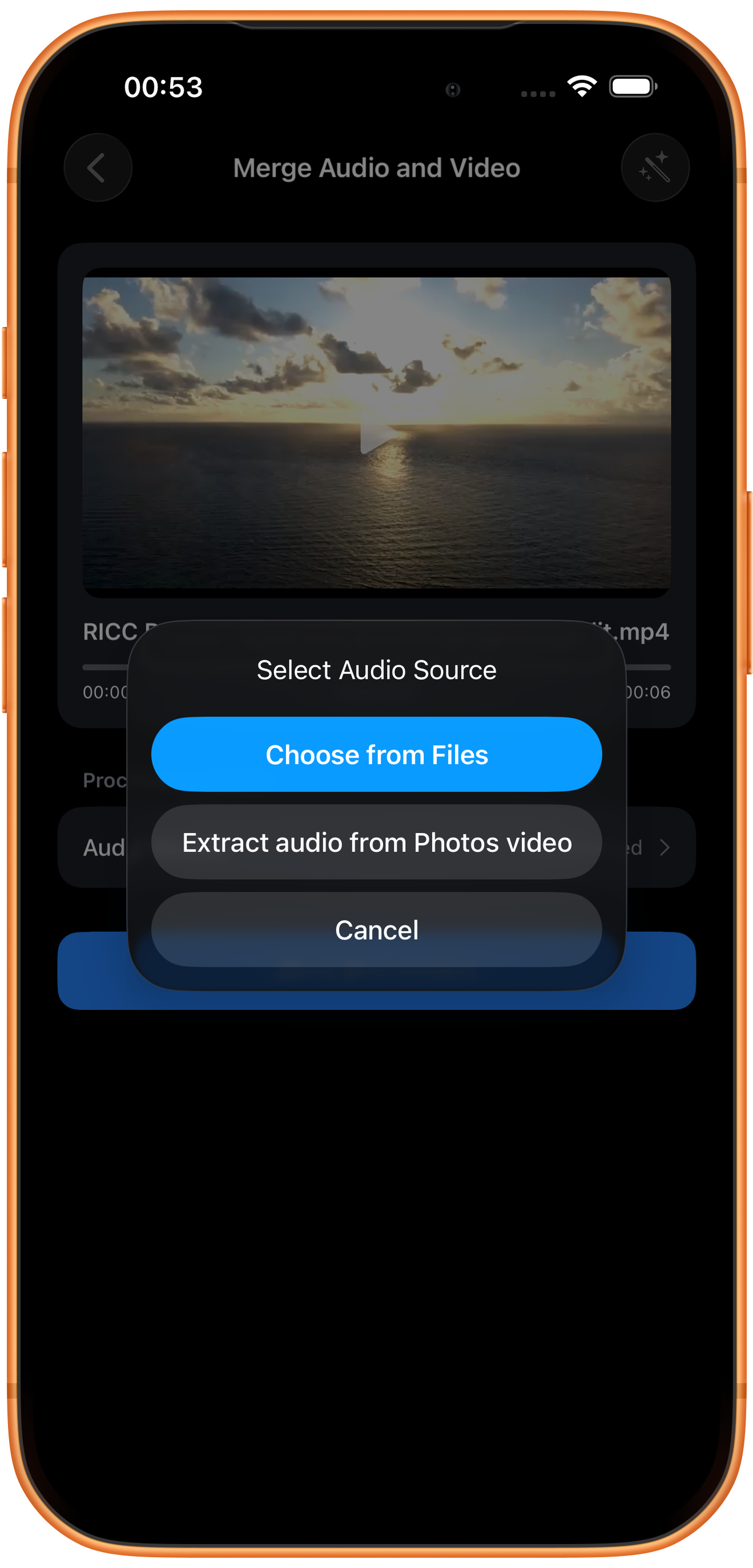
Tap Audio Source. The dialog offers Choose from Files and Extract audio from Photos video.
Choose from Files
Select a prepared audio file through the system file picker.
Extract audio from Photos video
This takes sound from a Photos video. The example selects another video here without first exporting an independent audio file.
05Steps
Confirm the source and merge
Audio Source now shows the selected filename. Check it and tap Start Processing.
No additional mixing controls are shown
This page shows Audio Source without independent mixing levels, timing offset, looping, or audio-trim parameters. Check the output by listening if length, sync, or original-audio handling matters. Do not assume a particular automatic mixing behavior.
06Steps
Check the result, then save or keep processing
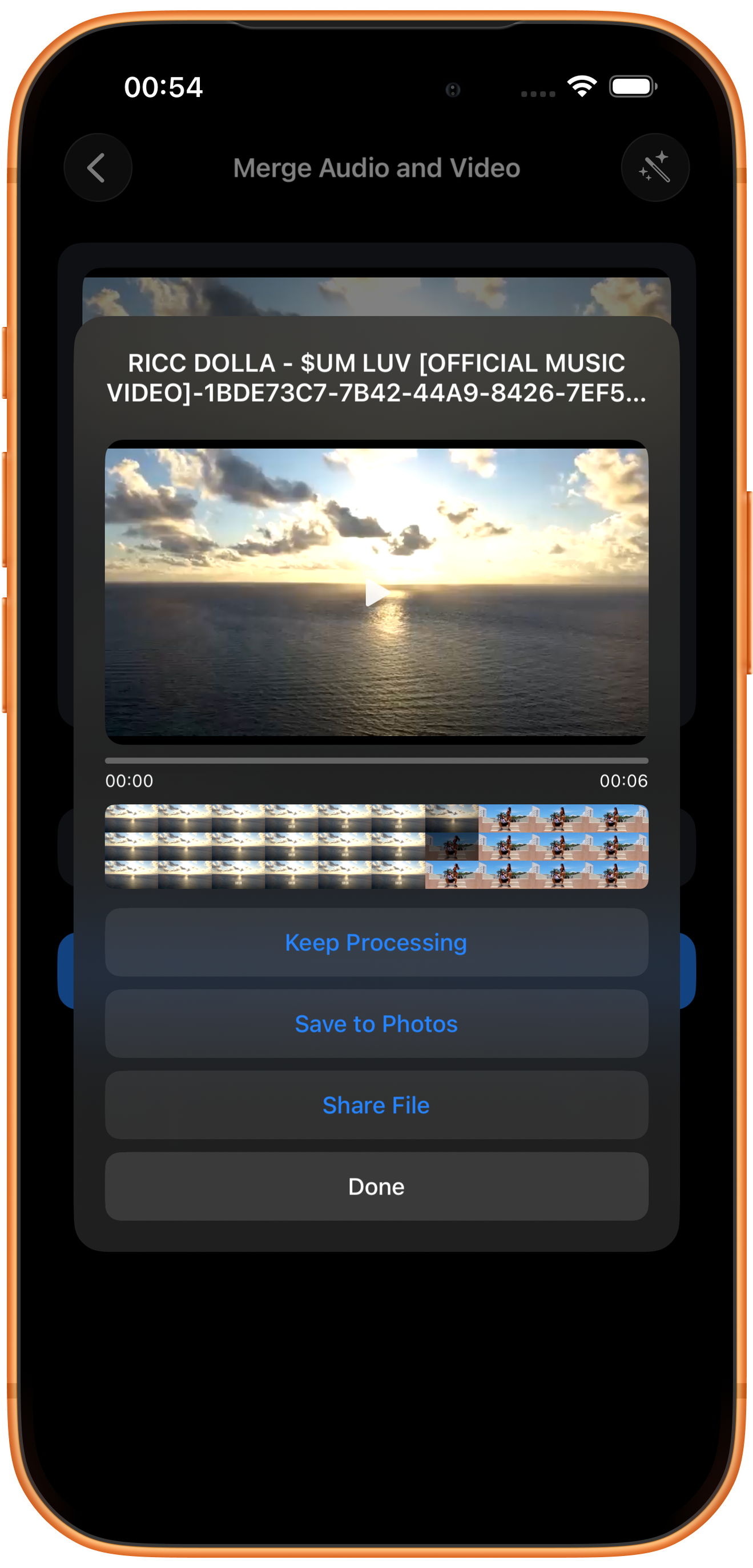
The merged result page shows a video of about six seconds. File generation was verified, but the merged track was not listened through segment by segment. Before saving, check the sound source, initial sync, volume, and ending, especially if the source durations differ.
Preview and save
Play the result and check picture, duration, and sound, then tap Save to Photos. The first save may require permission to add photos and videos. After the success message, check the file in Photos.
What the other buttons do
Keep Processing takes the result into tool selection. Share File opens sharing options. Done closes the result page; it does not save to Photos.
Troubleshooting
Sound is out of sync or the ending is wrong
Check source lengths and start positions. This page has no timing-offset or looping controls. Prepare the source media separately if needed, then merge again.
Frequently asked questions
Must I extract audio first?
No. The example uses Extract audio from Photos video to take sound directly from another video.
Can I adjust the ratio of two audio tracks?
No mixing-ratio or multi-track controls are shown in this workflow. This guide does not describe it as a multi-track mixer.
Try it on your device
ClipDock is free to download, with in-app purchases. Features and available options depend on the current app version.
Download on the App Store