
01Steps
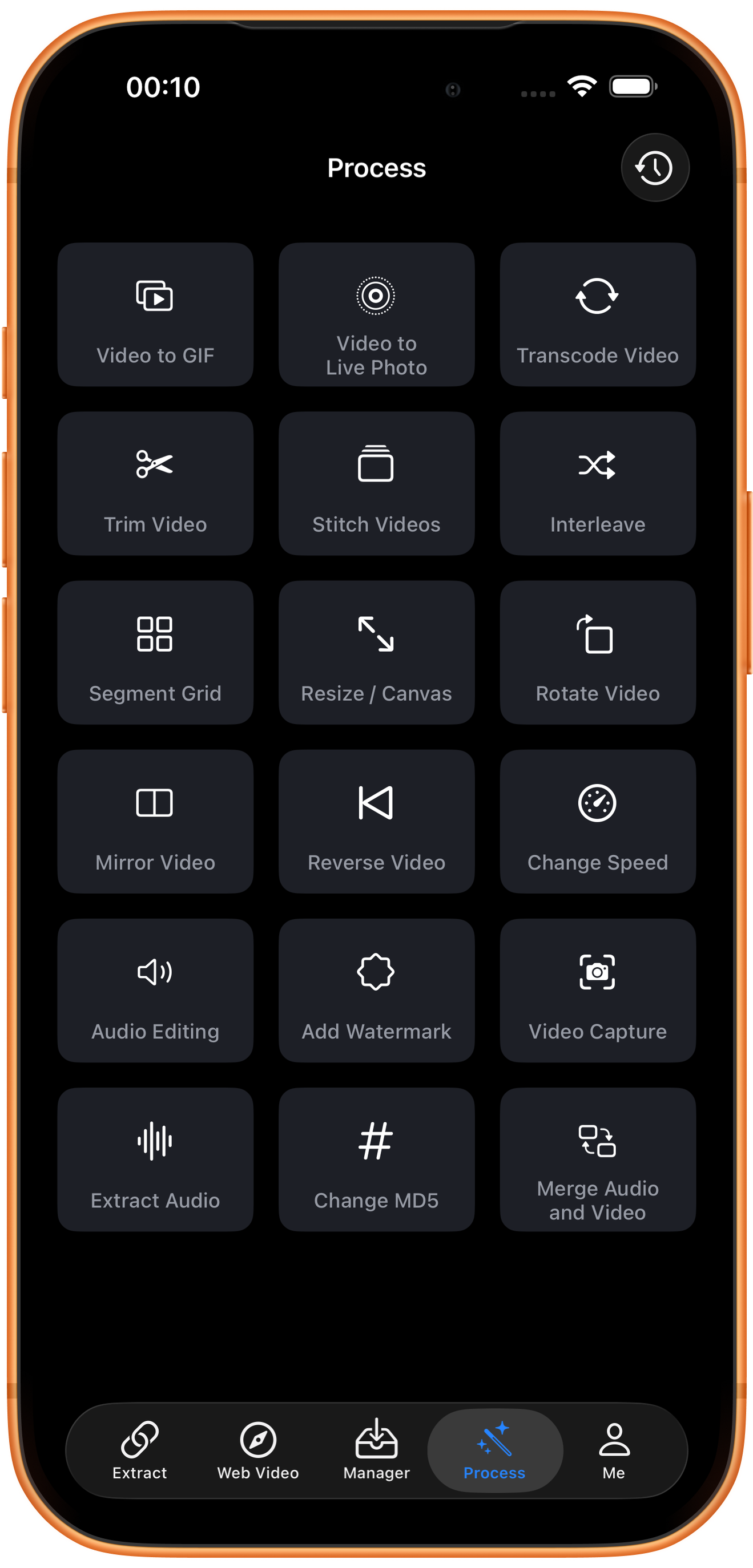
Open Video Capture in Process
Tap Process in the bottom navigation. Find Video Capture in row 5, in the right column, and tap the entry marked by the arrow.
02Steps
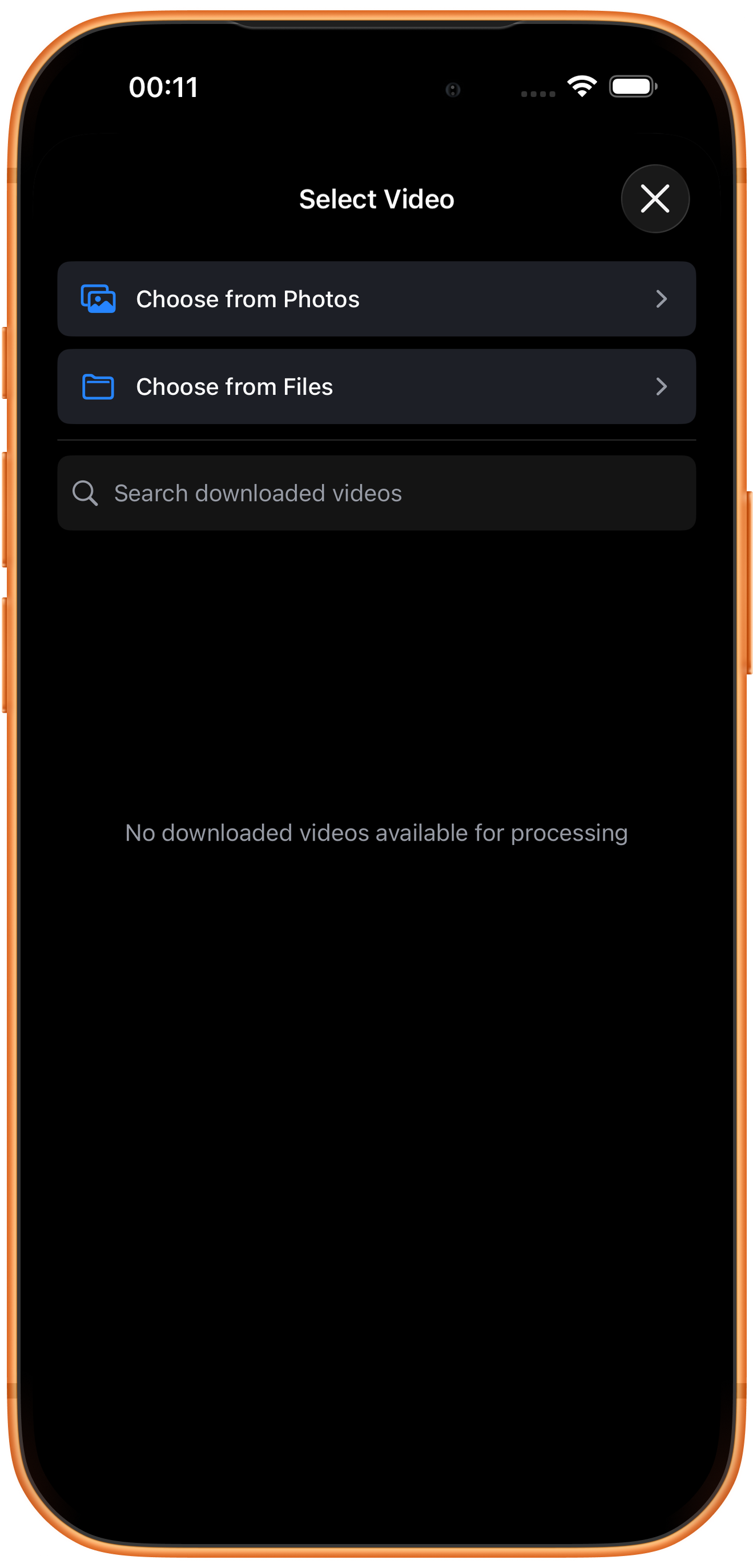
Choose the video to process
In Select Video, tap Choose from Photos and pick your source. Use Choose from Files for media stored in Files. An empty download list does not prevent importing from Photos. Some examples reuse a previously trimmed clip of about six seconds; you can prepare a short sample with Trim Video.
03Steps
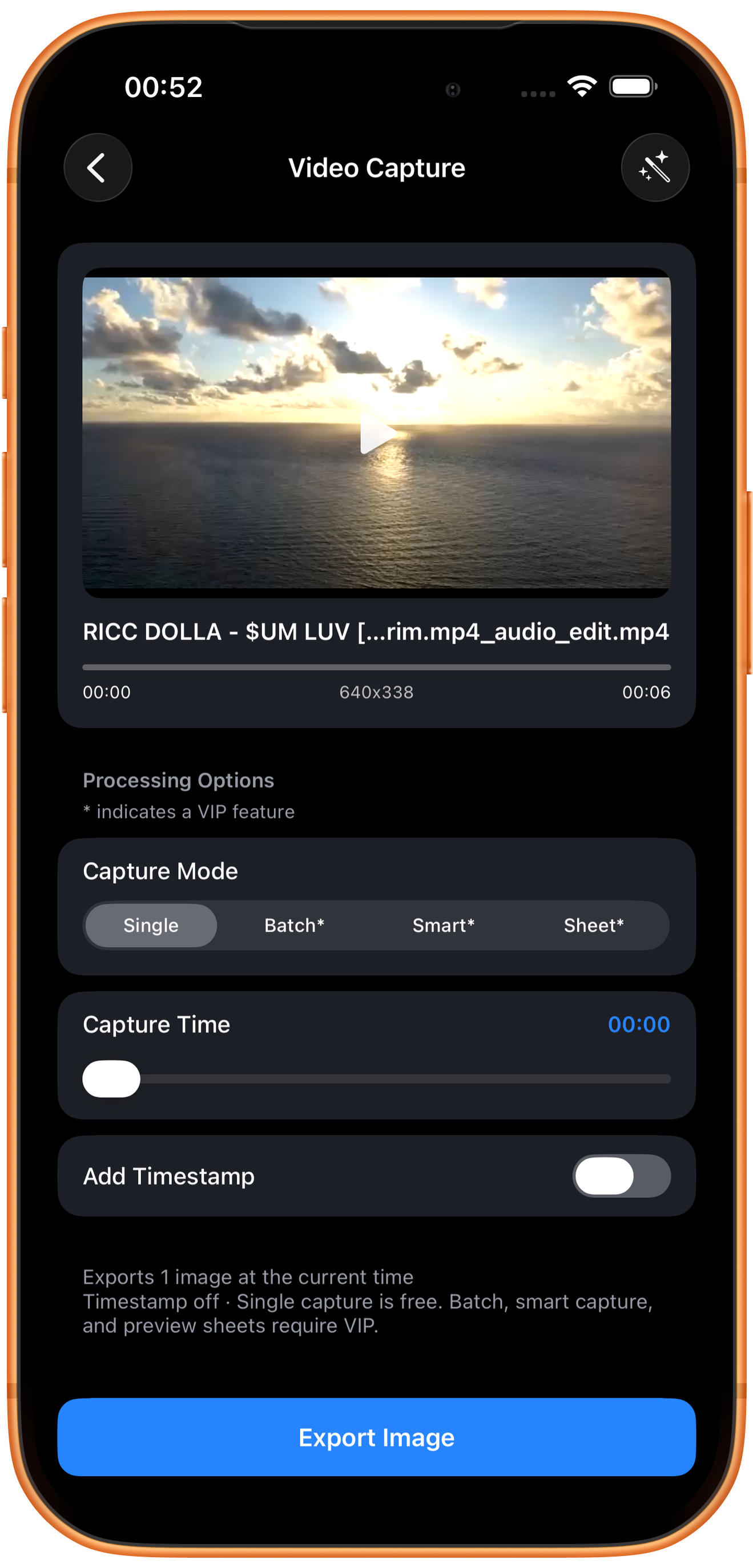
Choose capture mode and time
Select Capture Mode after importing, then use Capture Time to choose the moment. The example uses Single at 00:00 without a timestamp.
Single exports one frame
Drag the time slider, inspect the preview, and tap Export Image on a clear frame. The image contains the video picture, rather than app controls or the phone frame.
Batch*, Smart*, and Sheet*
These VIP entries offer batch capture, smart capture, and a preview sheet. Their paid settings and outputs were not tested, so this guide does not assume specific intervals, algorithms, or sheet layouts.
Add Timestamp
This adds a time marker. Leave it off for a clean image, or turn it on to identify the source moment and check its position and readability after export.
04Steps
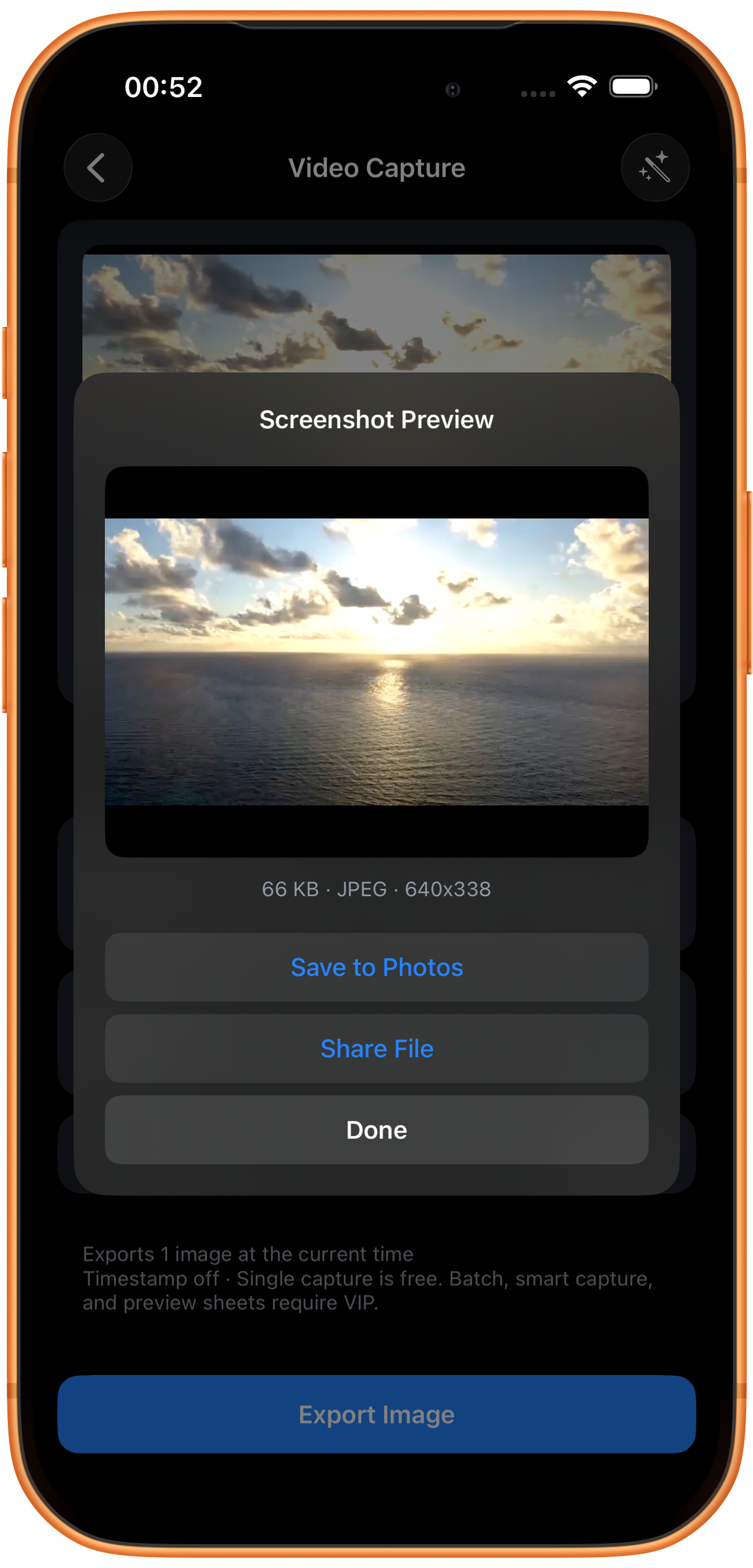
Preview and save the image
Export Image opens Screenshot Preview. The example shows 66 KB, JPEG, and 640×338. Check the image, then choose Save to Photos or Share File. Done closes the preview.
Dimensions come from the video
The source is 640×338 and the exported image shows the same dimensions. A larger phone screen cannot add detail to the source frame.
Troubleshooting
The frame looks blurry
Try a moment with less motion and inspect the original quality. Frame capture cannot repair existing blur.
Frequently asked questions
Can it capture several frames at once?
The interface has Batch*, which requires VIP. Single was tested here; batch settings and results were not verified.
How is this different from a phone screenshot?
Video Capture exports a video frame, here a 640×338 JPEG. A phone screenshot can also include playback controls and system UI.
Try it on your device
ClipDock is free to download, with in-app purchases. Features and available options depend on the current app version.
Download on the App Store