
01Steps
Open Interleave in Process
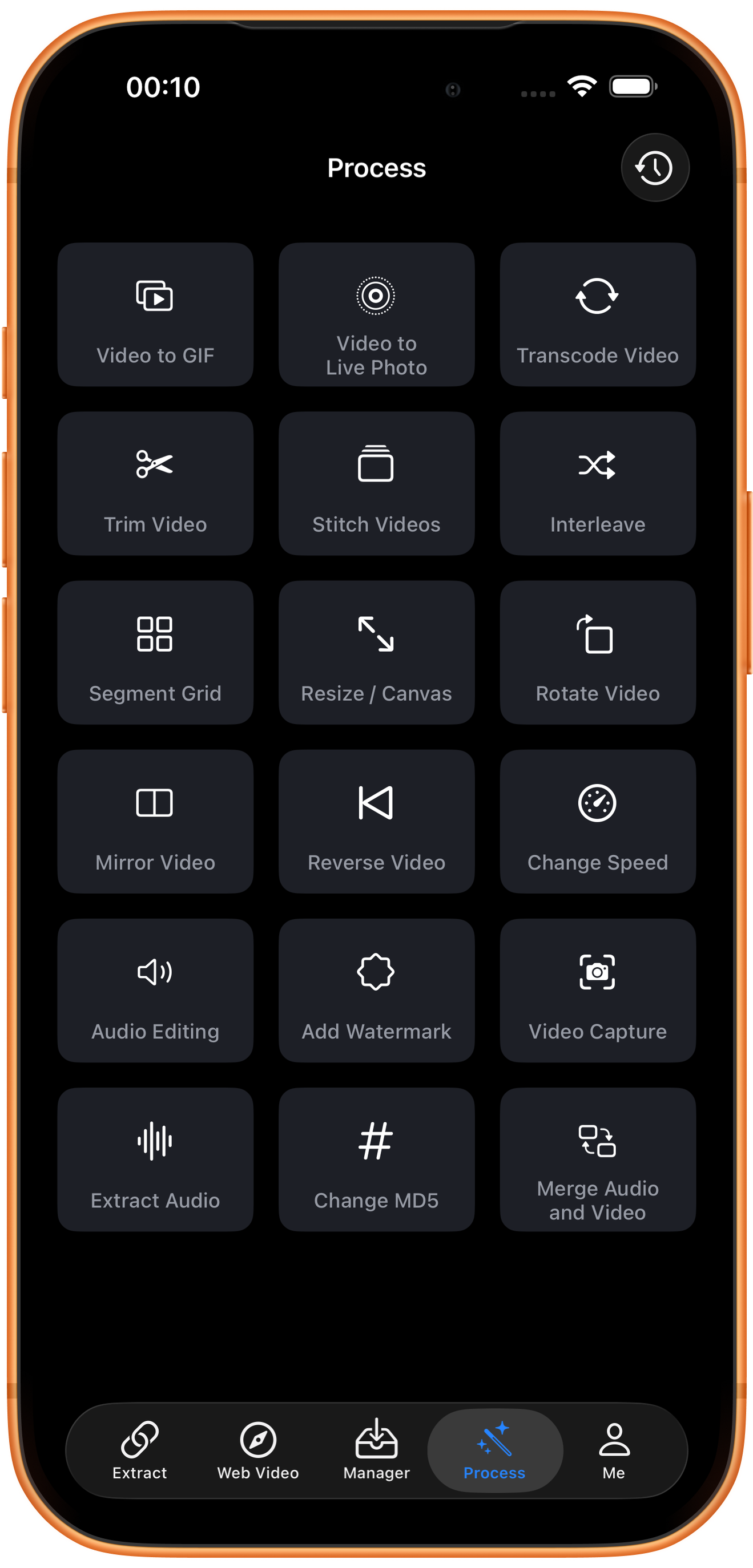
Tap Process in the bottom navigation. Find Interleave in row 2, in the right column, and tap the entry marked by the arrow.
02Steps
Choose the video to process
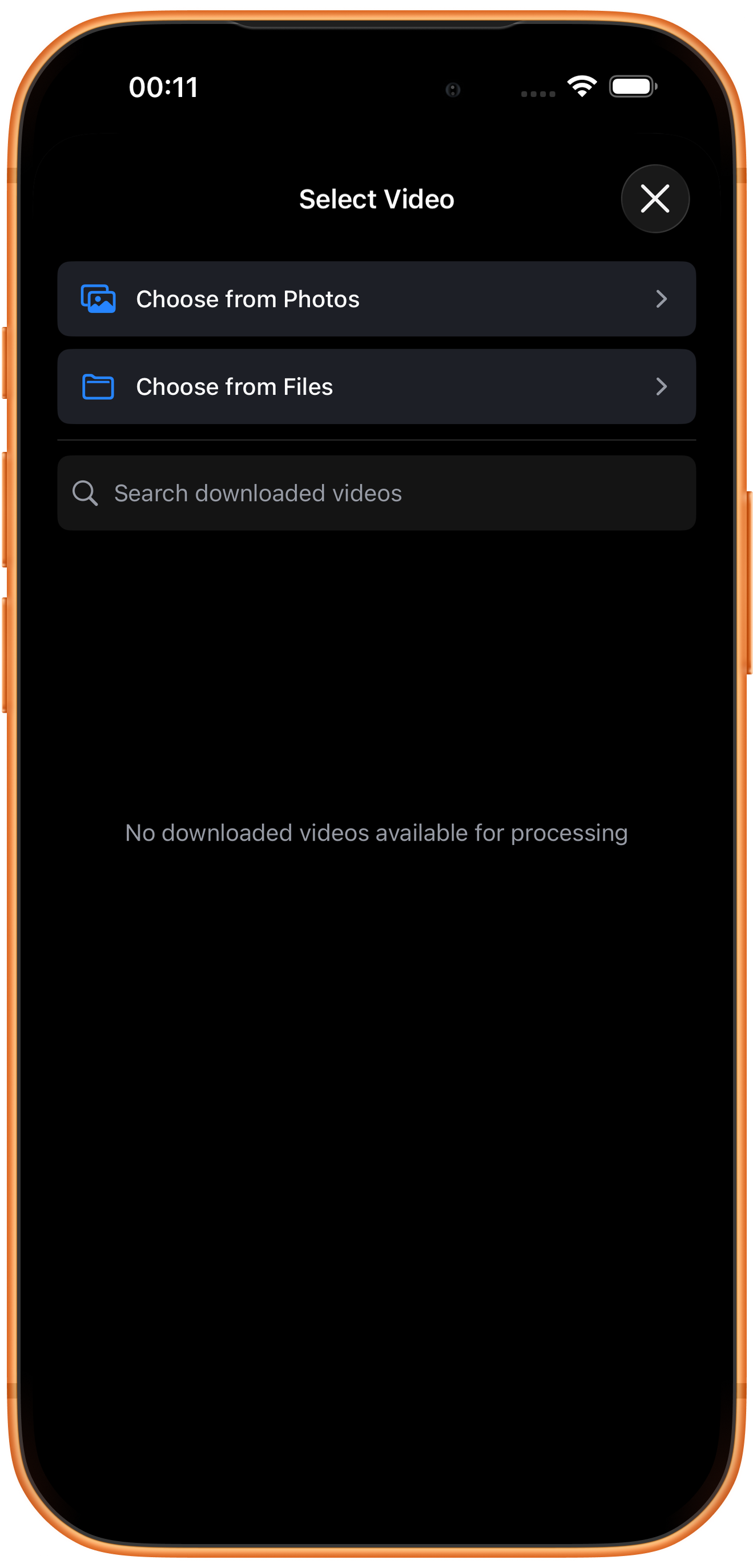
In Select Video, tap Choose from Photos and pick your source. Use Choose from Files for media stored in Files. An empty download list does not prevent importing from Photos. Some examples reuse a previously trimmed clip of about six seconds; you can prepare a short sample with Trim Video.
03Steps
Add videos A and B
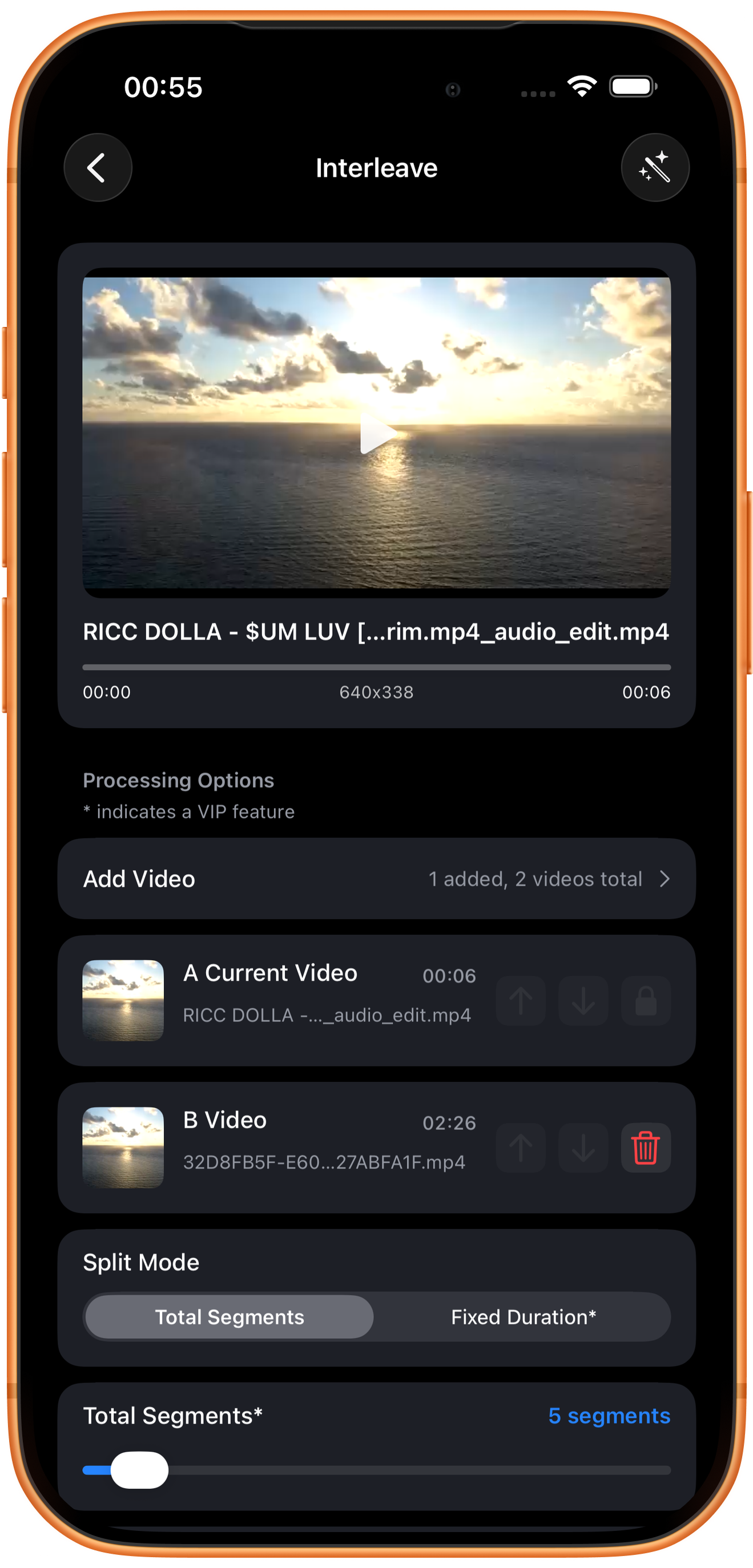
The main source appears as A Current Video. Tap Add Video and choose B from downloads, Photos, or Files. In Photos, select the video and confirm with the top-right checkmark.
Added count versus total count
1 added, 2 videos total means one additional video plus the main source. A is the main video and its lock control cannot be used. Sorting and removal controls beside additional videos depend on their positions and counts.
The example sources
A is about six seconds; B is about 2:26. Large differences in source length can produce very different segment durations. Trim sources to similar lengths first if you want more even switching.
04Steps
Set the interleaving rules
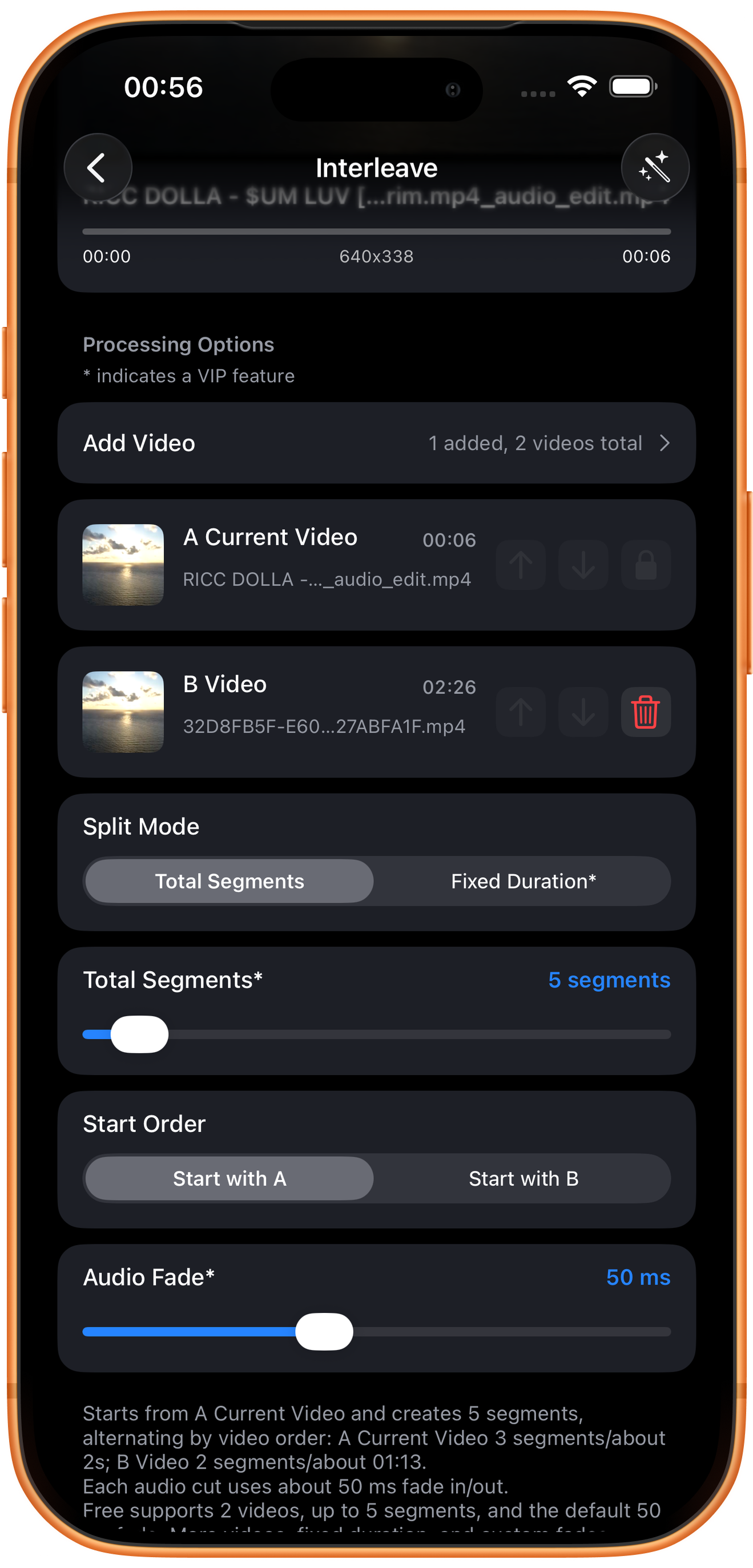
The example uses Total Segments, 5 segments, Start with A, and the default 50 ms audio fade. Read the distribution explanation at the bottom.
Total Segments versus Fixed Duration*
With five total segments, A receives three segments of about two seconds each; B receives two of about 1:13 each. They alternate. Fixed Duration is a VIP option for time-based splitting.
Start Order
Start with A begins with the main source; Start with B begins with B. Reread the distribution summary after changing it.
Audio Fade
The default fade of about 50 ms softens each audio cut. The page describes free support for two videos, up to five segments, and the default fade. More sources, fixed duration, and custom fades require VIP.
05Steps
Check the result, then save or keep processing
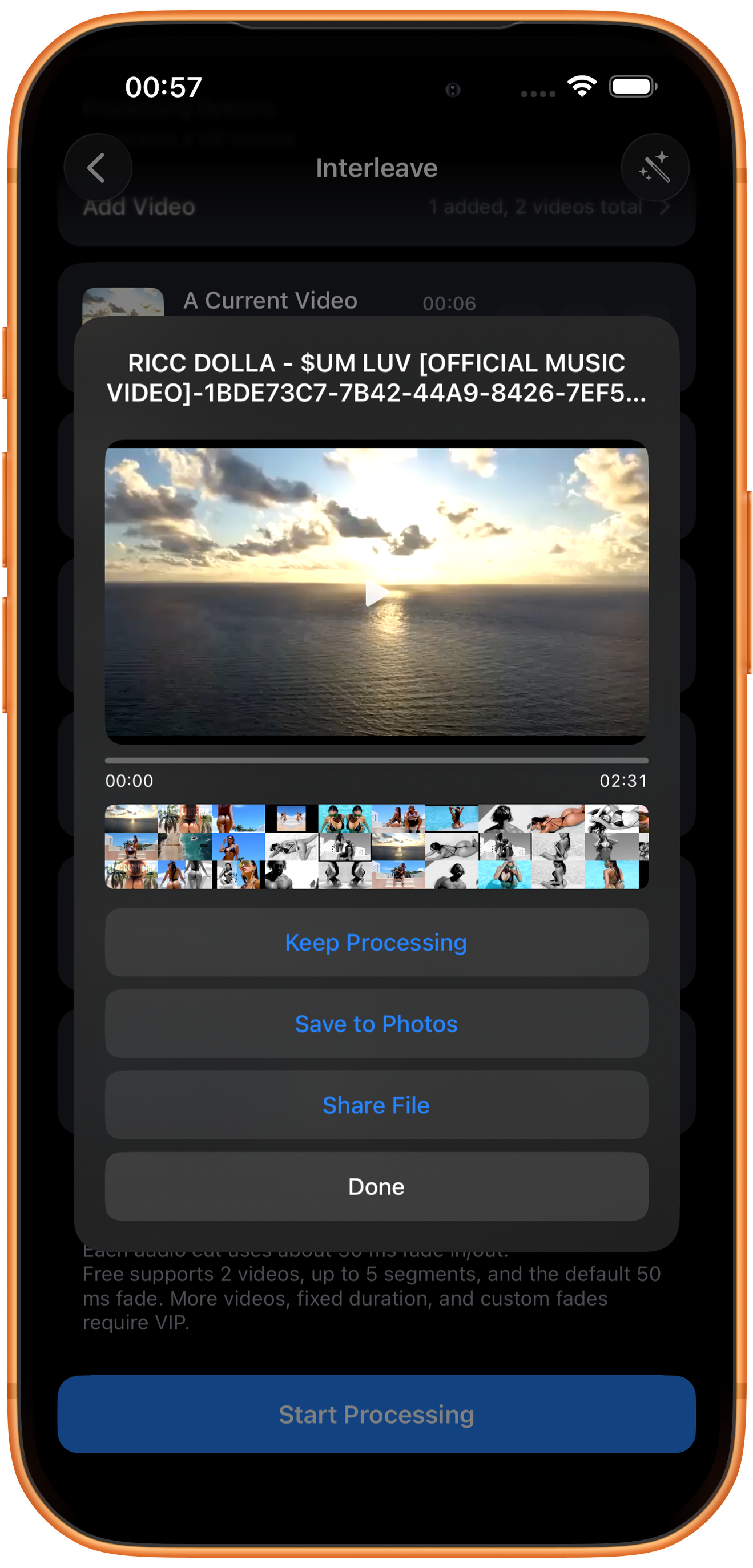
Start Processing produces _interleave.mp4 with a displayed duration of 02:31. Inspect every switch for source order and audio transitions; checking only the first frame is not enough.
Preview and save
Play the result and check picture, duration, and sound, then tap Save to Photos. The first save may require permission to add photos and videos. After the success message, check the file in Photos.
What the other buttons do
Keep Processing takes the result into tool selection. Share File opens sharing options. Done closes the result page; it does not save to Photos.
Troubleshooting
The switching rhythm is uneven
Total Segments does not guarantee equally long cuts from every source. The example sources have different lengths, and the interface shows different per-segment durations.
Frequently asked questions
How is it different from Stitch Videos?
Stitch Videos joins complete clips in sequence. Interleave alternates segments from different sources.
Why can the default Total Segments work despite its star?
The page says up to five segments are free, and the default five exported successfully. Read the selected value and the page’s access notes together.
Try it on your device
ClipDock is free to download, with in-app purchases. Features and available options depend on the current app version.
Download on the App Store